

Scrivener syncs between Mac and Windows when you keep the project in a Dropbox folder that both computers share. Literature & Latte names Dropbox as the service "that works well with Scrivener". The project format is "fully cross-platform compatible", so nothing needs converting. Close the project on one computer, wait for Dropbox to finish, then open it on the other. Each platform needs its own Scrivener licence.

Every Scrivener fact on this page comes from Literature & Latte's own knowledge base and its Scrivener 3 user manuals, read on 20 October 2026. Prices are as of October 2026, in US dollars.
Can Scrivener sync between Mac and Windows?
Yes. A Scrivener 3 project opens on both platforms without export or conversion. Literature & Latte's cross-platform article says "The Scrivener project format is fully cross-platform compatible."
Scrivener has no sync service of its own on the desktop. The sync is done by a cloud folder. The manual explains why that works: "a Scrivener project is really a whole mass of files and folders", and cloud services are built to keep folders and files together. You save the project into the synced folder, and the service carries it between computers.
The project looks different on each platform. On the Mac, a project "will appear to be a file with a ".scriv" extension". On Windows, "it will appear to be a folder with a ".scriv" extension", and you open it by double-clicking the .scrivx file inside. Always move the whole .scriv, never the .scrivx file on its own.
How to sync Scrivener between Mac and Windows with Dropbox
This is the method Literature & Latte's own pages describe.
- Install Scrivener 3 on both computers. The cross-platform article says you need Scrivener 3 on both. A Mac licence does not cover Windows.
- Install Dropbox on both computers and sign in to the same account.
- Set the project folder to be kept on the computer. Literature & Latte recommends "ensuring that Scrivener projects are always available "offline."" In Dropbox, right-click the folder and choose Make available offline. Online-only or "smart" sync can make project files look missing or blank.
- Save or move the project into the Dropbox folder on the first computer, and let it upload.
- Close the project before you leave that computer. The cloud-sync article says "Be sure to completely close your project on one computer before leaving that computer."
- Wait for the sync to finish before you shut down or sleep the computer. "Do not shut down or sleep your computer before Dropbox finishes uploading."
- On the second computer, wait for the green tick on the Dropbox icon, then open the project. "Do not open the project before your Dropbox folder is fully synced."
If Scrivener warns that the project may be open on another computer, stop and check. The article says "Always heed this warning."
The three rules Literature & Latte gives for synced projects
The Scrivener 3 manual (Windows and Mac, chapter 14, "Cloud Integration and Sharing") sets out three rules to avoid conflicts:
- "Always make sure your syncing software is done syncing before you open a project."
- "Never open a project more than once."
- "Always wait for your syncing software to finish syncing before you shut down your computer."
The manual is frank about the risk. Working in a live sync folder is "inherently "less safe" than working local and saving remote." It adds: "It is possible to work safely for years in this fashion, but extra vigilance will be required of you." The cloud-sync article puts it more bluntly: "Never, ever open the same project on more than one computer at a time."
Which cloud services work with Scrivener?
Literature & Latte publishes an advisory for each major service. These are its own words, with the date each article was last updated.
| Service | What Literature & Latte says | Article updated |
|---|---|---|
| Dropbox | The service "that works well with Scrivener" | 27 March 2023 |
| Google Drive | "we strongly discourage the use of Google Drive for synchronising live Scrivener projects" | 23 June 2022 |
| iCloud for Windows | "At the moment, iCloud for Windows is not an option for syncing Scrivener projects." It adds that "iCloud syncing cross-platform or between Windows computers is not advised." | 27 February 2023 |
| OneDrive | Files On-Demand, on by default in Windows 11, "can cause problems syncing and opening Scrivener projects kept live in OneDrive" | 19 March 2025 |
For a Mac and Windows pair, that leaves Dropbox. The iCloud advisory applies only to live projects. Zipped backups can be stored in iCloud.
The OneDrive problem comes from online-only files. Microsoft's page on OneDrive Files On-Demand says an online-only file downloads only when you open it and can't be opened offline. Files On-Demand is on by default from OneDrive build 23.066. Right-click a folder and choose Always keep on this device to hold every file locally.
The manual's advice for any service is "Test Before Trust": try the setup with sample content, such as the tutorial project, before trusting it with a manuscript.
One Scrivener feature is easy to mistake for sync. File ▸ Sync ▸ with External Folder… exports text files for other editors to work on. It is not a way to keep two computers in step. The cloud-sync article says "You should never try to use external folder sync to synchronise Scrivener projects between machines."
A safer way: sync the backups, not the live project
Literature & Latte describes a second method for writers who don't want a live project in a sync folder. Its article "Alternative Method of Keeping Projects Synced" (updated 30 January 2023) works like this:
- On each computer, set Scrivener's automatic backup location to the same cloud-synced folder.
- Keep backups zipped (on by default) and turn on date stamps in the backup file names.
- When you switch computers, wait for the sync to finish.
- Copy the newest backup zip to a local folder that does not sync, and extract it there. Work from that local copy.
- Leave the original zip in the backup folder.
The live project never sits in the sync folder, so a half-finished sync cannot damage it. The cost is a manual copy step each time you switch.
Whichever method you use, keep local backups on each computer. The cloud-sync article says "no syncing solution is 100% reliable", and it warns against storing backups in Dropbox, because "you may end up overwriting the backup from a different computer."
How to sync Scrivener with an iPhone or iPad
Scrivener for iOS has Dropbox sync built in. It is a separate purchase, $23.99 as of October 2026. Literature & Latte's iOS article (updated 19 January 2026) and the manual set out the method:
- The sync folder. By default iOS syncs
Dropbox/Apps/Scrivener. Projects must sit in that folder to reach the phone or tablet. Keep other files out of it, because everything in the folder downloads to the device. - Manual sync. Scrivener for iOS syncs only when you tap the sync button, the two circular arrows at the top right of the Projects list.
- The desktop can stay open. The manual says the iOS app "edits its own copy of the project internally, which by design allows you to leave your main copy open". The desktop version asks before it applies mobile changes.
- Conflicts. If a project changes on two devices without a sync in between, "Scrivener leaves it to you to decide which one you want to keep." Older copies go into a Conflicts folder near the bottom of the Binder.
The iOS app has fewer features than the desktop versions. The manual says items it cannot show, such as keywords, are kept intact when you sync.
What breaks when a Scrivener project moves between Mac and Windows?
The project format is shared, but the two versions are not identical (Mac 3.5.2 against Windows 3.1.6 as of October 2026); the full comparison is in Scrivener on Windows vs Mac, and prices are in is Scrivener a one-time purchase. The cross-platform article lists what can break when a project moves between platforms:
- Linked research. "research linked into the binder will never work", because Windows makes shortcuts and the Mac makes aliases. Import research into the project instead of linking it.
- Web archives. "web pages archived on either platform will be unavailable to the other."
- Fonts. A font missing on the other computer is replaced with a fallback such as Helvetica or Arial.
- Lists. Lists may "break when viewed on Windows" and may need rebuilding there.
Common mistakes when syncing Scrivener
- Leaving the project open on the first computer. This is the cause Literature & Latte warns about most.
- Opening the project before the sync finishes. Wait for Dropbox's green tick.
- Shutting the laptop lid straight after closing the project. Scrivener writes final files on close, and they need time to upload.
- Using Google Drive or iCloud for Windows. Literature & Latte advises against both for live projects.
- Online-only files. Dropbox smart sync, or OneDrive Files On-Demand, can leave parts of a project in the cloud. Set the project folder to be kept on the computer.
- Keeping the only backups in Dropbox. Back up to each computer's own drive.
How Deckle handles working on Mac and Windows
Deckle is our app, so weigh this section accordingly.
Deckle is the same desktop app on Windows, macOS and Linux. One licence covers two devices, in any mix of the three, so a Mac and a Windows PC need one licence, not two. To move the licence to a different computer, deactivate it on the old one in Settings ▸ Account.
Deckle has no built-in cloud sync and no account. A Deckle project is a folder on your own disk. It holds one .deckle database (all the writing, notes and settings) plus research/ and .deckle-assets/ folders. The folder must move whole. Copying the .deckle file alone leaves the research files and images behind.
Writers who use two computers keep the project folder in Dropbox or Google Drive and let that service carry it, as with Scrivener. The same rule applies: close the project on one computer, let the sync finish, then open it on the other. Deckle stores the database in SQLite's rollback-journal mode rather than write-ahead mode. The code gives the reason: sync folders and flash drives don't handle the extra -wal and -shm files, so Deckle keeps the .deckle file complete the moment each save commits. If a sync still leaves the project out of step, Deckle offers a repair, described in recovering from a cloud-sync conflict.
Backups stay on each computer. Deckle writes zip backups to a "Project Name Backups" folder in Downloads, falling back to Desktop or Documents, keeps 20 by default, and backs up when you close a project and every 500 words. To restore one, you extract the zip and open the .deckle file inside, as set out in recovering a project from a backup.
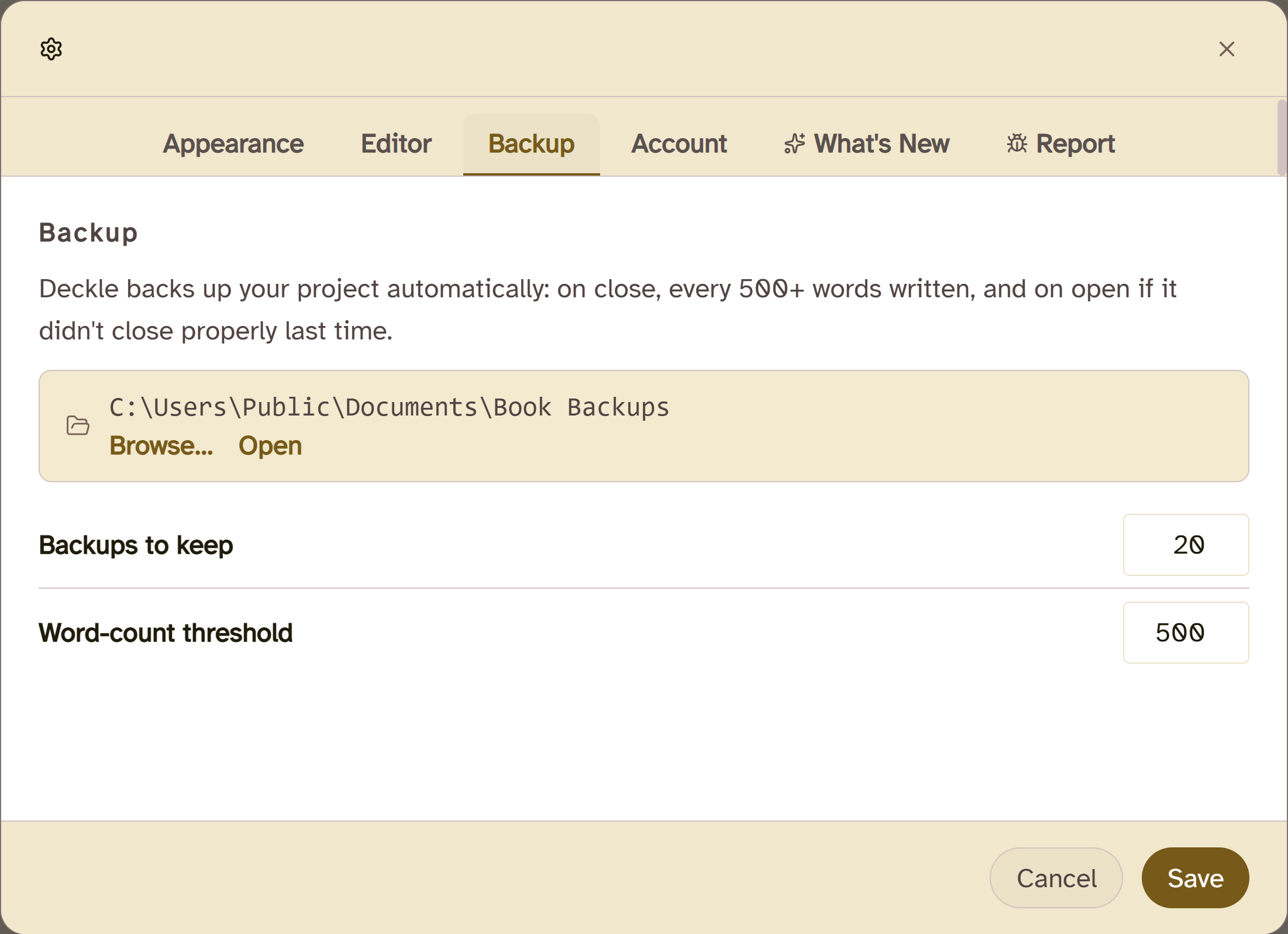 Settings ▸ Backup: the copies stay on each computer
Where Deckle is behind Scrivener here: there is no iPhone, iPad or Android app, so there is nothing like Scrivener's iOS sync. A Scrivener project can come across as a zipped .scriv backup, as covered in moving from Scrivener to Deckle.
Deckle is a one-time purchase. To try it, click Take Deckle for a Spin on the screen Deckle opens to. There is no card, no account and no time limit. It opens a sample novel with every screen open to explore, and you can restyle it and export real EPUB, PDF and DOCX files. New writing is capped at about 500 words, and new documents and imports are blocked. The two apps are compared in full in Scrivener vs Deckle.
FAQ
Can I use Scrivener on both Mac and Windows?
Yes. Scrivener 3 projects open on both without conversion. You need a licence for each platform, $59.99 each or $95.98 as a bundle, as of October 2026.
How do I sync Scrivener across devices?
Keep the project in Dropbox, set it to be available offline, close it before leaving a computer, and wait for the sync to finish before opening it elsewhere.
How do I sync Scrivener with Dropbox?
Save the project inside your Dropbox folder on both computers. For iOS, put it in Dropbox/Apps/Scrivener and tap the sync button in the iOS app.
Can I sync Scrivener with Google Drive?
Literature & Latte "strongly discourage[s]" Google Drive for live Scrivener projects. Use Dropbox, or sync zipped backups instead.
Can I sync Scrivener with iCloud between Mac and Windows?
No. Literature & Latte says iCloud for Windows "is not an option for syncing Scrivener projects."
Is Scrivener better on Mac or PC?
Both use the same project format. The Mac version is at 3.5.2 and the Windows version at 3.1.6, and the Mac manual is longer, at 919 pages against 776.
Is Scrivener cloud based?
No. Scrivener is a desktop app that saves projects on your computer. Sync comes from a cloud folder you choose, such as Dropbox.
Sources
All retrieved 20 October 2026. Knowledge base dates are each article's own "Updated" date.
- Using Scrivener with Cloud-Sync Services, Literature & Latte (updated 27 March 2023): Dropbox, close before leaving, wait for sync, available offline, backups, external folder sync
- Cross-Platform Compatibility, Literature & Latte (updated 8 September 2022): format compatibility, .scriv and .scrivx, linked research, web archives, fonts, lists, licence per platform
- Alternative Method of Keeping Projects Synced, Literature & Latte (updated 30 January 2023): syncing backups instead of live projects
- Errors Opening Projects Stored on Dropbox, Literature & Latte (updated 15 August 2024): Make available offline
- Google Drive Advisory (updated 23 June 2022), iCloud for Windows Advisory (updated 27 February 2023) and OneDrive Advisory (updated 19 March 2025), Literature & Latte
- Dropbox Syncing with iOS, Literature & Latte (updated 19 January 2026): Apps/Scrivener folder, sync button, conflicts
- Scrivener 3 User Manual for Windows (revision 3.1.6.0-02, March 2026) and for Mac (revision 3.5.2-01, March 2026), Literature & Latte: chapter 14 sync rules, iOS sync, page counts
- Scrivener overview, Literature & Latte: current versions and system requirements
- Save disk space with OneDrive Files On-Demand for Windows, Microsoft Support: online-only files, Always keep on this device, on by default from build 23.066
- Scrivener FAQ, Scrivener store and Crossgrading, Literature & Latte: licence per platform, prices, crossgrade
Scrivener is a trademark of Literature & Latte. Dropbox, Google Drive, iCloud and OneDrive belong to their owners. Deckle is not affiliated with or endorsed by any product named here.