

Scrivener is harder to learn than a word processor, but most novelists need only a few of its features to start writing. The Binder, the editor, the Corkboard and a built-in Compile format cover a first draft. The hard part is Compile's Format Designer, and that can wait. Literature & Latte's own advice is to start with the Interactive Tutorial in the Help menu.

Every Scrivener fact on this page comes from Literature & Latte's own pages and its Scrivener 3 user manuals, read on 20 October 2026. The page counts are our own measurements of those manuals.
Why is Scrivener so complicated?
Scrivener is complicated because it is built for many kinds of writing at once. The manual says it covers "novels, screenplays, academic papers and dissertations, general non-fiction, journalism, blogging, and much more." It goes on: "While it strives to present as simple an interface as possible, once you start digging into the application, you will find a degree of flexibility and complexity to suit even the most esoteric needs."
A novelist meets the tools a screenwriter or a PhD student needs too, all in the same menus. Most of the confusion comes from not knowing which parts to ignore. Which parts matter depends on the book, and whether Scrivener suits a novel, a story collection or non-fiction is a question of its own.
How long is the Scrivener manual?
The Scrivener 3 user manual is 919 pages for Mac and 776 pages for Windows. Those are the March 2026 PDF revisions of the Mac manual (3.5.2-01) and the Windows manual (3.1.6.0-02), counted by us.
Literature & Latte does not expect anyone to read it cover to cover. The manual describes itself as "an exhaustive reference, rather than a training tool." It names the starting point in the next sentence: "The best way to kickstart your use of the software is to take the Interactive Tutorial, located in the Help menu."
Where the pages go shows where the difficulty sits. This is the Windows manual, by part:
| Part of the Windows manual | Pages | Page count |
|---|---|---|
| I. Introduction (interface, projects, the Binder) | 1 to 110 | 110 |
| II. Preparation (editor views, organising, search, Inspector, sync) | 111 to 314 | 204 |
| III. Writing (editing, styles, footnotes, scriptwriting, writing tools) | 315 to 467 | 153 |
| IV. Final Phases (table of contents, Compile, export, printing) | 468 to 597 | 130 |
| of which: Compiling the Draft | 476 to 517 | 42 |
| of which: The Compile Format Designer | 518 to 584 | 67 |
| V. Appendices (every menu, option and setting) | 598 to 776 | 179 |
In the Mac manual, the Compile Format Designer chapter runs from page 607 to 686, which is 80 pages. Getting a book out of Scrivener takes more documentation than learning the interface does.
How to learn Scrivener: start with the Interactive Tutorial
The Interactive Tutorial is a Scrivener project that teaches Scrivener from the inside. It is free, and it ships with the app.
- Open Scrivener and choose Help ▸ Interactive Tutorial…. On iOS, it is in the projects list.
- Choose where to save it. The manual says the command "will create a project designed to walk you through the process of learning the basics of Scrivener." From then on it opens like any project.
- Work through it in the app, doing each step as you read it.
- To go back to it later, choose the same menu command. It reopens your saved copy, as long as it hasn't been moved or deleted.
The tutorial also covers the part most people find hard. The manual says it "contains a step-by-step guide to building a simple set of section types and then learning how to compile with them."
Literature & Latte's video tutorials "supplement Scrivener's interactive tutorial." Its video "An Introduction to Scrivener" claims to cover what you need to get started in ten minutes. The rest are grouped by task, from "Getting Started" and "The Binder" through "Setting Goals and Tracking Progress" to "Getting Your Work Out".
Scrivener's trial runs for 30 days of actual use, so a tutorial afternoon costs one trial day. The trial is for Mac and Windows only.
The parts of Scrivener most novelists need first
These are enough to write a whole draft:
- The Binder. The list of everything in the project. The Draft folder holds the book itself. In the Novel template it is renamed "Manuscript", and the manual says the special icon marks it whatever it is called.
- The editor. The manual's first core concept is that "Its editor should be familiar to anyone who has used a word processor."
- One document per scene or chapter. You "can break the manuscript down into sections as large or small as you like, and work on it in any order."
- Synopses, Corkboard and Outliner. Each section can carry a short synopsis. You "can step back and see all the synopses in an outline or on a corkboard".
- Scrivenings. Several sections shown as one continuous text, to read a chapter or the whole book in context.
- Snapshots and Targets. A saved version of a section before a rewrite, and a word-count goal for the manuscript or a session.
- Compile with a built-in format. Compile turns the Draft into a Word file, PDF or EPUB. Scrivener ships with ready-made Compile formats, listed in the manual's Appendix D, so a first export needs no design work.
The parts of Scrivener you can leave for later
The manual says of its own Preparation part: "You may not need all of the topics we'll go into in this section." These are the features novelists can safely skip at first:
- The Compile Format Designer. The 67-page chapter (Windows) where you build a Compile format of your own.
- Section types and section layouts. How Compile decides what a chapter heading or a scene break looks like. The tutorial covers a simple set.
- Styles and stylesheets. Named paragraph and character styles.
- MultiMarkdown and Pandoc. Plain-text markup and conversion, mostly used for academic and technical output. Pandoc is a separate command-line converter you install yourself.
- Scriptwriting. Screenplay formatting, for scripts only.
- Collections, keywords and project search. Ways to group and filter documents across a large project.
- Folder sync. File ▸ Sync ▸ with External Folder… exports text for other editors to work on. It is not how you move a project between computers, which Scrivener sync between Mac and Windows covers.
How to start simple in Scrivener
A short plan, in the order a first-time user meets things:
- Take the Interactive Tutorial before starting your own book.
- Start a project from a template. The Novel template sets up the Manuscript folder, with a Characters folder alongside it.
- Write one document per scene, grouped into a folder per chapter.
- Give each scene a one-line synopsis, and check the structure on the Corkboard now and then.
- Compile early. Export a few chapters with a built-in format in the first week, so the output holds no surprises at the end. If the result looks wrong, Scrivener compile not working covers the usual causes.
- Learn one advanced feature only when you hit a need for it, and look it up in the manual rather than reading ahead.
Common mistakes when learning Scrivener
- Reading the manual first. Literature & Latte calls it a reference, not a training tool. Use the tutorial.
- Setting up every feature before writing. Labels, keywords and custom metadata can come later.
- Leaving Compile until the book is finished. Compile is the part with the steepest curve. Meet it early, on a few chapters, with a built-in format.
- Building a Compile format from scratch. Start from a built-in format and change one thing at a time.
- Writing the whole book in one document. Scrivener's tools assume a book split into sections.
- Following an old tutorial video. Menu names change between versions. Use the Help menu tutorial that came with your copy.
How Deckle approaches the learning curve
Deckle is our app, so weigh this section accordingly.
Deckle is a desktop app for Windows, macOS and Linux that covers writing, organising and formatting. It takes a narrower set of jobs than Scrivener, aimed at books, so it has fewer features to learn. It has no scriptwriting, no Collections and fewer export formats.
Deckle teaches itself through guided tours rather than a manual:
- The main tour. Walk Me Through Deckle on the start screen, or Help ▸ Take the Tour…, opens a sample project called Deckle Tour. It walks 32 steps across nine areas: the Binder, the editor, the Inspector, the menus, the views, the Codex, the Timeline, Writing Stats and Focus Mode.
- Tours for single views. The Timeline and the Codex each offer a short tour of their own the first time they open. A Show me around button in the view brings it back. These run in your own project and change nothing in it.
- Formatting starts with presets. The Styles panel opens in Presets mode, with 26 built-in designs, and an Advanced switch for the detailed settings.
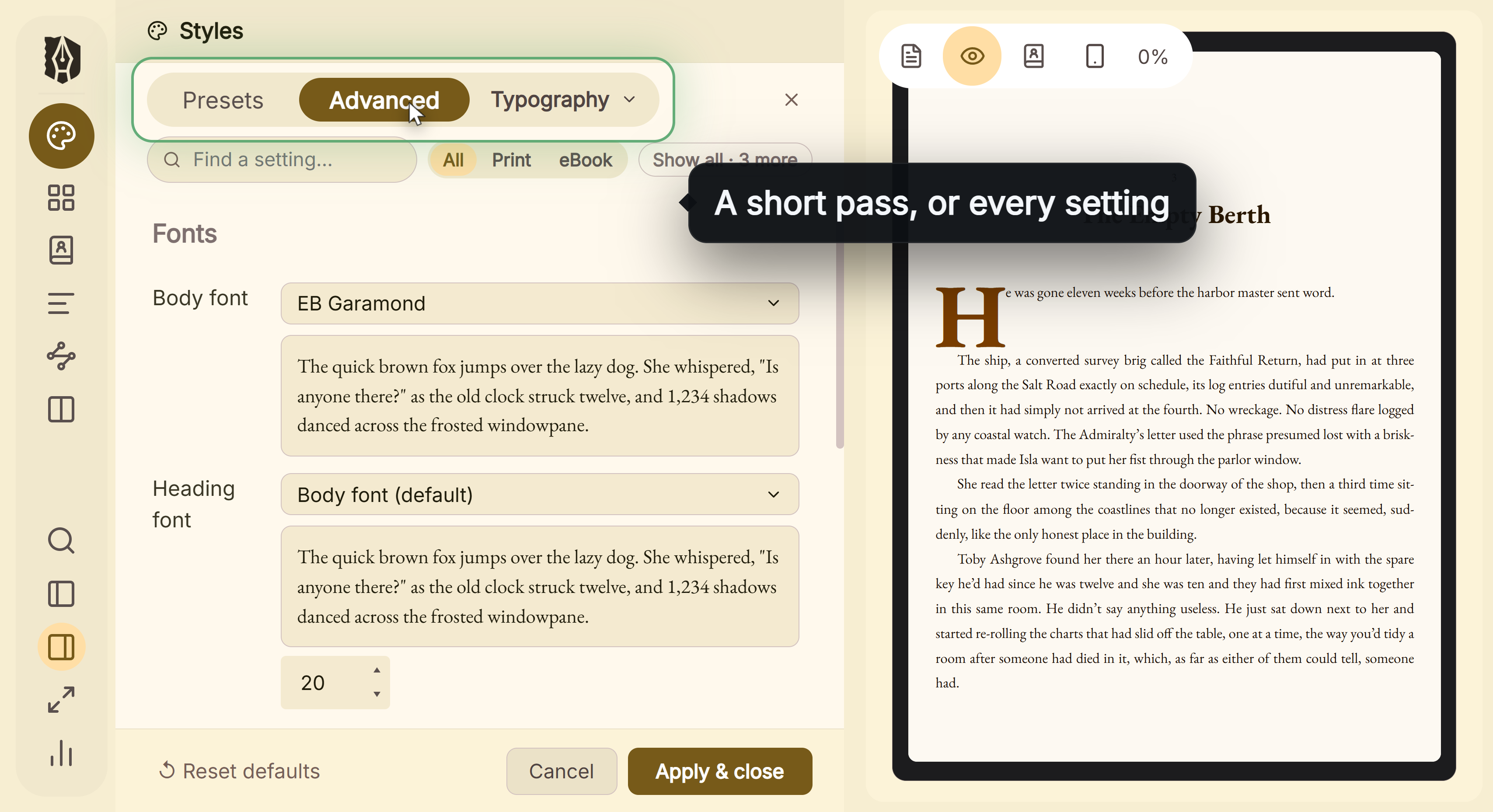 Presets for a quick result, Advanced for every setting
Deckle's version of Compile is its export screen, which writes EPUB, a print PDF and DOCX from the styles you chose. There is no separate format designer to learn. A Scrivener project comes across as a zipped .scriv backup, as described in moving from Scrivener to Deckle. The two apps are compared in full in Scrivener vs Deckle.
Deckle is a one-time purchase. To try it, click Take Deckle for a Spin on the screen Deckle opens to. There is no card, no account and no time limit. It opens a sample novel with every screen open to explore, and you can restyle it and export real EPUB, PDF and DOCX files. New writing is capped at about 500 words, and new documents and imports are blocked.
FAQ
Is Scrivener hard to use?
Not for writing. The editor works like a word processor. Compile, which formats the finished book, is the hard part, and the Compile Format Designer alone takes 67 pages of the Windows manual.
How long does it take to learn Scrivener?
Literature & Latte gives no time for the Interactive Tutorial. Its introduction video claims to cover the basics in ten minutes. The advanced features take longer, and most writers learn them as needed.
What is the best way to learn Scrivener?
Literature & Latte recommends the Interactive Tutorial, under Help ▸ Interactive Tutorial…. Its video tutorials supplement it.
Why is Scrivener so confusing?
It serves novelists, screenwriters, academics and journalists in one app. Most writers need only a few of its features, and the menus show all of them.
Is Scrivener worth learning?
That depends on how you plan and publish. The full case is in is Scrivener worth it in 2026.
Do I need to read the whole Scrivener manual?
No. The manual calls itself "an exhaustive reference, rather than a training tool". Look things up in it when you need them.
Is there a simpler alternative to Scrivener?
Several writing apps do fewer things. They are compared in Scrivener alternatives.
Sources
All retrieved 20 October 2026. Page counts were measured from the PDFs on that date.
- Scrivener 3 User Manual for Windows, Literature & Latte (revision 3.1.6.0-02, March 2026): 776 pages, contents and part page ranges, "exhaustive reference" statement, Interactive Tutorial, core concepts, Novel template
- Scrivener 3 User Manual for Mac, Literature & Latte (revision 3.5.2-01, March 2026): 919 pages, Compile Format Designer page range
- User Guides, Literature & Latte: manuals published as PDF for each platform
- Scrivener video tutorials, Literature & Latte: Interactive Tutorial location, ten-minute introduction, tutorial series
- Scrivener FAQ, Literature & Latte: 30-days-of-use trial, Mac and Windows only
- Scrivener overview, Literature & Latte: Binder, Corkboard, Outliner, Snapshots, Targets, Scrivenings, Collections
- Pandoc, GitHub repository: a command-line tool that converts documents between markup formats
Scrivener is a trademark of Literature & Latte. Deckle is not affiliated with or endorsed by any product named here.