

When Scrivener's Compile gives the wrong output, the cause is almost always one of five settings. Section types are not assigned to layouts, documents are not included, a chapter layout adds or drops titles, separators fire only between matching layouts, or the compile format overrides your styles. Each has a documented fix in Literature & Latte's manuals.
Every fix here comes from the Scrivener 3 User Manual (macOS revision 3.5.2-01, Windows revision 3.1.6.0-02) or from forum answers by named Literature & Latte staff. They are Ioa, Head of Support and Documentation, who posts as AmberV, and Katherine of Customer Support, who posts as kewms. If you are new to Compile, the Scrivener compile tutorial explains the parts first.
What You'll Need
- Scrivener 3 on macOS or Windows.
- A backup. Some fixes restructure the binder. Ioa's advice before a big change is File > Back Up > Back Up To… and "create a zipped copy of your project somewhere handy."
- Five minutes in the Compile window (File > Compile…). Most diagnosis happens in its Contents tab and its middle column of layout tiles.
Why does Scrivener compile ignore my format? (section types not assigned)
A yellow warning above the layout tiles means none of your section types are connected to a layout in the chosen format. The manual says you can still compile, but "the look of the format will not be used" beyond things like paper size and footnotes (section 23.3.3).
Fix:
- In the Compile window, click Assign Section Layouts…
- Click each section type on the left, such as Chapter or Scene.
- Click the layout tile it should use on the right.
- Click OK.
This happens most often after switching to a format the project has never used, or with a project made from the Blank template. Ioa explained on the forum that "the Blank starter makes almost no assumptions about anything, including what layout assignments you may want." Layout assignments also cannot be copied between projects: there is "no way of doing that", so each new project needs this step once.
If the tiles look right but some items still format oddly, check the Section Type column in the Contents tab. A type in grey italic was assigned by your project's structure rules. A type in black regular text was set by hand and overrides those rules (manual section 7.6.2).
Why are documents missing from my compiled file?
Katherine's diagnosis on the forum covers both causes: "The missing pages are probably not included, either because the documents themselves are not, or because you've assigned a Section Layout that does not include the text."
Check what is included. In the Contents tab (manual section 23.4.1):
- The Include column mirrors each document's Include in Compile checkbox in the Inspector. Tick anything that should compile.
- The Compile dropdown at the top sets the compile group. If it names a single folder instead of Draft, only that folder compiles.
- Click the Filter button. The manual warns that an empty list or "one that appears to be missing chunks of text" often means a filter "has been left set there from a prior session."
- Only the Draft folder compiles by default. Text kept in Research or another top-level folder is outside the compile group.
Check the layout includes text. Each section layout has checkboxes for Title, Metadata, Synopsis, Notes and Text (manual section 24.2.1). A layout with only Title ticked prints headings and nothing else. That is how the built-in Enumerated Outline format makes an outline, and it is why a document assigned to a heading-only layout seems to vanish.
Why are my chapter titles missing or doubled in Scrivener compile?
Chapter headings come from the section layout, not from text you type, and that causes four common faults.
Chapter title appears twice. You typed "Chapter 1" as the folder or document title, and the layout also generates "Chapter One" from a numbering placeholder. The layout prints both. Fix one side:
- Keep the automatic number: open the layout (double-click its tile), and untick Title in the layout list so your typed title no longer prints. The layout's prefix still prints, because the manual says the title prefix and suffix "will be printed even if the Title is disabled" (section 24.2.4).
- Keep your own titles: choose or make a layout whose Title Options prefix is empty, so nothing is added.
Chapter titles are missing. The layout's Title checkbox is off and its prefix is empty, or the documents are untitled. The manual says untitled items "never show titles" by default, even on a layout built to print them. The Include placeholder titles for untitled items option changes that (section 24.2.2).
The heading says "Chapter" and you want another word. Ioa's steps: in Compile, double-click the layout tile with "Chapter" in it, open the Title Options tab, and edit the prefix field, where the word usually sits.
A prologue is numbered as a chapter. Katherine's fix: "You need a section layout that does not add an autonumbering placeholder." Duplicate your numbered chapter layout, remove the placeholder from the copy, and assign the prologue a section type that uses it.
Chapter numbers restart or run on. When you compile only part of the book, "chapter 13 will remain 13" unless you tick Treat compile group as complete manuscript, which starts every counter at 1 (section 23.4.1).
One structural point explains many heading faults. Ioa put it plainly: "The software itself doesn't have any programming that says folders are chapters, that is 100% a matter of how you set things up." A chapter break appears wherever a document's section type uses a chapter layout. A folder with no text of its own that also prints a heading, followed by a file that prints another, produces a split or doubled chapter opening. Ioa's suggestion for that case was to untick Include in Compile on the folders so the files carry the chapter headings alone.
What are the right Scrivener compile settings for chapter titles?
The settings that decide a chapter heading sit in the Format Designer's Section Layouts pane (manual section 24.2):
| Setting | Where | What it controls |
|---|---|---|
| Title checkbox | Section layout list | Prints the binder title |
| Title Prefix | Title Options tab | Text before the title, such as "Chapter <$n>" |
| Title Suffix | Title Options tab | Text after the title |
| Title Case | Title Options tab | Normal, Uppercase, Small Caps or Lowercase |
| Formatting | Formatting tab | Font, size and alignment of each heading element |
| Pad top of page | New Pages tab | Blank lines above the heading after a page break |
The manual warns that the Small Caps title case "uses faux small caps" that look "visually inferior to a font designed for small caps" (section 24.2.4). For print, a real small caps font gives a better result: an OpenType font carries drawn small capitals that the smcp feature switches on.
Why are my scene breaks missing from Scrivener compile?
Separators follow rules that are easy to miss. Ioa's explanation of missing scene breaks: "separators only get inserted between other binder items that are using same section layout in compile settings."
The rules from the manual's Separators section (24.4 on the Mac, 24.3 on Windows):
- Separator between sections fires only when the item before uses the same layout. A scene after a chapter heading gets the "before" separator instead.
- No separator before the first item. The manual says separators "must be separating the item from something."
- Custom places your text "between the two items on its own line" with centre alignment added. Typing
* * *there gives a visible break. - Blank line separator transforms blank lines typed inside a single document into the format's separator. Ioa confirms the stock formats "recognise an empty line in the editor as a separator request."
- Ignore blank lines using styles leaves a styled blank line alone.
Fix for scattered missing breaks: look for scenes with black (manual) section types in the Contents tab. Ioa's advice is to select the draft in the binder, right-click, and set Section Type back to Structure-Based if you did not mean to override them. Then click the scene layout tile in the middle column. It highlights every item that uses it, and the gaps show which scenes are on a different layout.
Why does Scrivener compile change my fonts and formatting?
Because the compile format is designed to. Ioa: "the compile format has the final say on what a style looks like, if it chooses to override it." Built-in formats such as Manuscript (Times) list stock styles like Block Quote in their Styles pane and reformat them for the target document. Editing the style in the editor changes nothing in the output. Edit the style in the format's Styles pane instead.
Three more settings decide what survives:
- Style names must match. The manual says Scrivener matches project styles to format styles "by name" only (Styles, section 24.5 on the Mac, 24.4 on Windows). A renamed style is no longer touched by the format.
- Override text and notes formatting sits under each layout's Formatting preview. When it is off, "the text formatting from your project will be passed through" (section 24.2.3). When it is on, the layout's text formatting replaces yours, except on styled text.
- The global Font chooser at the top of the middle column overrides everything when set to a specific font, down to page numbers and styles (section 23.3.1). Set it to Determined by Section Layout to let the format choose.
The Default format barely reformats at all, which makes it a useful test: if text looks right with Default and wrong with another format, the other format's styles or overrides are the cause.
Common Mistakes
- Editing a style in the editor to fix compiled output. Change the format's Styles pane instead.
- Typing chapter numbers into titles while the layout numbers chapters too. Pick one source.
- Forgetting a filter. It survives from one compile session to the next.
- Pressing Cancel to undo format edits. The manual says changes to a format itself "will remain" after Cancel (section 23.6). Cancel only undoes the project's settings.
- Manually setting section types on a few documents and forgetting. They no longer follow structure rules, and separators skip them.
- Expecting one project's layout assignments in another. They are per project. Save a project template instead.
When the fix is a different tool
Deckle is our app, so weigh this section accordingly.
Deckle has no compile designer, so none of the five causes above exist in it. There are no section types to assign, no layout tiles, no separators panel and no format styles to override yours. Export is driven by Styles presets (26 built in), with a live preview in the Inspector's Preview tab. Chapter numbers can be Arabic, Roman, spelled out or hidden, and the "Chapter" label is a single text field.
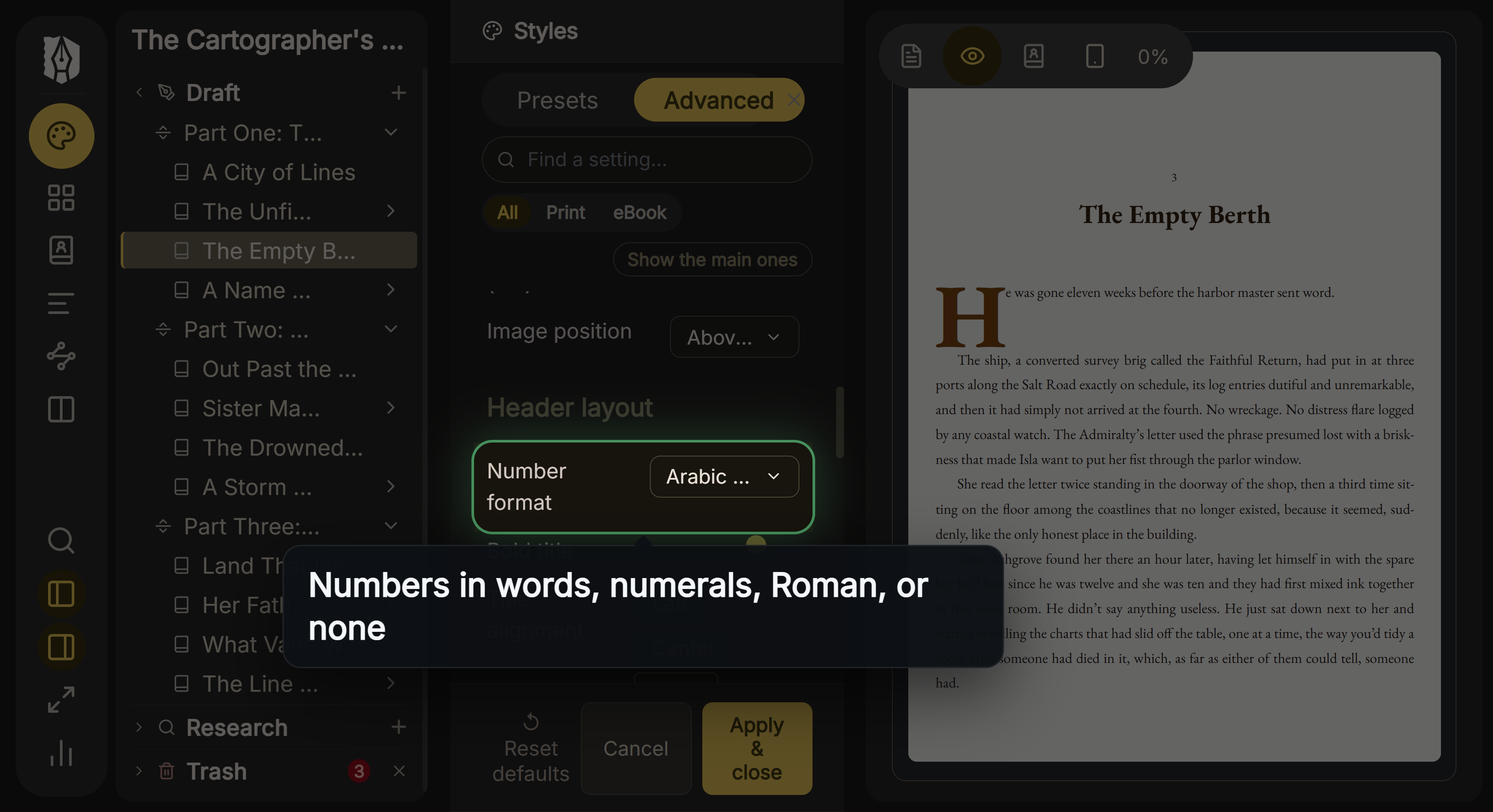 Chapter numbering is one setting, not a layout prefix
Scene breaks are one setting for the whole book: whitespace, asterisks, an asterism, a fleuron, em dashes, or a custom glyph or image. A document is left out of an export with Exclude from Export in the Binder, or by unticking it in the Export window's Contents tab.
What you would give up. That simplicity is also a limit. Scrivener can give a prologue, an interlude and a glossary entry three different heading designs. It keeps separate formats for submission and print in one project, and it writes LaTeX and Final Draft. Deckle styles the whole book from one set of choices and has 8 fixed trim sizes. If your compile works after the fixes above, staying in Scrivener costs nothing. Scrivener's pricing and the other apps writers move to have their own pages.
Deckle is a one-time purchase. To try it, click Take Deckle for a Spin on the screen Deckle opens to. There is no card, no account and no time limit. It opens a sample novel with every screen open to explore, and you can restyle it and export real EPUB, PDF and DOCX files. New writing is capped at about 500 words, and new documents and imports are blocked.
FAQ
Why is my Scrivener compile only printing chapter titles?
The section layout those documents use has Title ticked but not Text. Assign a layout that includes text, or tick Text in the Format Designer's layout list.
Why does my compiled book say "Chapter One" and then "Chapter 1"?
The layout prints its own numbered prefix and your typed title. Untick Title in the layout, or use a layout without the numbering prefix.
Why is part of my manuscript missing after compile?
Check the Include column and the Filter button in the Contents tab, and check that the Compile dropdown is set to Draft.
Why are some scene breaks missing in Scrivener?
Separators only appear between items using the same section layout. Look for scenes whose section type was set by hand.
Why is my compiled text in a different font?
The compile format, or the global Font chooser, overrides it. Set the Font chooser to Determined by Section Layout, or edit the format's Styles pane.
How do I reset compile settings in Scrivener?
Hold Option (Mac) or Alt (Windows) in the Compile window and click Reset. The manual says it reverts your changes "back to when the panel was most recently opened."
What does the yellow warning in Scrivener compile mean?
None of your section types are assigned to this format's layouts. Click Assign Section Layouts… and connect them.
Sources
All retrieved 2026-10-20.
- Scrivener 3 User Manual for macOS, Literature & Latte, revision 3.5.2-01 (7.6.2 Applying Section Types Manually; 23.3.1 global font; 23.3.3 Assigning Section Layouts and the yellow warning; 23.4.1 Contents tab, Include, filters, Treat compile group as complete manuscript; 23.6 Cancel and Reset; 24.2.1 layout content columns; 24.2.2 placeholder titles; 24.2.3 Override text and notes formatting; 24.2.4 Title Options; 24.4 Separators; 24.5 Styles)
- Scrivener 3 User Manual for Windows, Literature & Latte, revision 3.1.6.0-02 (same sections; Separators at 24.3, Styles at 24.4)
- About Us, Literature & Latte (Ioa, Head of Support & Documentation, posts as AmberV; Katherine, Customer Support)
- Incomplete PDF, Literature & Latte forum, answer by Katherine (kewms), 2019-07-18
- Chapter Headings in Compile, Literature & Latte forum, answer by Katherine (kewms), 2019-03-24
- Compiling problems: chapters & section headings, Literature & Latte forum, answers by AmberV, 2022-01-19
- Change "Chapter" to "Lesson", Literature & Latte forum, answer by AmberV, 2025-07-31
- Automatic Hashtags In Compiled PDF, Literature & Latte forum, answer by AmberV, 2023-02-06
- Separator in Document Editor, Literature & Latte forum, answer by AmberV, 2026-02-26
- How do I control how a Block Quote is rendered with Compile?, Literature & Latte forum, answer by AmberV, 2021-12-05
- Scrivener 3, import/export compile formats, Literature & Latte forum, answer by AmberV, 2021-08-31
- Registered features, p-t: 'smcp', Microsoft Typography, OpenType 1.9.1 (the Small Capitals feature)
Scrivener is a trademark of Literature & Latte. Deckle is not affiliated with or endorsed by any product named here.