

To export Scrivener to Vellum, compile your project to a Word file and import that file into Vellum. In Scrivener, choose File > Compile, set "Compile for" to Microsoft Word (.docx), pick the Vellum Export format, and compile. In Vellum, choose File > Import Word File and select the .docx. Vellum imports nothing else: "Vellum can import any file with a .docx extension."

Literature & Latte added the Vellum Export format in Scrivener 3.0.3 for macOS, and the Scrivener 3 manual for Windows lists the same format. Vellum itself runs only on a Mac, so the import step always happens on a Mac.
What do you need to export Scrivener to Vellum?
- Scrivener 3. If Vellum Export is missing from the Compile window, Vellum's help says "you'll need to update to the latest version of Scrivener 3."
- Vellum on a Mac running macOS 13 or newer. Vellum Ebooks is $199.99 and Vellum Press, which adds paperbacks, is $249.99, as of October 2026.
- A finished draft. You can reimport a revised Word file later, but every reimport replaces the text you imported before.
Vellum's download is free. You can import and preview before buying, but you "won't be able to Generate files for publishing until you make a purchase." That makes a test import free, so run one before you commit.
How do I compile Scrivener for Vellum?
These are the steps Literature & Latte gives on its Export to Vellum page.
- In Scrivener, choose File > Compile…
- Set the Compile for menu at the top to Microsoft Word (.docx).
- Under Formats on the left, choose Vellum Export.
- Click the metadata options (the tag icon) and enter the title and author.
- Check your template. A project made from the Novel, Novel (with Parts) or General Non-Fiction template needs nothing more. A project made from another template, or from Blank, needs one more step: click Assign Section Layouts and assign the Vellum Export layouts to your project's Section Types.
- Click Compile… and save the .docx file.
The Scrivener manual says the Vellum Export format "will check for the stock style names used by Scrivener and convert them to style names that are expected by Vellum." It also warns that the file is a transfer medium and "is not expected for it to look 'right' in other programs." Do not judge the export by opening it in Word.
Which Scrivener styles does Vellum recognise?
Vellum keeps bold, italics and centred paragraphs without any special style, according to Literature & Latte. Everything else needs a named style in Scrivener.
| In Scrivener, use the style | Vellum imports it as |
|---|---|
| Block Quote | a block quotation |
| Attribution (on the line after a quote) | the quote's attribution |
| Verse | poetry or song lyrics |
| Caption (on the line after an image) | an image caption |
| Heading 2 | a subhead |
| Flush Left | text with no indent |
Verse and Flush Left may not exist in your project. Create them with Format > Style > New Style from Selection and name them exactly. Vellum's own supplemental styles page confirms why the name matters: "Vellum is guided by the style's name alone, so its visual appearance isn't important."
How do I import the Word file into Vellum?
- Open Vellum.
- Choose File > Import Word File… (or press Import Word File… in the Startup Window).
- Select the .docx you compiled.
Vellum analyses the file "to find title information and chapters" and converts it to its own format. It takes the title and author from the document's properties, which the Scrivener metadata step fills in. You can also set them in Vellum's Title Info pane afterwards.
How do I fix scene breaks from Scrivener in Vellum?
Vellum documents exactly two ways to mark a scene break in an imported Word file:
- An Ornamental Break: "three asterisks (***) centered on their own line."
- A plain Scene Break: "an empty line between paragraphs."
Scrivener inserts scene breaks through its Separators compile pane (Scrivener manual, section 24.4). Two of its separator types match Vellum's rules:
- Empty line inserts "two paragraph breaks", which is the empty line Vellum reads as a plain Scene Break.
- Custom places whatever you type "between the two items on its own line, using the paragraph attributes of the line preceding it with centre-alignment added." Typing
***there produces the centred line Vellum reads as an Ornamental Break.
If your scenes are written inside one Scrivener document and separated by blank lines, the Blank line separator setting transforms those blank lines at compile time.
Two Vellum rules explain the most common scene-break surprise. Multiple empty lines in a row produce only one Scene Break. Too many empty lines in a row can also split a chapter in two.
Why are my chapter titles wrong in Vellum?
Vellum starts a new element at every paragraph in Word's Heading 1 style. Its preparation guide asks for the word Chapter followed by a number, with any title after a colon, for example "Chapter 1: The Strange Man's Arrival." Vellum also recognises translations such as Chapitre, Kapitel and Capítulo, and Parts written as "Part 1" or "Part 1: Title" with Arabic numbers.
When titles come in wrong, the cause is usually on the Scrivener side:
- Section layouts are not assigned. A project not built from Novel, Novel (with Parts) or General Non-Fiction needs Assign Section Layouts before chapters come through as headings.
- Untitled elements appear between chapters. Vellum's help says this happens when it "split one of your chapters into multiple elements", for instance after "too many empty lines in a row." Select the pieces with Shift-click and choose Chapter > Merge Selected Chapters.
- Two chapters arrive as one. Put the cursor where the second chapter starts and choose Chapter > Split Chapter at Cursor, then give it a title.
- A chapter needs a subtitle. Vellum reads subtitles only from a supplemental style named Vellum Element Subtitle.
Front and back matter use Heading 1 too. A title that matches a known element type, such as Prologue or Acknowledgments, becomes that element type in Vellum.
Why did my italics or formatting disappear?
Bold, italics and centred paragraphs survive the import without a style, per Literature & Latte. Vellum's own wording is that it "preserves character formatting whenever possible", so check a few italic passages after every import.
Vellum discards most page formatting on purpose. Its guide says "Vellum will ignore or clean up most extra formatting in your .docx file" and lists what to avoid: blank lines between every paragraph, tabs or spaces used to position text, Returns used to push text down the page, and page or section breaks in the middle of chapters. Fonts, headers and footers from Scrivener do not matter, because Vellum sets its own.
Text that is both centred and bold can be read as a chapter title. Vellum's fix is a style named Vellum Centered Text.
How do I handle front matter from Scrivener?
Leave most of it out. Vellum "creates a Title Page and Table of Contents", so its guide says to remove those pages before importing. Literature & Latte agrees that you "only really need to add front matter if you want your book to have a dedication or epigraph page."
For a dedication or epigraph, Literature & Latte's steps are:
- Create a folder for Vellum front matter. If your template has a "Front Matter" folder, create it inside that.
- Add one document per page: title page, dedication, epigraph.
- Apply these paragraph styles, creating each with Format > Style > New Style From Selection: Book Title, Author and optionally Book Subtitle on the title page (with no blank lines); Dedication on the dedication; Epigraph on the epigraph, with Attribution on the line below.
- Make sure those Section Types use the New Page layout for Vellum Export.
- In Compile, tick Add front matter and choose the folder.
Add the copyright page in Vellum instead, with Chapter > Add Element > Copyright. Vellum formats it with its own spacing rules and, in print, aligns it to the bottom of the page. Front or back matter added in Vellum stays in place when you reimport a revised Word file.
What goes wrong when exporting Scrivener to Vellum?
- Opening the export in Word to check it. The Vellum Export format is not meant to look right anywhere but Vellum.
- Skipping Assign Section Layouts on a project that did not start from Novel, Novel (with Parts) or General Non-Fiction.
- Using a custom separator such as # or a dinkus Vellum doesn't document. Vellum documents only centred
***and an empty line. - Leaving Scrivener's title page and contents page in the draft. Vellum makes both.
- Editing heavily in Vellum and then reimporting. Vellum says a reimport will "replace the content that was previously imported." Only front and back matter added in Vellum is kept, so make text edits in Scrivener.
- Naming styles loosely. Vellum reads style names exactly: "Verse", not "Poem".
Can you skip the Word file between Scrivener and Vellum?
Deckle is our app, so weigh this section accordingly.
The Scrivener to Vellum route means two apps, two licences, a Word file in the middle, and a Mac for the second half. Deckle writes and formats in one app on Windows, macOS and Linux, so there is no file to hand off.
Deckle imports a Scrivener project directly. In Scrivener, choose File > Back Up > Back Up To… and tick "Backup as ZIP file" (as the Scrivener manual names it), then import that .zip into Deckle. Draft, Research and Notes all come across, as separate documents rather than one compiled file. Deckle needs the zip: it cannot open a raw .scriv folder. The full walkthrough is in moving from Scrivener to Deckle.
The formatting then happens in the same project. Styles has 26 built-in presets. Scene breaks can be whitespace, asterisks, an asterism, a fleuron, em dashes or a custom glyph or image, and front matter comes from special pages such as Title Page, Copyright, Dedication, Epigraph and Table of Contents. Compile exports EPUB (Generic, Kindle, Apple Books and Kobo targets), print PDF and DOCX.
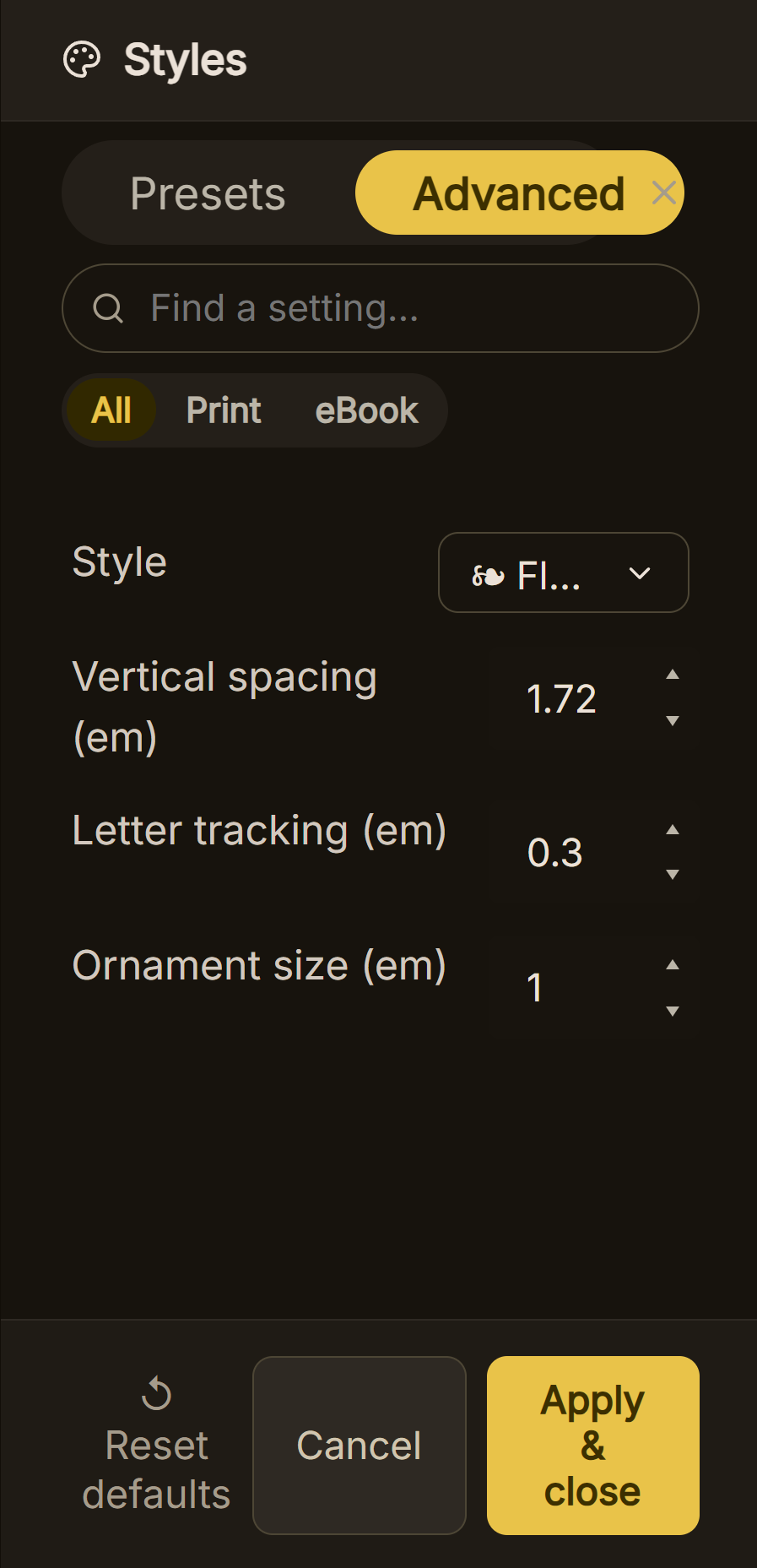 Scene breaks are a style setting, not a separator typed into the text
What you would give up. Vellum offers 24 trim sizes plus large print, PDF/X-1a print files and ACE-approved accessible ebooks, and Scrivener ships a compile format "tuned specifically to produce optimum results when imported into Vellum." Deckle has 8 fixed trim sizes and no custom size, and its Kindle target writes an EPUB for KDP to convert rather than a KPF file. EPUB is on KDP's list of ebook formats. Scrivener's own compile settings do not carry into Deckle, so you set the book's look once in Styles. If your workflow already works and you have a Mac, the handoff above is a sound choice.
Deckle is a one-time purchase. To try it, choose Take Deckle for a Spin on the screen Deckle opens to: no card, no account and no time limit. It opens a sample novel with every screen open to explore, and you can restyle it and export real EPUB, PDF and DOCX files. New writing is capped at about 500 words, and new documents and imports are blocked, so the Scrivener import itself needs the full app. For how the two apps in the handoff compare as tools, see Scrivener vs Vellum.
FAQ
Can Vellum import a Scrivener project directly?
No. Vellum imports only .docx files. You compile a Word file from Scrivener and import that.
Where is the Vellum Export format in Scrivener?
In File > Compile, with Compile for set to Microsoft Word (.docx), under Formats on the left. If it is missing, update to the latest Scrivener 3.
Can I use Scrivener for Windows with Vellum?
The Windows manual lists the Vellum Export format, so you can compile the .docx on Windows. Vellum only runs on a Mac, so the import needs one.
How do I make scene breaks show up in Vellum?
Set Scrivener's separator between scenes to Empty line for a plain break, or Custom with *** for an Ornamental Break. Those are the two forms Vellum documents.
Why does Vellum split my chapter into Untitled elements?
Vellum's help gives too many empty lines in a row as one cause. Merge the pieces with Chapter > Merge Selected Chapters.
Do I need a title page in Scrivener for Vellum?
No. Vellum makes the title page and table of contents. Add front matter in Scrivener only for a dedication or epigraph.
What happens to my Vellum edits if I reimport from Scrivener?
The reimport replaces the text you imported before. Front and back matter you added in Vellum stays in place.
Sources
All retrieved 2026-10-20.
- Export to Vellum, Literature & Latte (Compile steps, Vellum Export format since 3.0.3 for macOS, Assign Section Layouts, styles Vellum recognises, front matter steps)
- Scrivener 3 User Manual for macOS, Literature & Latte, revision 3.5.2-01 (section 24.4 Separators: separator types, Custom separator centring, Blank line separator; appendix D.2.11 Vellum Export; table 23.1 file types)
- Scrivener 3 User Manual for Windows, Literature & Latte, revision 3.1.6.0-02 (appendix D.2.11 Vellum Export; Custom separator wording)
- Importing Your Manuscript, Vellum Help (.docx only, Import Word File, merging and splitting chapters, reimport behaviour)
- Importing From Scrivener, Vellum Help (Vellum Export format, update note)
- Preparing Your Word File for Import, Vellum Help (Heading 1 chapters, Chapter and Part numbering, ornamental and scene breaks, title page and TOC, what not to do)
- Supplemental Word Styles for Import, Vellum Help (style names, Vellum Element Subtitle, Vellum Centered Text)
- Scene Breaks, Vellum Help (multiple empty lines give one Scene Break)
- Elements of Your Book and Copyright Page, Vellum Help (element types, Add Element, copyright formatting)
- Vellum, 180g (prices, macOS 13+, 24 trim sizes, PDF/X-1a, ACE)
- Purchasing, Vellum Help (free download, no Generate until purchase)
- What file formats are supported for eBook manuscripts?, Amazon KDP Help (EPUB and DOCX accepted for ebooks)
Scrivener is a trademark of Literature & Latte. Vellum is a trademark of 180g. Deckle is not affiliated with or endorsed by any product named here.