

Scrivener front matter is an ordinary binder folder kept outside the Draft folder. In File > Compile…, open the Contents tab, tick the Front Matter checkbox and choose that folder from its menu. Compile then places everything in the folder before the draft, in its own order, without moving anything in the binder. One project can hold a separate set for each output.

Every step below comes from Literature & Latte's Scrivener 3 User Manual (macOS revision 3.5.2-01, Windows revision 3.1.6.0-02). The rest is from forum answers by named staff: Ioa, Head of Support and Documentation (AmberV on the forum), Katherine of Customer Support (kewms), and Jennifer, Head of Windows Support (MimeticMouton). The Scrivener compile tutorial explains Compile as a whole.
What You'll Need
- Scrivener 3 on macOS or Windows. The front matter features work the same on both. Page Settings is section 24.20 in the Mac manual and 24.19 in the Windows manual.
- The pages themselves: title page, copyright, dedication, epigraph, contents and anything else that comes before chapter one. The general guide to what front matter is lists each element.
- A backup before you move folders around: File > Back Up > Back Up To…
How do I set up front matter in Scrivener?
The manual's steps are in section 23.4.1, under Front & Back Matter:
- Create a folder in the binder for front matter, outside the Draft folder. The manual says "you shouldn't place these folders inside the draft folder itself."
- Inside it, create one subfolder per output if the sets differ, for example "Ebook" and "Paperback". The manual says "each folder needs to be a self-contained set of front and back matter."
- Move the title page, copyright page and the rest into those folders, in reading order.
- In File > Compile…, on the Contents tab, tick Front Matter and pick the folder. Back matter works the same way.
- Compile.
Katherine's summary on the forum: "In the Binder, there's nothing special about Front Matter. It's just another folder." The folder becomes front matter only when Compile is told to use it.
Front matter only compiles when the Compile dropdown is set to the whole Draft folder, or to a subfolder with Treat compile group as complete manuscript ticked. In every other case, the manual says, the output "will be presumed as only a partial manuscript" (section 23.4.1).
Is there a Scrivener front matter template?
Yes. The Novel project template is the manual's example. It "demonstrates a possible setup with a group of individual front matter folders for use with corresponding publication outputs, such as standard submission or self-publication with ebook and PDF" (section 23.4.1). To use it in an existing project, create a new project from the Novel template and drag its front matter folders into your own binder, as Katherine suggests.
Two features keep a front matter set easy to maintain:
- Placeholders for the title and author. The Compile Metadata tab sets the Title used by
<$projecttitle>and an Abbreviated Title used by<$abbr_projecttitle>(section 23.4.2). A title page built from placeholders stays correct when the title changes. - One title page for several sets. The manual's suggestion, if the same title page belongs in more than one folder, is the
<$include>placeholder (section 10.1.5), so one document's text appears in each set.
How do I use different front matter for ebook and paperback?
Lock each folder to a file type (section 23.4.1, Locking Settings to File Type):
- Set Compile for to the file type, such as ePub.
- On the Contents tab, choose the front matter folder for that output, such as "Ebook".
- Click the lock icon to the right of the folder menu.
- Repeat for PDF with the "Paperback" folder.
Unlocked file types "will always go on using the same common setting from whatever you used last." For several books in one project, the manual also describes matching subfolder names to compile groups, so selecting one novel as the compile group selects its own front matter (Linking Front/Back Matter to Compile Groups, section 23.4.1).
Ebooks pick up two more settings from the front matter folder. The Cover tab uses "the first graphic found within the designated Front Matter folder" by default (section 23.4.5). Book begins after front matter, in General Options, opens the ebook at the first section after the front matter (section 23.4.3). The Mac manual adds a <$ebook_start> placeholder to choose that point by hand.
How do I number front matter pages in roman numerals in Scrivener?
Roman numerals in the front matter are book convention: the Chicago Manual of Style gives them their own section, 1.7, "Roman numerals for front matter". In Scrivener, front matter page numbers live in the format's Page Settings pane, not in a section layout. Ioa made the point on the forum: "there is only one 'Page Settings' for the whole format, this isn't tied to any particular Section Layout."
- In the Compile window, edit the format (duplicate it first if it is a built-in one).
- Open Page Settings. On the options tab, tick Different header and footer on first pages. The manual says "first pages" generally means front matter, "where typically pages will be numbered using lowercase Roman numerals" (section 24.20.5 Mac, 24.19.4 Windows).
- Set Main body header and footer starts… to After front matter.
- On the Header and Footer Text tab, click First Pages and type
<$p-r>in the footer field where the number belongs. Ioa: "only<$p-r>will work for page numbering." - Check that Main Body uses
<$p>for Arabic numbers.
Page numbers count first pages decides where Arabic numbering starts. Ticked, four pages of front matter run "IV" to "5". Unticked, the body starts at "1", which the manual calls "more traditional."
If the numbers do not change, Ioa's test is to type "@@@" into every First Pages field and compile. If "@@@" never appears, Scrivener is not seeing any front matter, usually because the pages sit inside the Draft folder. Her fix is to select them, use Documents > New Folder from Selection, drag the new folder out of the Draft, and choose it on the Contents tab. The reasons behind roman numeral front matter have their own page.
For Word output, Jennifer found that roman numerals in a compiled DOCX "appear correctly when the file is opened in Word" but load as Arabic numerals in Pages, Nisus Writer Pro and OpenOffice Writer. The manual notes that page numbering for word processor formats "can only be determined once the file is opened in a word processor" (section 24.20.5).
Can Scrivener hide the page number on the title page?
Only partly. The No header or footer on… checkboxes include Single pages, which removes headers and footers when a page break encloses a single page (section 24.20.5 Mac, 24.19.4 Windows). Katherine's view is that roman front matter, Arabic body and an unnumbered title page cannot all be set at once: the single-page option "only works if the title page is the only page to which that setting applies", and the title page is still counted in the numbering even though no number shows. Her workaround is to compile the title page separately and join it to the rest in another program.
Why does my front matter look wrong after compile?
Katherine's checklist for front matter that does not come out as written:
- Make sure the Front Matter section type is applied to the front matter documents.
- Make sure no global font override is set for the whole document.
- Make sure any styles in the front matter are not overridden by the compile format.
The Manuscript formats double-space everything. Katherine points out that this "isn't necessarily what you want for something like a title page", so a single-spaced title page needs a section layout that preserves its formatting. The Mac manual notes that most compile formats "contain a layout specifically designed for front matter which includes a page break" (appendix F.2).
Common Mistakes
- Putting front matter inside the Draft folder. It compiles as ordinary book text in binder order, and Page Settings never treats it as first pages.
- Compiling one chapter and expecting the title page. Front matter is left out of partial compiles unless Treat compile group as complete manuscript is ticked.
- Forgetting the lock. Without it, the folder chosen last is used for every file type.
- Typing
<$r>for roman page numbers. Ioa explains that<$r>is a general numbering token for text such as part numbers. Page numbers need<$p-r>. - Checking roman numerals in Pages. Open the DOCX in Word before deciding the numbering failed.
How Deckle handles front matter
Deckle is our app, so weigh this section accordingly.
In Deckle, front matter is a set of ready-made pages rather than a folder you designate. In the Binder, click Add to Draft, then Front Matter, and choose Title Page, Copyright, Dedication, Epigraph, Foreword, Preface or Table of Contents. Each page goes into the Draft at the point you are working, and you drag it into order.
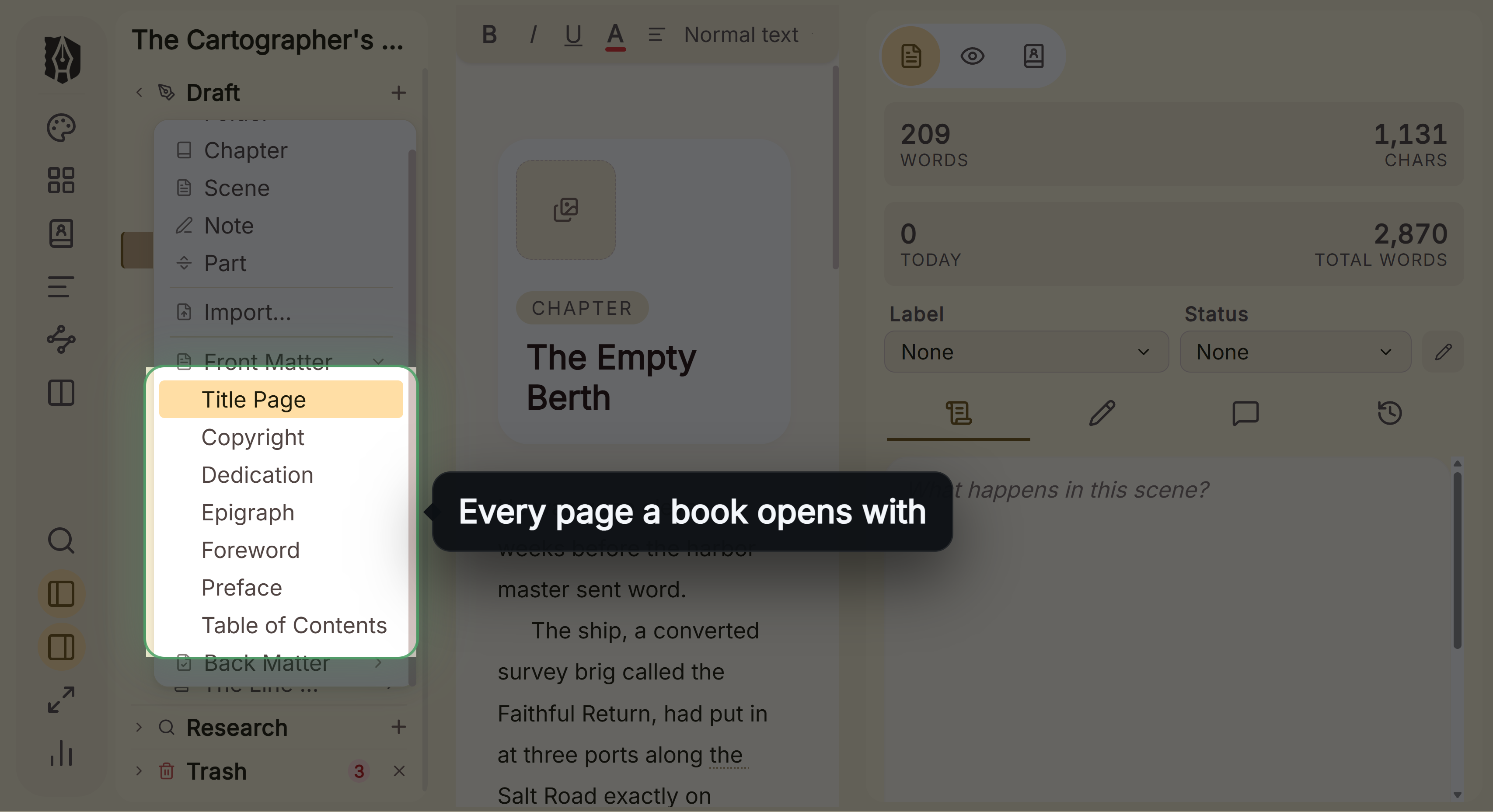 Add to Draft > Front Matter
The title page takes the book's title and author from the export metadata, and the copyright notice comes from a preset in Styles > Special pages. In the PDF, front matter numbers in lowercase roman numerals and the count restarts at 1 on Chapter One. That is the Restart page numbering at Chapter One setting in Styles > Print & layout, on by default.
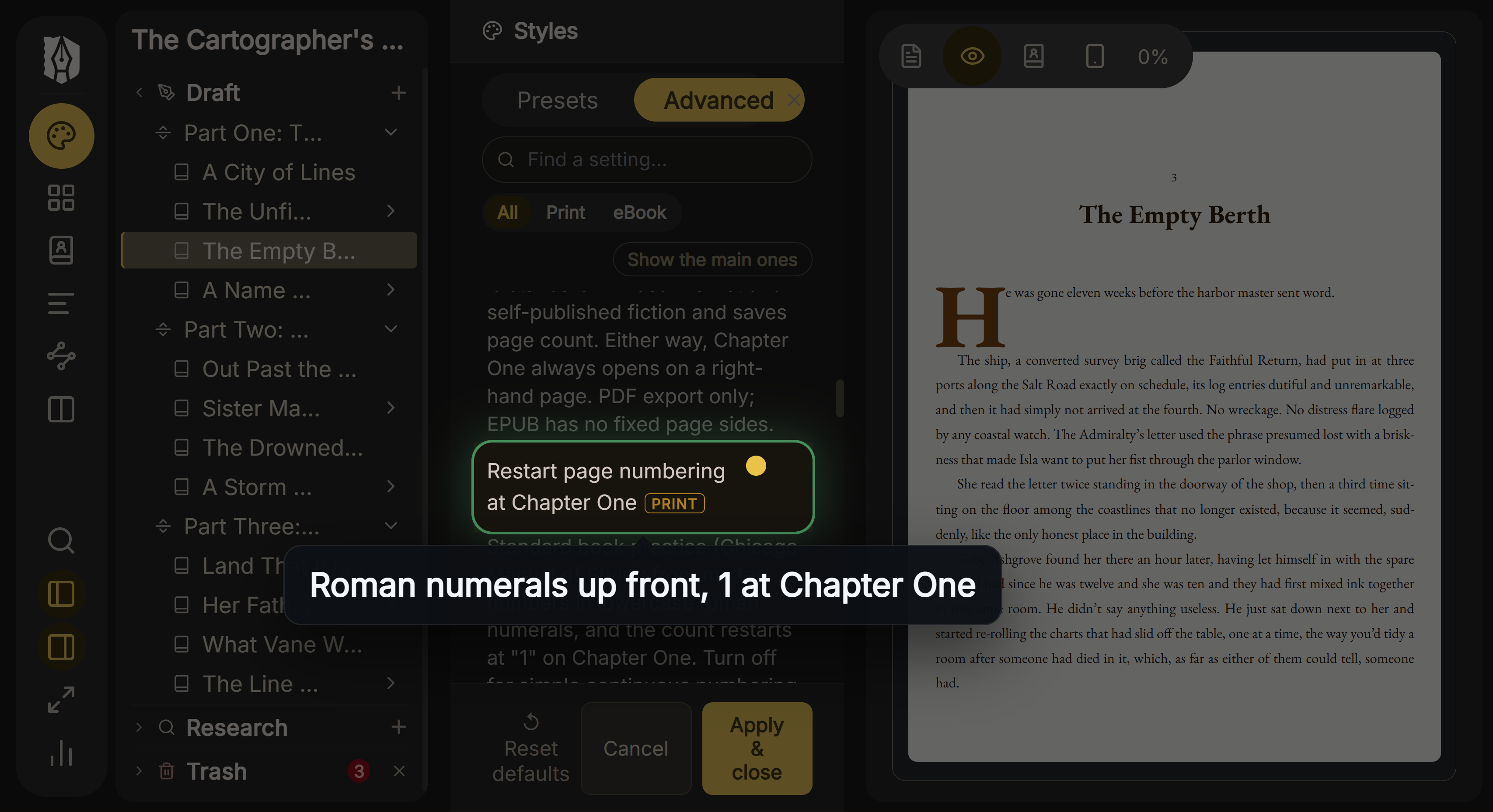 Roman numerals in the front matter, page 1 at Chapter One
The title, copyright, dedication and epigraph pages print no page number. If a chapter sits above the front matter in the Binder, the export warns that it will be numbered as front matter.
What you would give up. Deckle has one set of front matter for every format. There are no per-format folders and no lock to a file type. To leave a page out of one export, untick it in the Export window's Contents tab or mark it Exclude from Export in the Binder. Scrivener's sets per output, compile groups for several books in one project, and placeholder-driven pages are more flexible. If your Scrivener front matter already compiles correctly, nothing here is a reason to move. The general guide to front matter order applies in either app, and moving from Scrivener to Deckle covers the import.
Deckle is a one-time purchase. To try it, click Try it free on the screen Deckle opens to. There is no card, no account and no time limit. It opens a sample novel with every screen open to explore, and you can restyle it and export real EPUB, PDF and DOCX files. New writing is capped at about 500 words, and new documents and imports are blocked.
FAQ
Where do I put front matter in Scrivener?
In its own folder outside the Draft folder. Then choose that folder in the Front Matter menu on the Compile window's Contents tab.
Why is my front matter not compiling?
The Compile dropdown is set to a subfolder without Treat compile group as complete manuscript, the Front Matter checkbox is off, or the pages are inside the Draft folder.
Is there a front matter template in Scrivener?
The Novel project template includes separate front matter folders for submission, ebook and PDF. Create a project from it and drag those folders into your own.
How do I get roman numerals for front matter in Scrivener?
In Page Settings, tick Different header and footer on first pages, set the main body to start After front matter, and put <$p-r> in the First Pages footer.
Can I have different front matter for Kindle and paperback?
Yes. Make one folder per output, choose each folder on the Contents tab with the matching Compile for type, and click the lock icon.
Why does my title page come out double-spaced?
The Manuscript formats double-space everything. Assign the title page a section layout that keeps its own formatting.
Sources
All retrieved 2026-10-20.
- Scrivener 3 User Manual for macOS, Literature & Latte, revision 3.5.2-01 (10.1.5 Including Text From Other Documents; 23.4.1 Contents tab, Front & Back Matter, Locking Settings to File Type, Linking Front/Back Matter to Compile Groups; 23.4.2 Metadata; 23.4.3 Book begins after front matter; 23.4.5 Cover; 24.20.5 Header and Footer Options; 24.20.6 Header and Footer Text; appendix F.2)
- Scrivener 3 User Manual for Windows, Literature & Latte, revision 3.1.6.0-02 (same sections in chapter 23; Page Settings at 24.19, Header and Footer Options at 24.19.4)
- About Us, Literature & Latte (Ioa, Head of Support & Documentation, posts as AmberV; Jennifer, Head of Windows Support; Katherine, Customer Support)
- No option to add Front Matter, Literature & Latte forum, answer by Katherine (kewms), 2024-09-04
- Roman Numerals for Auto Page Numbering Does Not Work in Footer, Literature & Latte forum, answers by AmberV and MimeticMouton, 2022-04-23 and 2022-04-24
- Suppress Page Number on Title Page, Copyright Page, Literature & Latte forum, answer by Katherine (kewms), 2022-03-27
- Front matter is not rendered "as is", Literature & Latte forum, answer by Katherine (kewms), 2025-04-03
- Front matter appears as chapter one, Literature & Latte forum, answer by Katherine (kewms), 2025-01-09
- The Chicago Manual of Style, 18th edition, chapter 1: The Parts of a Published Work, sections 1.17 to 1.51 on front matter
Scrivener is a trademark of Literature & Latte. Deckle is not affiliated with or endorsed by any product named here.