

Scrivener makes a table of contents two different ways. For ePub and Kindle, Compile generates one automatically from every section that starts with a section break, with options in the Compile window's Table of Contents tab. For print, PDF and Word, select the chapters in the binder, choose Edit > Copy Special > Copy Documents as ToC, and paste the list into a document in your front matter. Compile replaces its <$p> placeholders with page numbers.

Every step below comes from chapter 22 of Literature & Latte's Scrivener 3 User Manual (macOS revision 3.5.2-01, Windows revision 3.1.6.0-02). The rest comes from forum answers by named Literature & Latte staff: Ioa, Head of Support and Documentation (AmberV on the forum), and Katherine (kewms) and Ruth (RuthS) of Customer Support. New to Compile? Start with the Scrivener compile tutorial.
What You'll Need
- Scrivener 3 on macOS or Windows. A few options exist only in the Mac manual, and they are marked below.
- Chapters that print a title. Both kinds of contents are built from the titles Compile prints. Katherine on the ebook generator: "The body text of the document is effectively invisible to it."
- A front matter folder for a printed contents page. The Scrivener front matter page covers setting one up.
How do I make a table of contents for an ebook in Scrivener?
You don't have to make one. The manual says that when compiling for ePub and Kindle, "an integrated table of contents will be generated for you" (section 22.3). It produces two things: the navigation menu the reading device shows, and an HTML contents page the reader can page through.
Which items appear is decided by your section layouts. Scrivener lists "sections of text that are assigned to layouts that have a 'section break'" (section 23.4.6). A chapter missing from the ebook contents is almost always a chapter whose layout does not start a new section.
The Table of Contents tab (section 23.4.6) sets how the list looks:
| Setting | What it does |
|---|---|
| Generate HTML table of contents | Adds the contents page to the book itself. The manual recommends keeping it, because "older devices may lack a dedicated navigation system" |
| Center body text of HTML table of contents | Centres the titles |
| Use flat table of contents | One flat list instead of entries nested by binder depth |
| Bold top-level items | Bolds the entries at the top of the compile group |
| Omit "landmark" guides | Uses older markers for the cover, contents and start position |
| Table of contents title | The heading readers see, and the name in some navigation menus |
| Contents Depth | Pandoc ePub and DOCX only, by heading level |
Every ebook needs this. The W3C EPUB 3.3 specification says a navigation document "MUST include exactly one toc nav element" (section 7.2), and Amazon's Kindle Publishing Guidelines say "Amazon requires that all Kindle books include a logical TOC" (section 5).
How do I hide a page from the Scrivener ebook contents?
The Mac manual describes a Hide entry in HTML table of contents checkbox in the section layout's Settings tab, for ePub and Kindle (section 24.2.9). Its examples are "epigraph pages, the dedication page, full-screen figures and tables." Section 22.3 gives the method: create a section type for these pages, assign it a layout with that box ticked, and the pages still start a new section without being listed. The Windows manual's Settings tab (also 24.2.9) does not list this option.
Can I move the table of contents in a Scrivener ebook?
Not reliably. The manual and the staff disagree, and the staff answers are newer.
- The Mac manual says to type the
<$toc>placeholder in an otherwise empty document where the contents should go, and assign it a layout that inserts a section break and no title (section 22.3). The Windows manual does not describe this. - Ioa, February 2024: "The intended mechanism for doing this does not work." Even a custom contents page "refuses to accept where you put it, and always relocates it to the very beginning."
- Ioa, March 2025: Scrivener "will always move it to the front." She added: "That, in fact, is a bug. It should be allowing you to position the contents page wherever you want in the book."
- Ioa, October 2025: the Windows version "gives no control over where the ToC is placed."
The workaround Ioa gives is to "move the ToC HTML section in an editor, post-compile", for example by changing the spine order in the ebook's content.opf file in an ebook editor such as Sigil. Don't move it to the back of the book. The manual says a contents page at the end "is discouraged by Amazon", and Amazon's guidelines say to "place the HTML TOC towards the beginning of the book and not at the end", because placement "affects the accuracy of the 'Last Page Read' feature" (section 5.1).
How do I make a custom ebook table of contents in Scrivener?
Use a custom page when the automatic one lists the wrong things (section 22.1 and 22.3):
- Select the items to list, ideally in the Outliner so you can see the structure.
- Choose Edit > Copy Special > Copy Documents as Structured Link List.
- Paste into an empty document and give it a heading.
- Name that binder item exactly what the Table of contents title field says. The Mac manual says the names must match (section 23.4.6). Ioa adds that it "has to match the name you give to the contents page" for Scrivener to detect it.
The manual's rules for a valid ebook contents page: the section needs a heading styled with a numbered heading style such as Heading 1, and "the rest of the content must consist exclusively of links pointing to other sections of the ebook, one link per line." Katherine warns that a hand-made contents page alongside the generated one gives you two. Amazon also says Kindle contents entries "must be HTML links" and should not use page numbers (section 5.1).
How do I make a table of contents with page numbers in Scrivener?
This is the print and PDF route. The manual calls it "a static list", so make it last, after the chapter order is final (section 22.1):
- Select every item the contents should list. The Outliner view helps you see the hierarchy.
- Choose Edit > Copy Special > Copy Documents as ToC.
- Create an empty document in your front matter folder and paste. The Mac manual says Scrivener then asks how far to indent each level: level 2 defaults to 36 points, level 3 to 72 points.
- Give that document a section type assigned to the Table of Contents section layout. Ioa explains that the Paperback formats include this layout, and that it "has the tab stop set flush with the right margin of the page."
- Compile to PDF or Print.
Each line holds a linked title and a linked <$p> placeholder. At compile, <$p> becomes the page number, and the title is "updated to match the visible name of the sections as they will be compiled", so "Chapter 1" replaces your binder title if the format numbers chapters (section 22.2.1). Ioa warns that Edit > Paste and Match Style strips those links, and without them "all of this is just random text in the editor."
The general question of whether a novel needs a contents page at all has its own page.
Why is my Scrivener table of contents wrong?
The manual's Things to Watch Out For list (section 22.2.2) and staff answers cover the usual faults:
- Page numbers show as question marks in Word. Some word processors need a print preview before they calculate the numbers. Ruth's advice: run the print command, cancel it, then save the file so Word keeps the numbers.
- Missing page numbers. The item is not included in the compile, or its section type uses a layout that prints nothing. By default every type prints "as-is", "which for a folder would likely be nothing."
- Only "Part II" shows, not the part's name. Some formats link only the title prefix. Adjust the Document Title Links pane (24.8 on the Mac, 24.7 on Windows).
- Footnotes on the wrong page in a PDF. The Mac manual says a page number tab stop other than right-aligned "may cause calculation errors."
- The contents does nothing in an ebook or plain text. Ioa: Copy Documents as ToC "does nothing in formats that have no pages."
- The PDF contents is not clickable on Windows. The Windows manual notes that "internal hyperlinks such as these do not export to PDF, and so the ToC will not be clickable."
For Word output, the manual's own advice is to skip Scrivener's list: "it is almost always best to leave the creation of a table of contents" to Word, LibreOffice or InDesign (chapter 22). Word's own Insert a table of contents builds the list from text styled as Heading 1, Heading 2 and so on, so compile with chapter titles in heading styles.
The Mac manual also documents Generate PDF outline in the PDF Settings pane (section 24.23). It builds the bookmark list in a PDF reader's sidebar, not a printed page. An item appears only if its layout "generates a visible title."
Common Mistakes
- Pasting the contents before the book is finished. The list is static and does not follow later changes to chapter order.
- Making a custom ebook contents page with Generate HTML table of contents still on and the names not matching. The book ends up with two.
- Expecting body text headings to appear. Both contents builders read compiled titles, not headings typed in the text.
- Trying to put the ebook contents at the back. Amazon advises against it, and Scrivener moves it to the front anyway.
- Using Copy Documents as ToC for an ePub. Use Copy Documents as Structured Link List, or let Compile build it.
How Deckle handles the table of contents
Deckle is our app, so weigh this section accordingly.
Deckle builds the contents from the book itself at every export, so there is nothing to paste or refresh. Include Table of Contents, on the Export window's Options tab, is on by default and adds a contents page after the title and copyright pages. To choose the position yourself, add a Table of Contents page from Add to Draft > Front Matter in the Binder and drag it where it belongs. The export then uses your page instead of a second one.
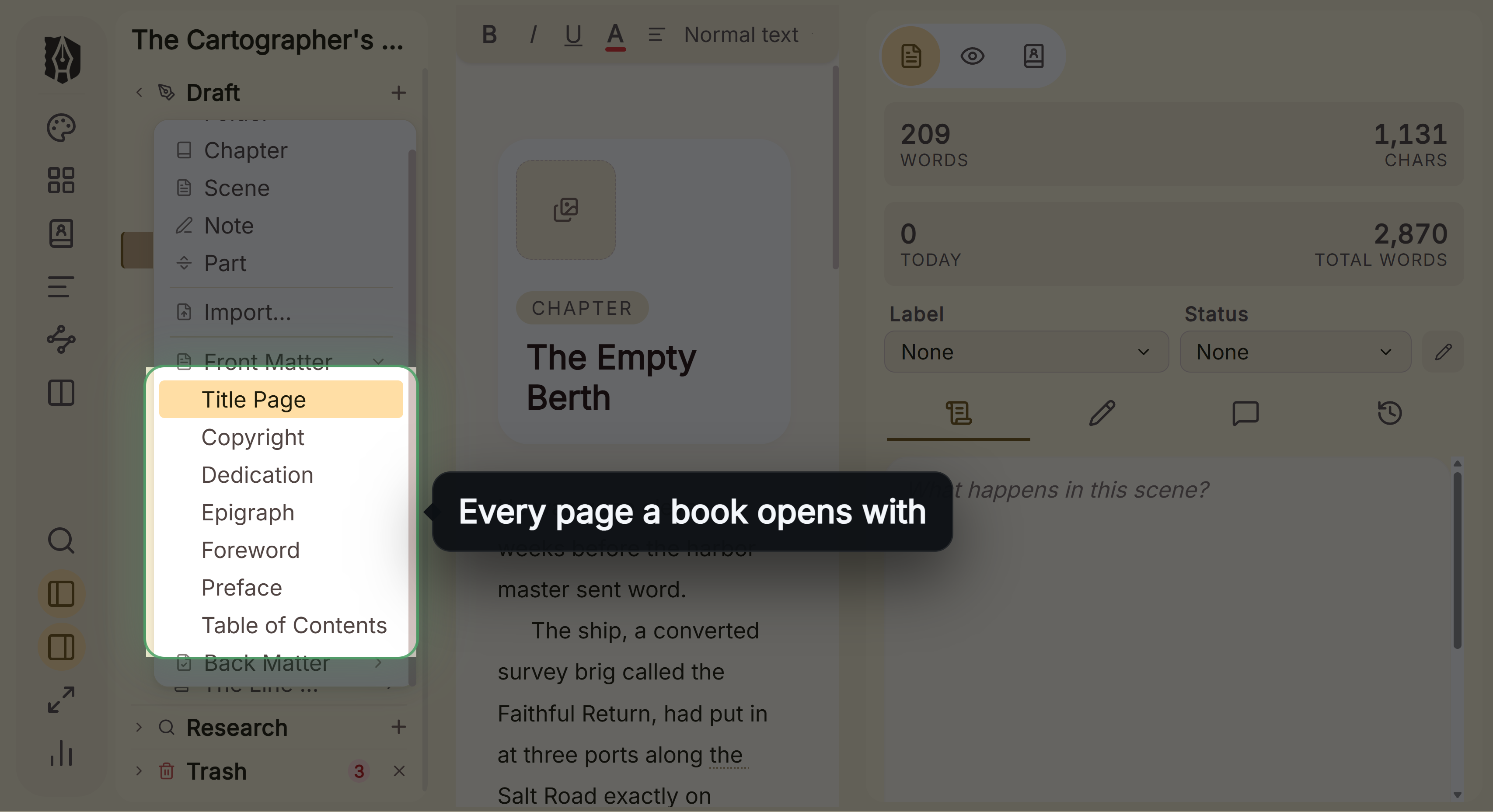 Table of Contents is one of the Front Matter pages in the Binder's add menu
Styles > Special pages > Table of Contents sets the title text, a Plain, With dots or Minimal style, page numbers and chapter numbers. Include down to (Chapters, Subheadings or Sub-subheadings) applies to the printed contents page, the EPUB's navigation menu and the PDF's bookmarks alike. Page numbers appear in the PDF only: the EPUB contents is a list of links, and every EPUB carries a navigation document whether or not the contents page is on.
What you would give up. Deckle's contents has no hand-made version. You cannot edit an entry's wording or drop one chapter from the list; only the Foreword and Preface have an Include in TOC switch. Scrivener's custom link lists, per-layout hiding and Word cross-references give finer control. If your Scrivener contents already comes out right, there is no reason to change tools for it. The EPUB styling guide and moving from Scrivener to Deckle cover the rest.
Deckle is a one-time purchase. To try it, click Try it free on the screen Deckle opens to. There is no card, no account and no time limit. It opens a sample novel with every screen open to explore, and you can restyle it and export real EPUB, PDF and DOCX files. New writing is capped at about 500 words, and new documents and imports are blocked.
FAQ
Does Scrivener create a table of contents automatically?
For ePub and Kindle, yes, from every section that starts with a section break. For print, PDF and Word, you paste one in with Edit > Copy Special > Copy Documents as ToC.
Why is a chapter missing from my Scrivener ebook table of contents?
Its section layout does not insert a section break, or it prints no title. The generator lists only compiled titles that start a new section.
How do I add page numbers to a Scrivener table of contents?
Use Copy Documents as ToC and compile to PDF or Print. The linked <$p> placeholders become page numbers.
Why does my Scrivener table of contents show question marks?
The word processor has not calculated the page numbers yet. Run a print preview or the print command in Word, then save.
How do I move the table of contents in a Scrivener ePub?
The Mac manual describes a <$toc> placeholder, but Ioa said in 2024 and 2025 that Scrivener moves the contents to the front regardless. Move it in an ebook editor after compiling.
Why is my Scrivener PDF table of contents not clickable?
The Windows manual says internal links do not export to PDF there. Otherwise, Katherine's first check is that Remove all hyperlinks is off in the Compile options.
Should I put the table of contents at the end of a Kindle book?
No. Amazon's guidelines say to place it towards the beginning, because placement affects Last Page Read.
Sources
All retrieved 2026-10-20.
- Scrivener 3 User Manual for macOS, Literature & Latte, revision 3.5.2-01 (chapter 22: 22.1 Creating a Contents Page, 22.2.1 How the ToC Feature Works, 22.2.2 Things to Watch Out For, 22.3 Contents in Ebooks; 23.4.6 Table of Contents Tab; 24.2.9 Settings, Hide entry in HTML table of contents; 24.8 Document Title Links; 24.23 PDF Settings)
- Scrivener 3 User Manual for Windows, Literature & Latte, revision 3.1.6.0-02 (chapter 22, including the footnote on PDF links in 22.2.1; 23.4.6; 24.7 Document Title Links)
- About Us, Literature & Latte (Ioa, Head of Support & Documentation, posts as AmberV; Katherine and Ruth, Customer Support)
- Table of Contents for .epub format, Literature & Latte forum, answer by AmberV, 2024-02-07
- Custom Table of Contents, Literature & Latte forum, answer by AmberV, 2025-03-12
- After compile ToC appearing before front cover on Kindle Previewer, Literature & Latte forum, answer by AmberV, 2025-10-25
- Title page after table of contents for epub compile, Literature & Latte forum, answer by AmberV, 2024-04-09
- TOC doesn't create working links in ePub format, Literature & Latte forum, answers by Katherine (kewms), 2023-03-31 and 2024-04-03
- Table of Contents on PDF: Compile with Links and Bookmarks, Literature & Latte forum, answers by Katherine (kewms), 2023-09-11 and 2023-09-12
- Copy Documents as TOC Problem, Literature & Latte forum, answer by AmberV, 2021-06-08
- ToC no page numbers for folders, Literature & Latte forum, answer by AmberV, 2018-12-18
- ToC formatting doesn't work, Literature & Latte forum, answer by Ruth S, 2024-01-17
- EPUB 3.3, W3C Recommendation (section 7.2, navigation document requirements: "exactly one toc nav element")
- Insert a table of contents, Microsoft Support (Word builds the contents from heading styles)
- Kindle Publishing Guidelines, Amazon, version 2026.3 (section 5 Navigation Guidelines, 5.1 HTML TOC Guidelines)
- The Chicago Manual of Style, 18th edition, chapter 1, sections 1.42 (table of contents for printed books) and 1.43 (for ebooks and audiobooks)
Scrivener is a trademark of Literature & Latte. Deckle is not affiliated with or endorsed by any product named here.