

A Kindle Create table of contents is built from chapter titles, so when it misses a chapter, that chapter has no title element. Apply Chapter Title (or Part Title, Page Title or Book Title) to the heading, and it joins both the TOC page and the Kindle menu. Chapters missing from the Contents pane "are probably embedded in a previous chapter", in Amazon's words.

Every fix below comes from Amazon's own Kindle Create and KDP help pages, read on 20 October 2026.
How does Kindle Create make a table of contents?
Kindle Create builds the table of contents from title elements, not from a list you type. According to KDP's Kindle Create help, on import "Kindle Create begins finding potential Chapter Title elements in your eBook", and you confirm them: "Uncheck any items that are not chapter headings and then click Accept Selected." Amazon then states that "When you apply title elements (Chapter Title, Page Title, Book Title, Part Title), they're used to create a TOC entry."
The accepted titles make two tables of contents:
| Kindle Interactive TOC | TOC page | |
|---|---|---|
| Also called | NCX | HTML TOC |
| Where readers see it | "Displayed in the Kindle menu and can be accessed from anywhere in the book" | "Page at the beginning of your book with links to each chapter" |
| How you get it | "Automatically included after you revise and accept the chapter entries" | Inserted by you, and optional |
| In the paperback | Not used | Kindle Create "automatically removes links and adds page numbers" |
Amazon requires the first one. Its help says "Amazon requires all Kindle eBooks with chapters or sections to have a working TOC", and lists the logical TOC as "Required for all Kindle books by Amazon". The TOC page is "Strongly Recommended by Amazon".
Why are chapters missing from my Kindle Create table of contents?
A chapter is missing because it has no title element, or because Kindle Create didn't split it from the chapter before it. Amazon gives both causes:
- "If there seem to be chapters missing in the Contents Pane, they are probably embedded in a previous chapter."
- "Sections marked with an orange dot aren't included in the TOC."
- "If you want a section included in the TOC, apply a title element, usually Chapter Title."
The fix:
- Open the Contents pane and look for a chapter that isn't listed, or one marked with an orange dot.
- If the chapter is buried inside the one before it, find its heading in that chapter's text.
- Select the heading and apply Chapter Title. Amazon says Chapter Title will "add a font face and size, make an entry in the Kindle Interactive TOC, and add a page break".
- For a part divider, a front matter page or the book's title, use Part Title, Page Title or Book Title instead.
The TOC page catches up on its own. Amazon says "The TOC page is automatically updated as you add or remove chapters of your book."
Why is something that isn't a chapter in my table of contents?
The detector flagged a line that looks like a heading. At import, Kindle Create "detects possible chapter titles and displays them", and the list is yours to correct. Uncheck every item that is not a chapter heading before you click Accept Selected. A stray entry found later is a line carrying a title element it doesn't need, because every title element makes a TOC entry. Remove the title element from that line.
How do I add a table of contents page in Kindle Create?
The TOC page is the one readers turn to at the front of the book, and it is optional. Amazon's steps:
- Click your first chapter in the Contents pane, so the page goes in before it.
- Choose Insert Table of Contents. "The list of detected chapter titles will appear."
- "Click OK to accept and the TOC page will be added to your book."
Place it near the front. KDP's navigation guidelines say "Place the HTML table of contents (ToC) toward the beginning of the book and not at the end of the book." Whether a novel needs one at all is covered in do novels have a table of contents.
Why does my Kindle Create table of contents have no page numbers?
That depends on the edition, and both behaviours are correct.
- The ebook has no page numbers. Kindle text reflows, so pages move with the reader's font size. Amazon's publishing checklist says to "confirm that each item is clickable and links to the correct location in the book", and "There should be no page numbers."
- The paperback gets page numbers on upload. Amazon says "Page numbers are added to the paperback TOC page when you upload your file to KDP." Inside Kindle Create, the paperback TOC page can show no numbers yet.
If the numbering starts in the wrong place, Amazon's help says Kindle Create "automatically assigns a page number start location to the first page of your first chapter." To move it, right-click the thumbnail of the chapter where you want numbering to begin and click Start page numbering here.
Why do my chapter titles in the table of contents not match?
Change the title in the book and the TOC follows. Amazon states that "When you change your chapter titles, the TOC updates automatically to match the new text." If an entry still shows old text, check that you edited the heading that carries the Chapter Title element, not a copy of it in the body text.
Check the table of contents before you publish
Kindle Create's previewer "shows you how your eBook will look on tablets, Kindle E-readers, and phones." Amazon's checklist:
- Go to the table of contents.
- Confirm that each item is clickable and goes to the right place.
- Confirm there are no page numbers in the ebook TOC.
- Open the Kindle menu and check that the Kindle Interactive TOC lists every chapter.
KDP's navigation guidelines add two checks for the file itself: "Make sure your book contains NCX", and "Check that all the links in the NCX are correct, and navigating to the correct location." Kindle Create writes the NCX for you, so a broken entry there goes back to a title element in the book.
Other Kindle Create problems and Amazon's fixes
Some table of contents trouble starts earlier, at import. Amazon's Getting Started page lists these fixes:
- Out of date. Amazon says to ensure "the software's lasts updated date is less than 3 months from the present date". Check it under Help, then About Kindle Create, and update by downloading Kindle Create again.
- A corrupt Word file. Re-save the file in Word as Word 97-2003 (.doc) and import it again.
- A long or unusual file name. Rename a file whose name runs past 250 characters, and remove quotes, brackets or percent signs.
- Tables, lists or footnotes blocking import. Amazon suggests replacing an embedded table with a text box.
- Paragraph styles. Styles other than Normal can cause import errors. Amazon suggests switching to Normal.
- Not enough memory. Amazon lists 4 GB of RAM as the minimum and 8 GB as recommended.
- The download won't finish. Check your anti-virus or firewall settings.
Amazon's help does not say which Word styles Kindle Create's chapter detector reads. Its separate Word method for a TOC marks every chapter title with Heading 1. A .docx whose chapter titles all share one heading style gives any detector a consistent pattern. The chapter headings in a manuscript page shows how to set them up.
How Deckle builds a table of contents
Deckle is our app, so weigh this section accordingly. Deckle is a desktop app for Windows, macOS and Linux where you write and format the book in one project. It builds the table of contents from the Binder, so there is no detection step to go wrong. Every chapter, part and scene document, plus the front and back matter, is listed under its own title. The Include down to setting reaches into chapters for subheadings or sub-subheadings.
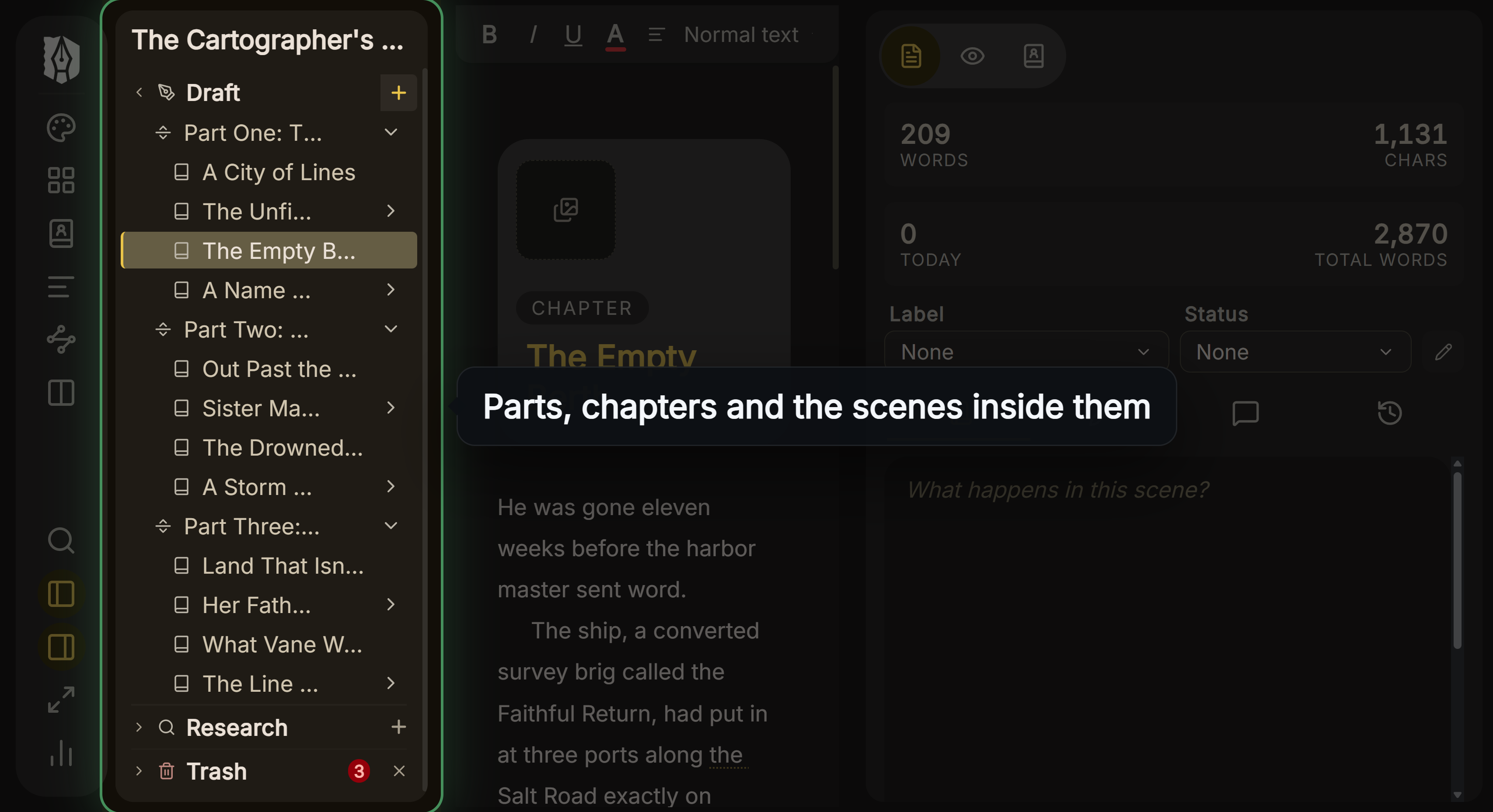 The Binder that Deckle's table of contents is built from
Deckle's export code writes both an EPUB 3 navigation document and an NCX file into every EPUB, the two sources KDP reads for the logical TOC. The W3C EPUB 3.3 specification states that the navigation document "MUST include exactly one toc nav element", which "conceptually corresponds to a table of contents in a printed work". If the book has no Table of Contents page of its own, that navigation document goes in after the title page and copyright page. To place a visible contents page yourself, add Table of Contents from the Binder's Front Matter menu. The print PDF's Contents page shows page numbers by default.
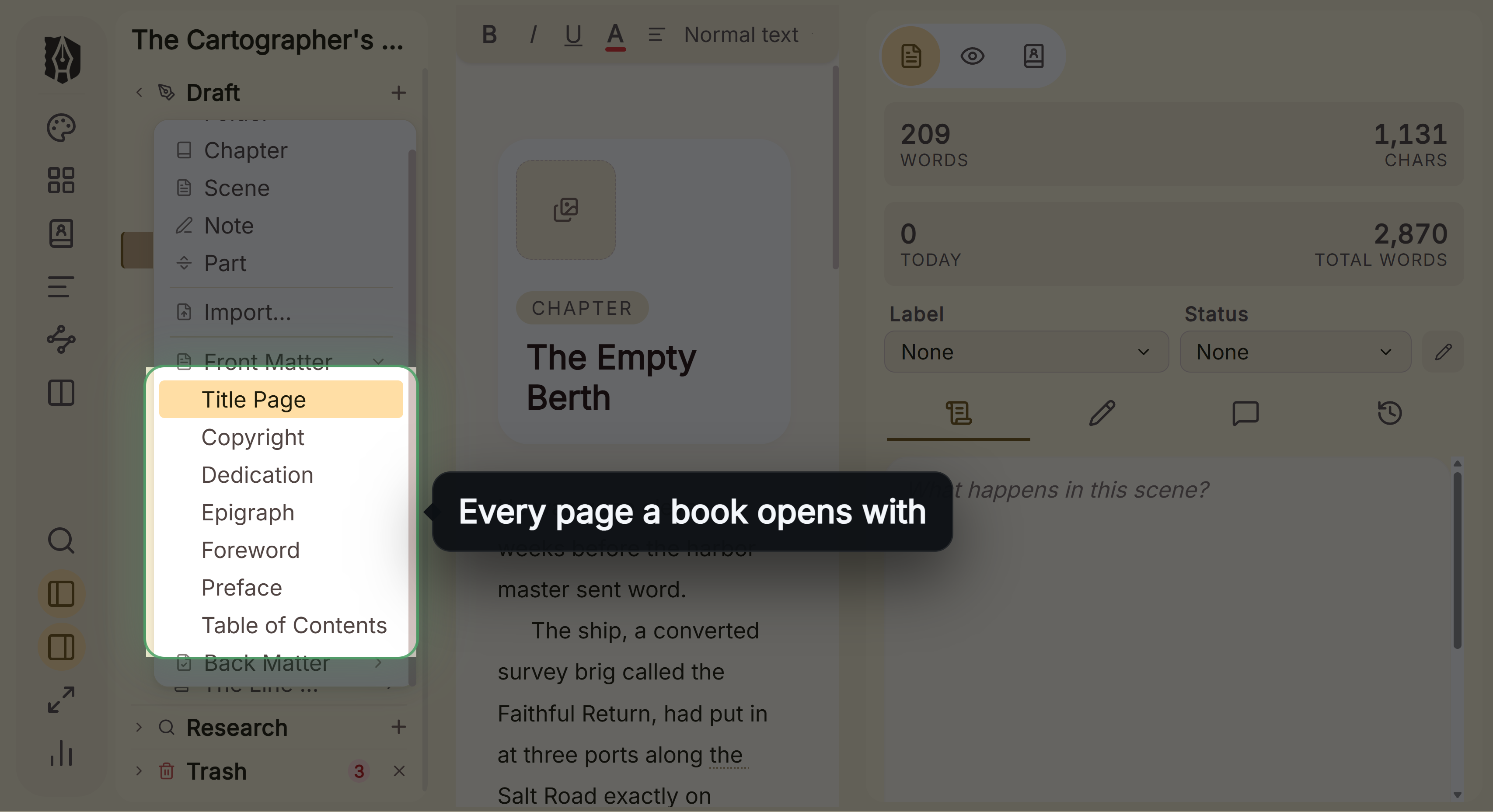 Table of Contents is one of the front matter pages Deckle's Kindle target writes an EPUB for KDP to convert, not a KPF file, and the checks KDP runs on it are on Amazon KDP EPUB requirements.
Deckle is a one-time purchase. To try it, click Try it free on the screen Deckle opens to. There is no card, no account and no time limit. It opens a sample novel with every screen open to explore, and you can restyle it and export real EPUB, PDF and DOCX files. New writing is capped at about 500 words, and new documents and imports are blocked. The full comparison is Kindle Create vs Deckle.
FAQ
Why is my Kindle Create table of contents not working?
A chapter with no title element is left out. Apply Chapter Title to its heading, and check the Contents pane for chapters embedded in the previous one.
How does Kindle Create make a table of contents?
From the chapter titles it detects at import and you accept. Every title element (Chapter, Part, Page or Book Title) becomes a TOC entry.
What does the orange dot mean in Kindle Create?
Amazon says "Sections marked with an orange dot aren't included in the TOC." Apply a title element to include one.
Why are there no page numbers in my Kindle Create TOC?
The ebook TOC should have none. The paperback TOC gets page numbers when you upload the file to KDP.
Do I need a table of contents page for KDP?
The Kindle Interactive TOC is required for every Kindle book. Amazon calls the TOC page "Strongly Recommended".
Does the TOC update when I rename a chapter?
Yes. Amazon says the TOC "updates automatically to match the new text."
Kindle Create won't import my file. What should I try?
Update Kindle Create if it is more than 3 months old, re-save the file as Word 97-2003, shorten the file name, and switch custom styles to Normal.
Can Kindle Create export the book as EPUB with its TOC?
Kindle Create exports EPUB for reflowable books only. The details are on can Kindle Create export EPUB.
Sources
All retrieved 20 October 2026.
- Prepare Reflowable and Print Books with Kindle Create, Amazon KDP Help (chapter title detection, title elements, orange dot, missing chapters, TOC page and Kindle Interactive TOC, print page numbers)
- Prepare Your eBook and Paperback with Kindle Create, Amazon KDP Help (Insert Table of Contents, page numbers on upload, Start page numbering here)
- Getting Started with Kindle Create, Amazon KDP Help (version check, import fixes, system requirements)
- Kindle Create Tutorial, Amazon KDP Help (adding a TOC page from the Contents pane)
- Previewing and Publishing Your Kindle Create Book, Amazon KDP Help (TOC checklist, no page numbers)
- Create a Table of Contents, Amazon KDP Help (Interactive TOC and TOC page, Heading 1 in Word)
- Create a Table of Contents with a Navigation Document, Amazon KDP Help (working TOC required, logical TOC required, HTML TOC strongly recommended)
- Navigation Guidelines, Amazon KDP Help (TOC placement, NCX checks)
- EPUB 3.3, §7 EPUB navigation document, W3C Recommendation (exactly one toc nav element)
Kindle, Kindle Create and KDP are trademarks of Amazon.com, Inc. or its affiliates. Other product names belong to their owners. Deckle is not affiliated with or endorsed by any product named here.