

Dabble Writer exports to Word (.docx), Google Docs, a shareable web page and Markdown (.md), from Export to… on a book, chapter or scene. Dabble exports one book at a time. It has no PDF or EPUB button: for a PDF you print and choose Save as PDF, and its help says "Dabble does not export PDF or ePub directly."

Every Dabble fact on this page comes from Dabble Help, read on 20 October 2026.
What Dabble exports
| Destination | What you get | Format options |
|---|---|---|
| Word | A downloaded .docx file | Manuscript Format or Dabble Format |
| Google Docs | A document in your Google Drive | Manuscript Format or Dabble Format |
| Web | An HTML page at a shareable link | |
| Markdown | A downloaded .md file | |
| Your browser's print dialog, including Save as PDF |
Manuscript Format is, in Dabble's words, "the standard submission format: indented paragraphs, double spacing, Times New Roman 12pt." Dabble Format "uses your in-app formatting: your font family, size, spacing, and paragraph styles." Plain text export has gone: "Dabble now exports Markdown instead."
How to export a manuscript from Dabble
- In the left panel, find the book, chapter or scene. Open its ⋯ menu, or right-click it, and choose Export to….
- Under Content, choose a Content Type. The default is the whole selected document. For a book you can also pick Chapters or Pages.
- Choose All, or a Range to export part of it. The range fields stay greyed out until you pick a Content Type other than the default.
- Tick Include Notes if you want your document notes after each section.
- Under Destination, pick Word, Google Docs, Web or Markdown.
- For Word or Google Docs, choose Manuscript Format or Dabble Format.
- Click Export. Word and Markdown files download on their own. Click Done.
Google Docs needs your Google account connected first, on the Google Docs tab, with Sign In with Google. A Web export "publishes a page that anyone with the link can view", and you can expire or remove it later in Project Settings, under Export.
The running header and scene breaks come from Project Settings, on the Export tab: Short Title for the header, Phone and Address for your contact block, and Scene Separator for the character between scenes.
How to save a Dabble manuscript as a PDF
Open what you want, press Cmd+P on a Mac or Ctrl+P on Windows, and choose Save as PDF in your browser's print dialog. Dabble says the print view "is deliberately plain. You get your words at 12pt with your chapters and scenes still in order, not the fonts and spacing you picked in the editor." That makes it a reading copy, not a print-ready book interior. If the print view doesn't open, allow pop-ups for Dabble.
What doesn't come out of a Dabble export
- Other books in the same project. "There's no export on the Manuscripts heading itself, since a project can hold more than one book." Export each book on its own.
- The Plot Grid, except as cards. When you export a plot line, Dabble offers two index-card layouts, 4×5 Cards and 3×5 Cards. Dabble's help describes no export of the grid itself as a table.
- The Notebook and Characters. Export to… sits on books, chapters and scenes. The help doesn't list story notes or character profiles as export content. You can print any of them: "Open a chapter, a scene, a character, or a note, then press the print shortcut."
- EPUB and a print-ready PDF. A finished ebook or print interior needs another tool.
- Comments and sticky notes. The export help doesn't mention them. Test with one chapter if you need them.
For a full copy you keep yourself, Preferences, Advanced, Data has Export Project Data (one project, from this device or from the server) and Export Entire Local Database. That is a Dabble backup, which comes back in through Import Database. It is not a manuscript file for another app.
Can I still export after cancelling Dabble?
Yes. Dabble's pricing page says "Your manuscripts remain readable and exportable forever" and that an expired subscription "only switches off editing." Dabble's cancellation help adds that once the paid period ends "your account moves to a free, read-only state" (as of October 2026). Prices and plans are on Dabble Writer price.
How to move a Dabble book into another app
Word is the safest route, because almost every writing and formatting app imports .docx. The Library of Congress lists DOCX as an "international open standard", ISO/IEC 29500, which is why it travels so well. It is still lossy between apps, so test before you move the whole book.
- Export one book to Word with Manuscript Format, and leave Include Notes off so notes don't land inside your chapters.
- Open the .docx in Word or LibreOffice and check the chapter titles in the navigation pane. Most apps split chapters by heading style.
- Check the scene separator. If the new app turns a particular line into a scene break, set that in Scene Separator before you export, or replace it in Word.
- Import two chapters first, check them, then import the rest. The general method is in how to move a manuscript between writing apps.
Your plot lines, Notebook and character profiles travel separately: print them to PDF, or export plot lines as cards, and rebuild them by hand. If you plan offline as well, see Dabble Writer offline.
Common mistakes
- Looking for a PDF or EPUB button. There isn't one. Use Print for a PDF, and a formatting app for EPUB.
- Exporting from the Manuscripts heading. It has no export. Export each book.
- Ticking Include Notes for an import. Your notes become part of the text in the new app.
- Expecting the Plot Grid in the Word file. Plot lines export separately, as index cards.
- Sending a Web link you meant to keep private. Anyone with the link can view it.
Deckle: importing a Dabble export, and what Deckle exports
Deckle is our app, so weigh this section accordingly.
Deckle imports a Dabble Word export through the + (Add to Draft) button in the Binder, then Import…, which opens the Import Manuscript window. Chapters come from heading styles. A Heading 2 is filed under the Heading 1 above it, and a Heading 1 with no text of its own becomes a Part. If the file has no heading styles at all, Deckle treats a short line starting "Chapter", "Prologue" or "Epilogue" as a chapter title. A paragraph of *** or * * * becomes a scene break, so set Dabble's Scene Separator to match, or replace it in Word. Imports are blocked in the free demo, so you can't test your own file there.
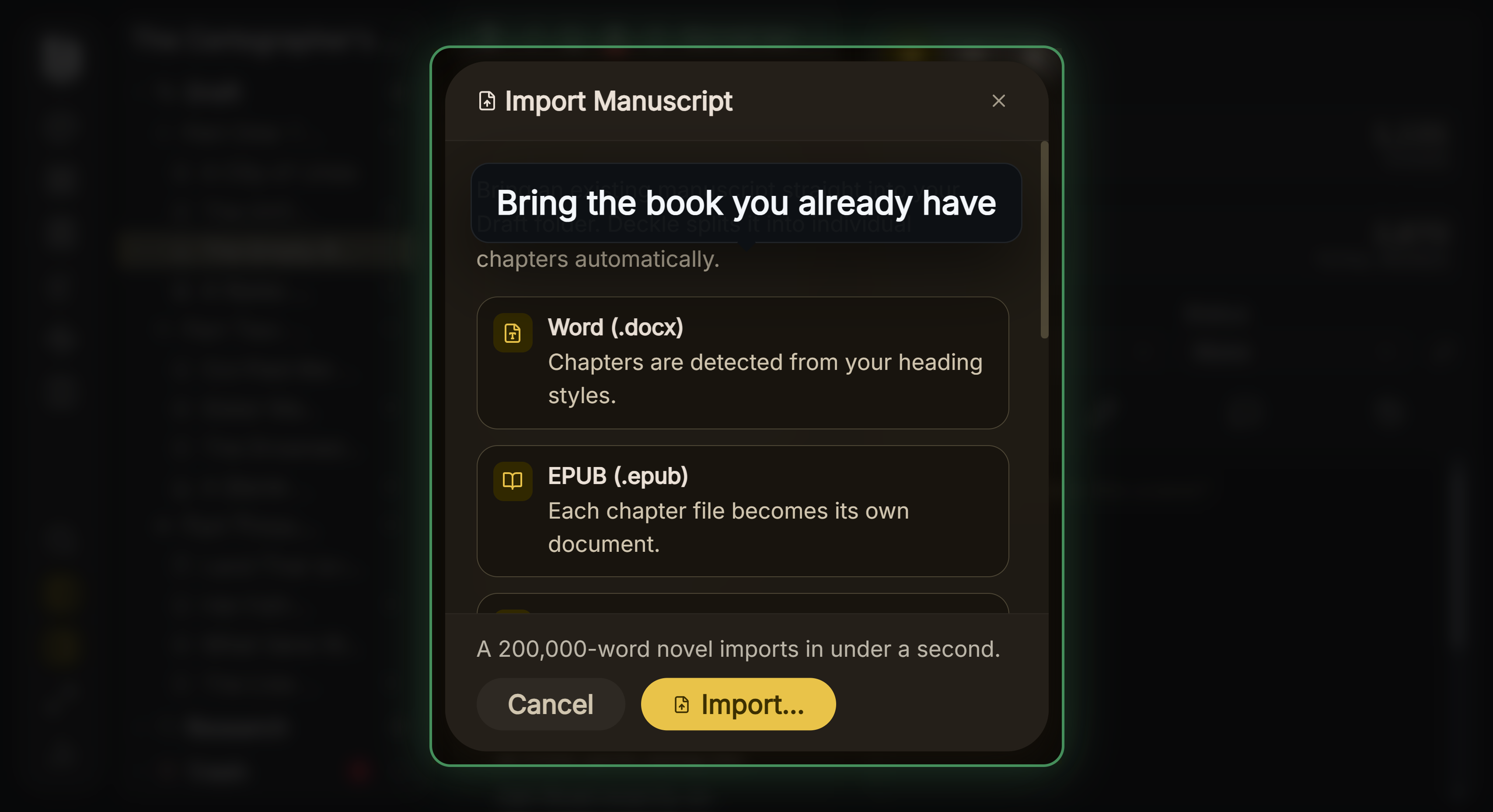 The Import Manuscript window, where a Dabble .docx comes in
The other direction is the part Dabble leaves out. Deckle exports EPUB (Generic, Kindle, Apple Books and Kobo targets), print PDF in eight trim sizes, DOCX, Markdown and plain text. The Kindle target writes an EPUB, not a KPF file, and KDP accepts EPUB for Kindle ebooks. What Deckle lacks is Dabble's sync, phone access and co-authoring. The full comparison is on Dabble vs Deckle.
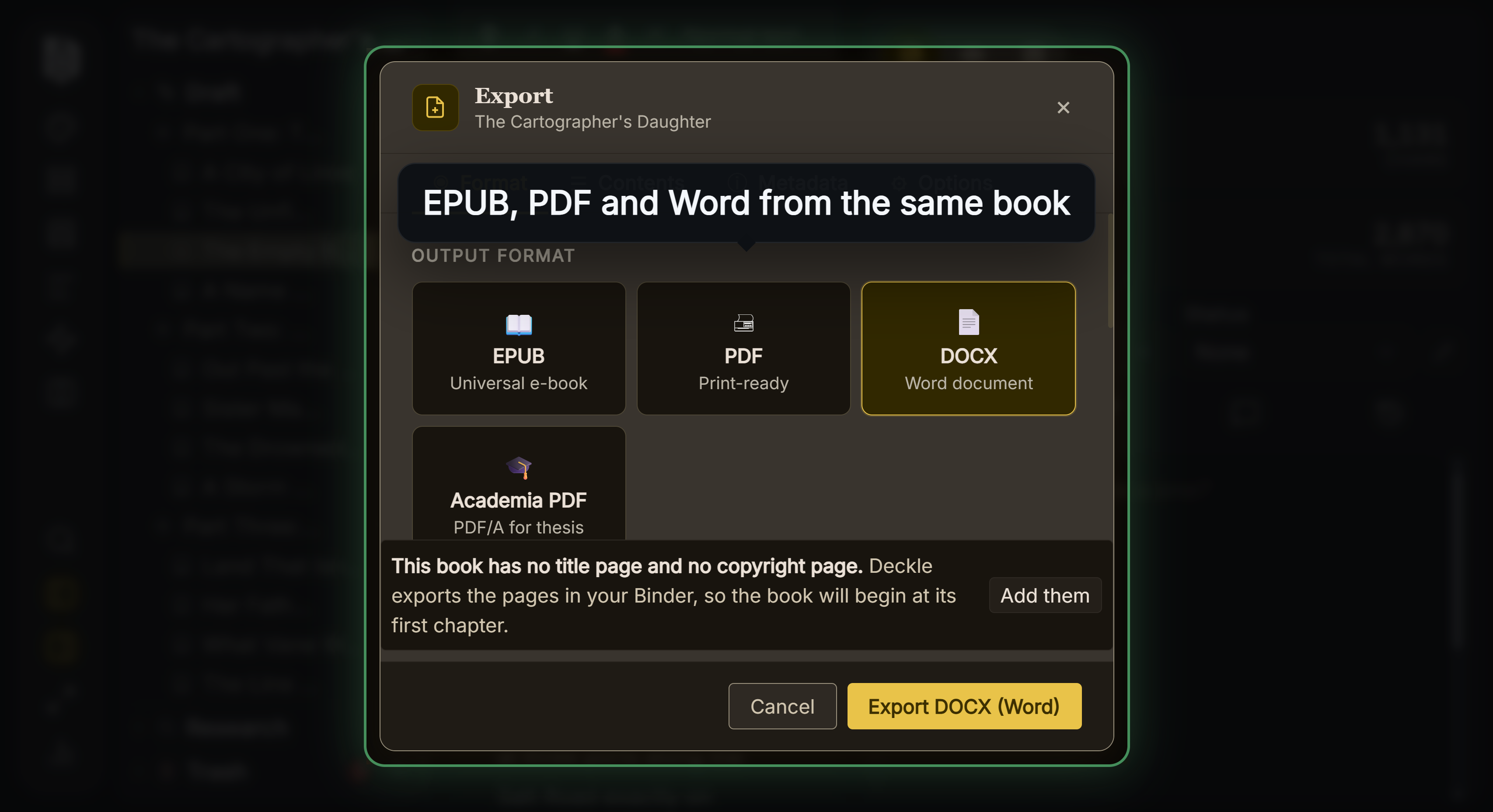 Every format from one manuscript
Deckle is a one-time purchase. To try it, click Try it free on the screen Deckle opens to. There is no card, no account and no time limit. It opens a sample novel with every screen open to explore, and you can restyle it and export real EPUB, PDF and DOCX files. New writing is capped at about 500 words, and new documents and imports are blocked.
FAQ
Can Dabble export to Word?
Yes. Export to… on a book, chapter or scene downloads a .docx in Manuscript Format or Dabble Format.
Can Dabble export to PDF?
Not directly. Press Cmd+P or Ctrl+P and choose Save as PDF in your browser. The print view is plain 12pt text.
Can Dabble export EPUB?
No. Dabble's help says "Dabble does not export PDF or ePub directly."
Can I export my whole Dabble project at once?
Not as a manuscript. Export works one book at a time. A full project copy is a Dabble backup from Preferences, Advanced, Data.
Can I export the Dabble Plot Grid?
Plot lines export as 4×5 or 3×5 index cards. Dabble's help describes no export of the grid as a table.
Can Dabble export to Google Docs?
Yes, after you connect your Google account on the Google Docs tab of the Export window.
Can Dabble export to Scrivener?
Not directly. Export to Word, then import the .docx into Scrivener.
Can I export from Dabble after my subscription ends?
Yes. Dabble says manuscripts "remain readable and exportable forever", and the account moves to "a free, read-only state".
Sources
All retrieved 20 October 2026.
- Export your manuscript, Dabble Help: destinations, steps, formats, one book at a time, plot-line cards, no PDF or EPUB
- Print from Dabble, Dabble Help: Save as PDF, the plain print view, printing characters and notes
- What's new in Dabble 3.0, Dabble Help: the redesigned export, plots as index cards
- Back up your work, Dabble Help: Export Project Data, Export Entire Local Database, Import Database
- Organize Story Notes, Dabble Help: the Notebook and Characters sections
- Dabble pricing: work stays "readable and exportable forever"
- Cancel your subscription, Dabble Help (retrieved 21 October 2026): account moves to "a free, read-only state"
- What file formats are supported for eBook manuscripts?, Amazon KDP Help: EPUB accepted for Kindle ebooks
- Scrivener overview, Literature & Latte: Scrivener imports Word documents
- DOCX Transitional (Office Open XML), ISO 29500:2008-2016, ECMA-376, Editions 1-5, Library of Congress: DOCX as an open ISO/IEC standard
Dabble and every other product name here belong to their owners. Scrivener is a trademark of Literature & Latte. Deckle is not affiliated with or endorsed by any product named here.