

Design your book's typography and layout once, in one place (fonts, trim size, chapter headers, drop caps, colors, and more) and have it render correctly everywhere you export it.
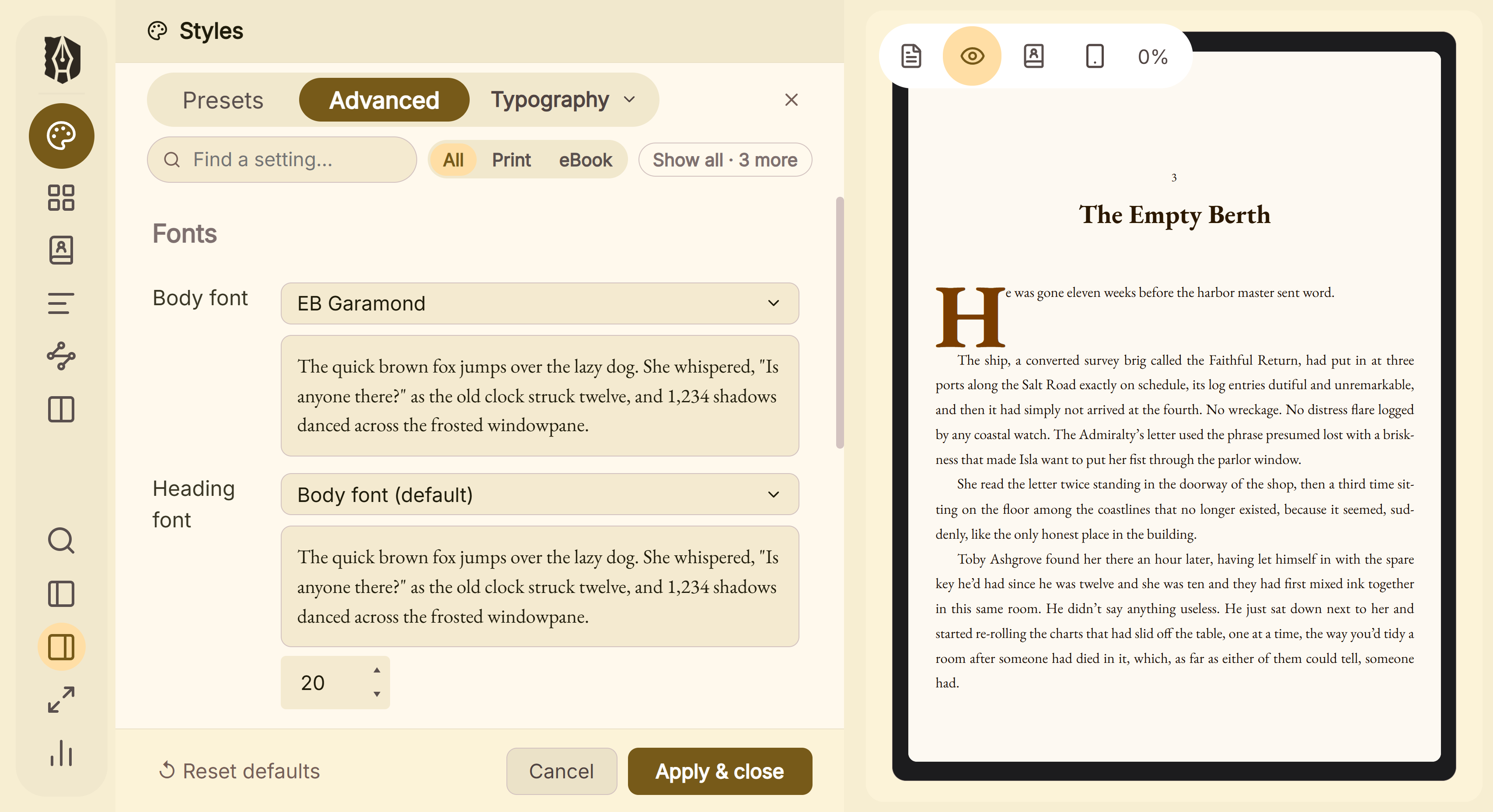 Advanced Styler open beside the live preview
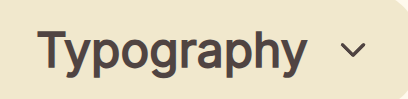 Category strip of all eight styling groups
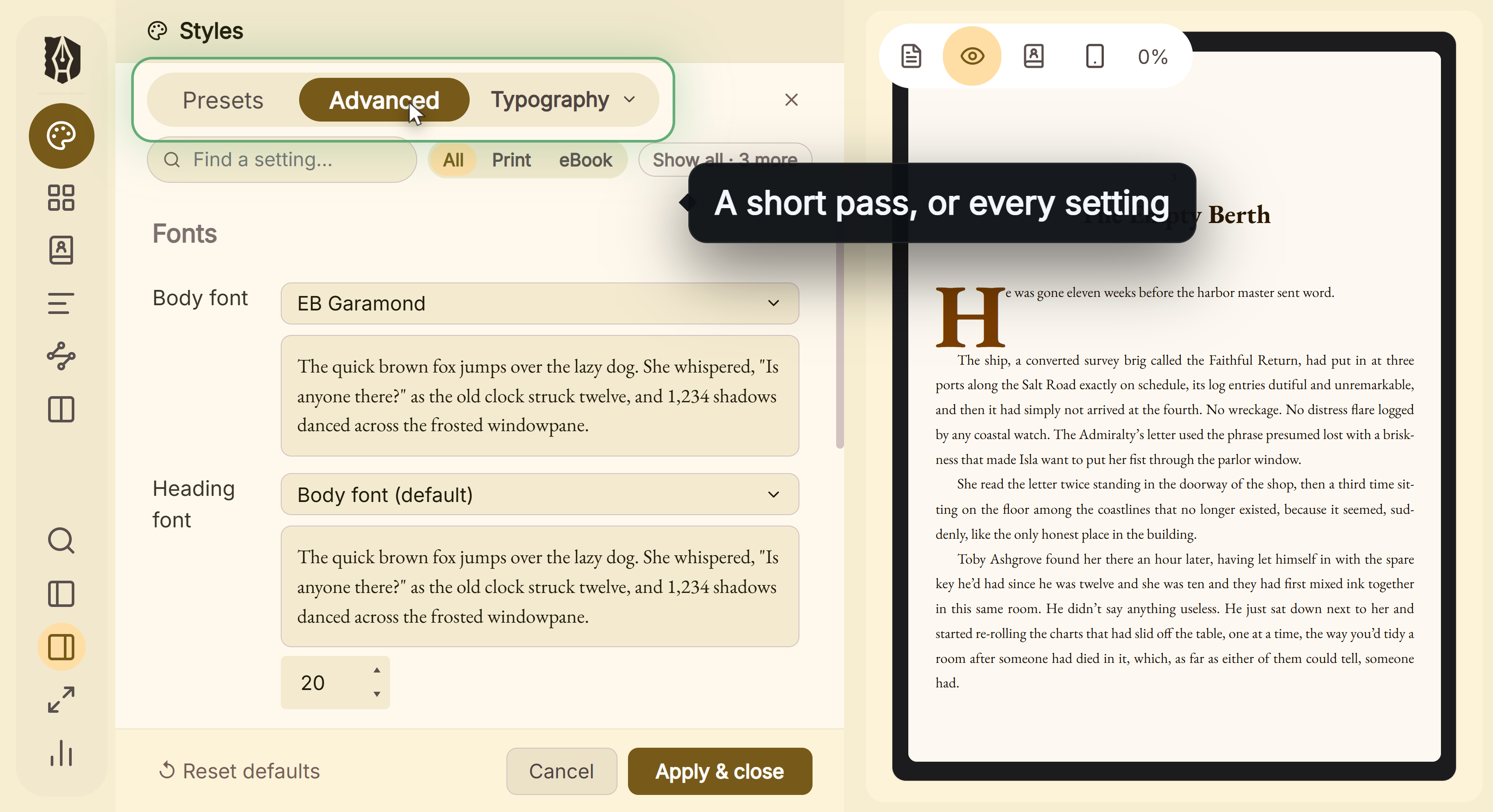 Simple and advanced mode toggle
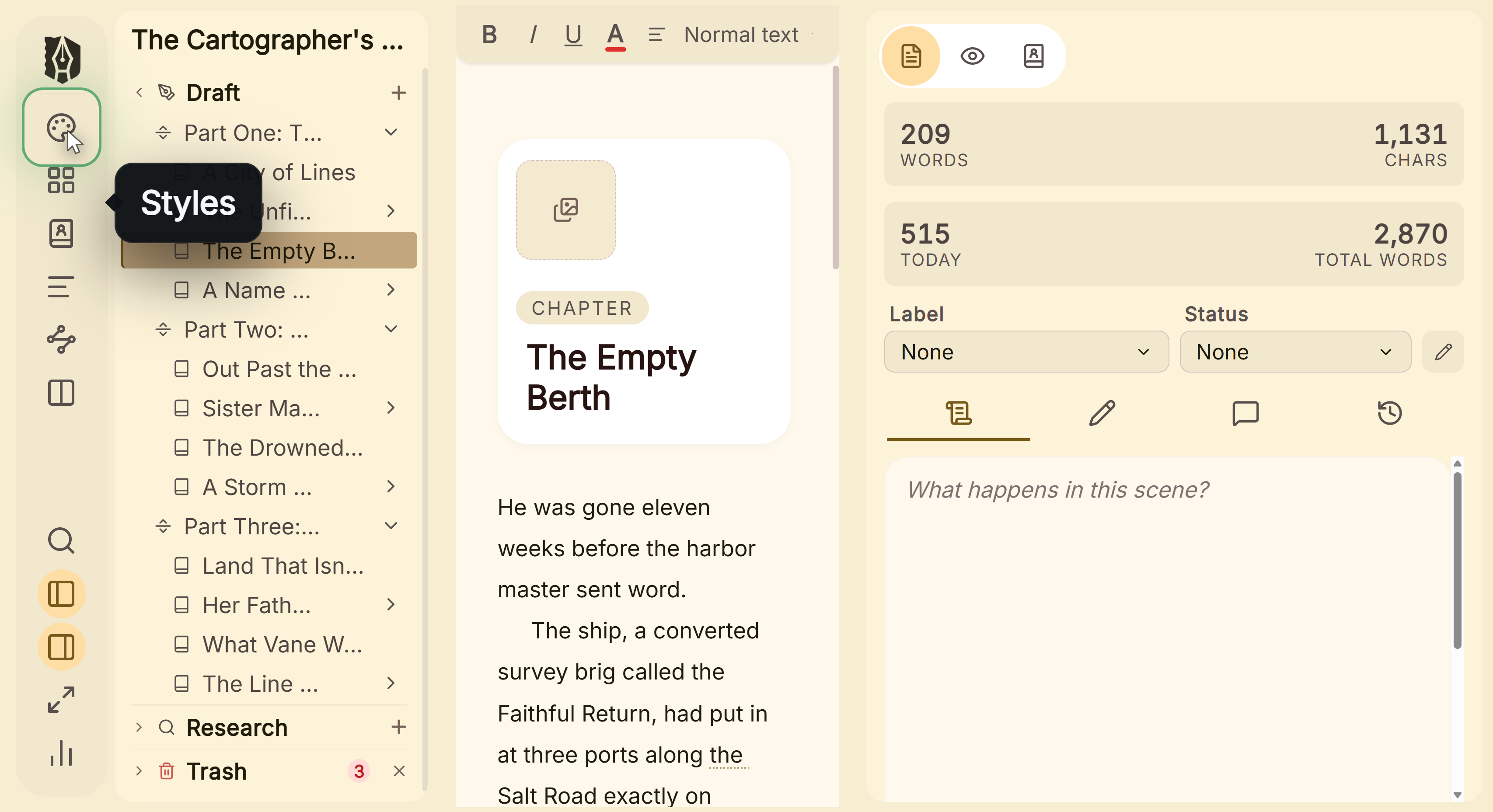 Styles control in the left menu
What You Can Do
- Start from one of 26 built-in presets covering popular styles, genre-specific looks, and specialized formats like dyslexia-friendly or academic layouts, or build your own from scratch and save it as a custom preset.
- Control every layer of your book's design: fonts and sizing, chapter header layout, first-paragraph treatment, scene breaks, special blocks (block quotes, verse, subheadings, and more), print-specific margins and running headers, colors, and special pages (copyright, dedication, ToC, and others).
- See your changes live-preview as you make them, before you ever export.
- Trust that your styling choices apply consistently across PDF, EPUB, and DOCX. Deckle handles the platform-specific rendering differences internally so you don't have to.
How to Open Styles
- Open your project.
- From Compile's Active Style summary, click Edit in Styles, or open Styles directly from the main navigation.
- Pick a category from the sidebar (Typography, Chapter, First Paragraph, Scene Breaks, Special Blocks, Print, Colors, or Special Pages) and make your changes. Every edit live-previews immediately.
One Set of Styling Choices, Three Export Formats
Your Styles configuration drives PDF, EPUB, and DOCX export together: pick your fonts and layout once, and all three formats reflect it. This isn't three separate style systems producing three different-looking books; it's one design translated correctly into each format's own rendering engine, including the platform-specific adjustments (like EPUB's per-target image sizing) that Deckle applies automatically.
Markdown and Plain Text export are the exception: both are intentionally style-agnostic and export your manuscript's raw content only, so nothing set in Styles affects them.
A Couple of Things Worth Knowing
💡 Trim size is the master setting. Changing it in Typography automatically updates font size, line height, and margins to match. You're not expected to tune all of those separately for each trim size.
💡 Background color only applies to PDF. EPUB readers use their own reader-controlled background setting, so Deckle's background color choice doesn't carry over there.
💡 Presets are a starting point, not a lock-in. Applying one fills in every category with matching values, but every individual setting stays fully editable afterward.
FAQ
Will my styling look different in my EPUB than in my PDF?
The design itself (fonts, layout choices, colors where applicable) is the same. Deckle adjusts the technical rendering details per format and per EPUB platform target internally so the intended design comes through correctly in each.
Does Styles affect my Markdown or Plain Text export?
No. Those two formats intentionally skip styling entirely and export your raw manuscript content.
Can I save my own custom style as a preset?
Yes, once you've configured a look you want to reuse, you can save it as a custom preset alongside the built-in ones.