

Skip designing your book from a blank slate: start from one of 26 built-in presets, each a complete, coordinated set of fonts, layout, and typographic choices, and adjust from there.
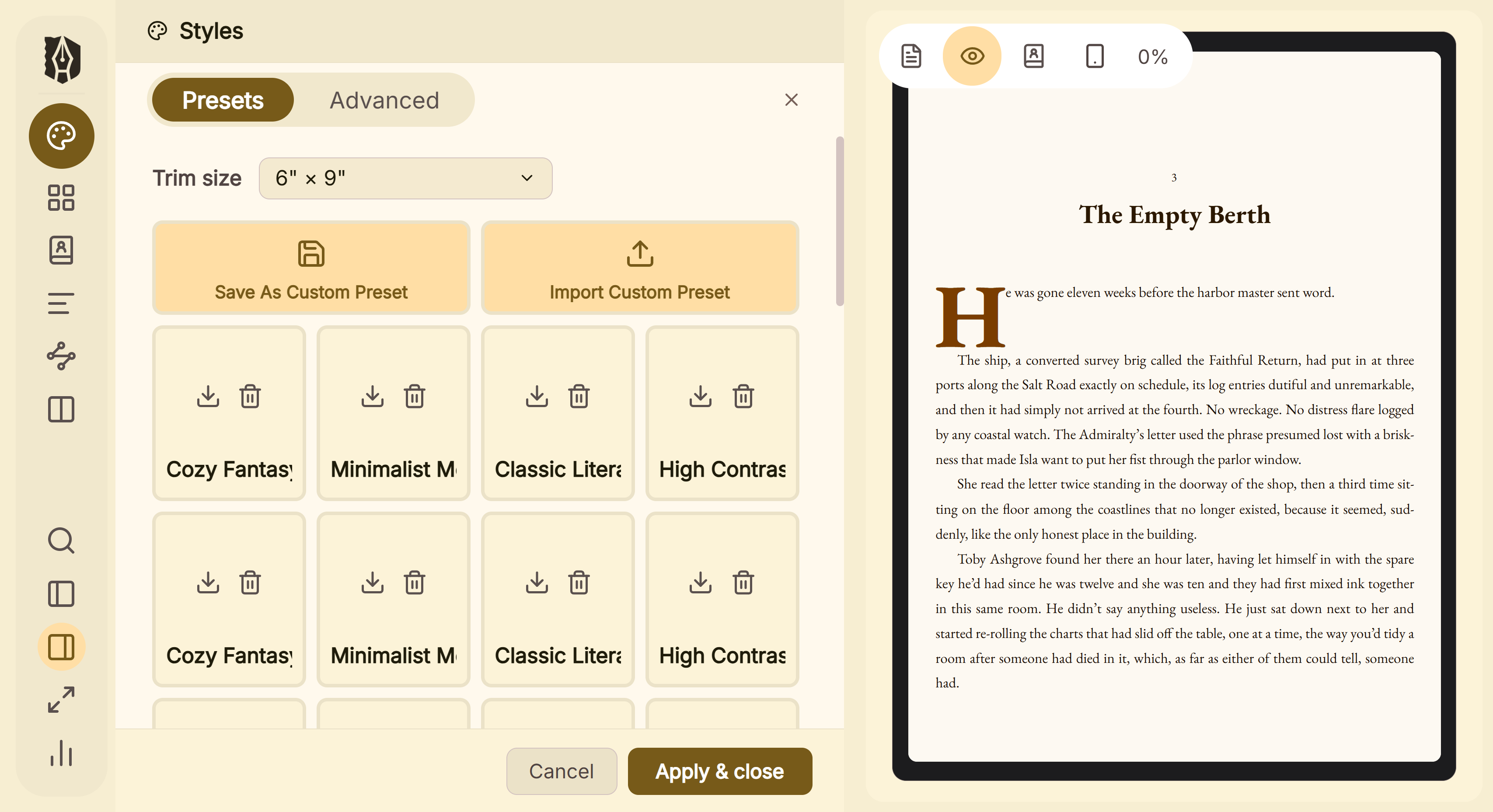 Preset gallery of complete book designs
What You Can Do
- Apply a complete style in one click: fonts, chapter header treatment, first-paragraph style, scene breaks, and colors all set together as a coordinated look.
- Choose from three preset groups: Popular (8 presets), Genre & Industry (13 presets), and Specialized Formats (5 presets, including accessibility-focused options).
- Keep every setting fully editable after applying a preset. It's a starting point, not a locked template.
- Save your own configuration as a custom preset once you've dialed in a look you want to reuse across projects.
How to Apply a Preset
- Open Styles.
- Browse the preset gallery, grouped into Popular, Genre & Industry, and Specialized Formats.
- Click a preset to apply it. Every category (Typography, Chapter, First Paragraph, Scene Breaks, and Colors) updates immediately.
- Adjust any individual setting afterward; applying a preset never locks you out of fine-tuning it.
A Couple of Things Worth Knowing
💡 Applying a preset changes multiple categories at once, not just fonts. Chapter header layout, scene break style, first-paragraph treatment, and colors all come along together as one coordinated design.
💡 Custom presets are saved from your own configuration. There's no separate template editor. Get your book looking the way you want in Styles, then save that exact configuration as a reusable custom preset.
FAQ
Do I lose the ability to customize once I apply a preset?
No, every setting a preset touches stays fully editable afterward. Presets are a fast starting point, not a locked template.
How many built-in presets does Deckle include?
26, split into three groups: Popular (8), Genre & Industry (13), and Specialized Formats (5).
Can I create my own preset?
Yes, configure Styles the way you want, then save that configuration as a custom preset for reuse on other projects.