

Organize your whole project in one navigable tree: your manuscript, your research, and your notes each in their own area, with drag-and-drop reordering and a Trash you can actually recover from.
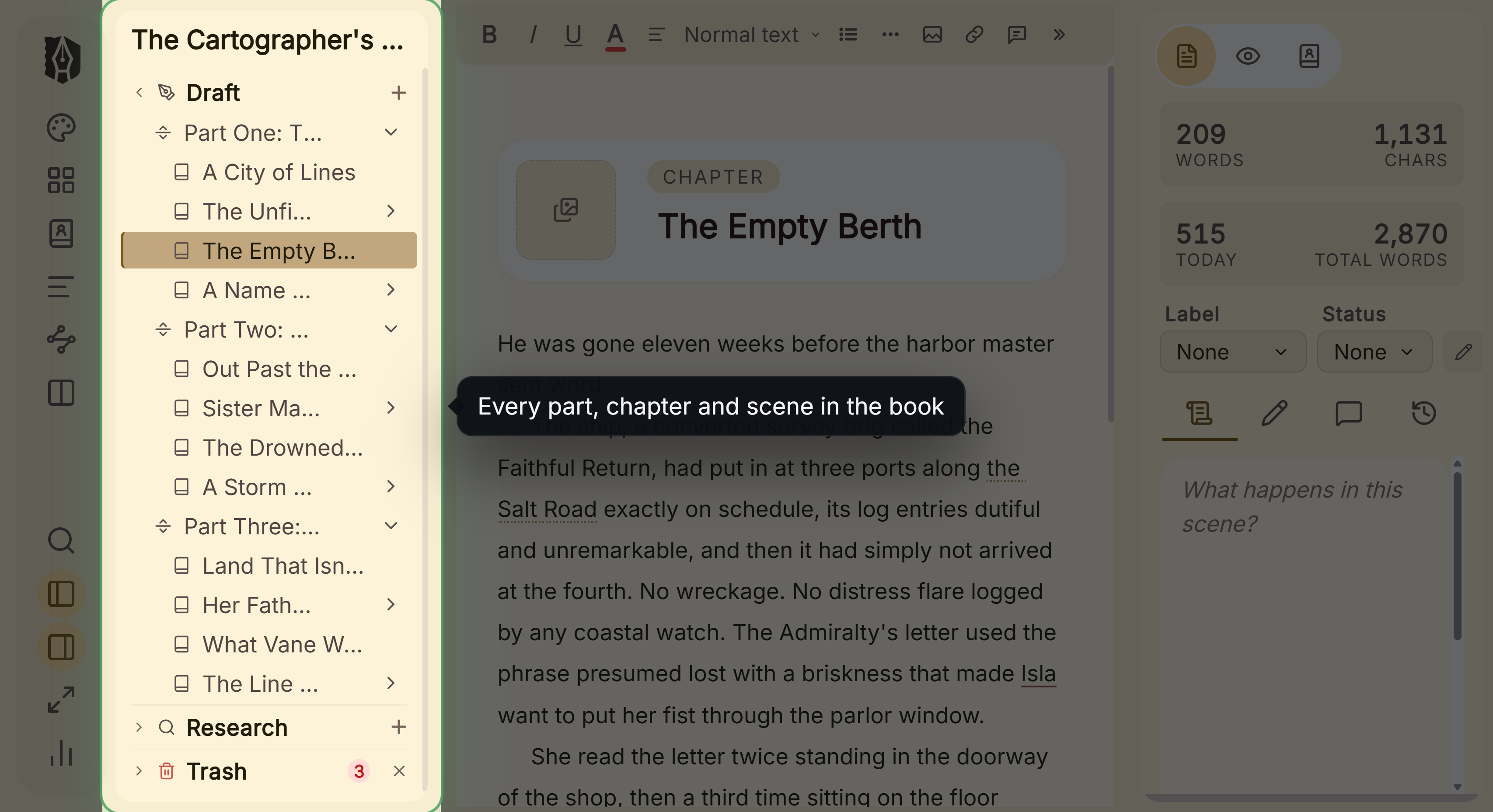 Binder column beside an open chapter
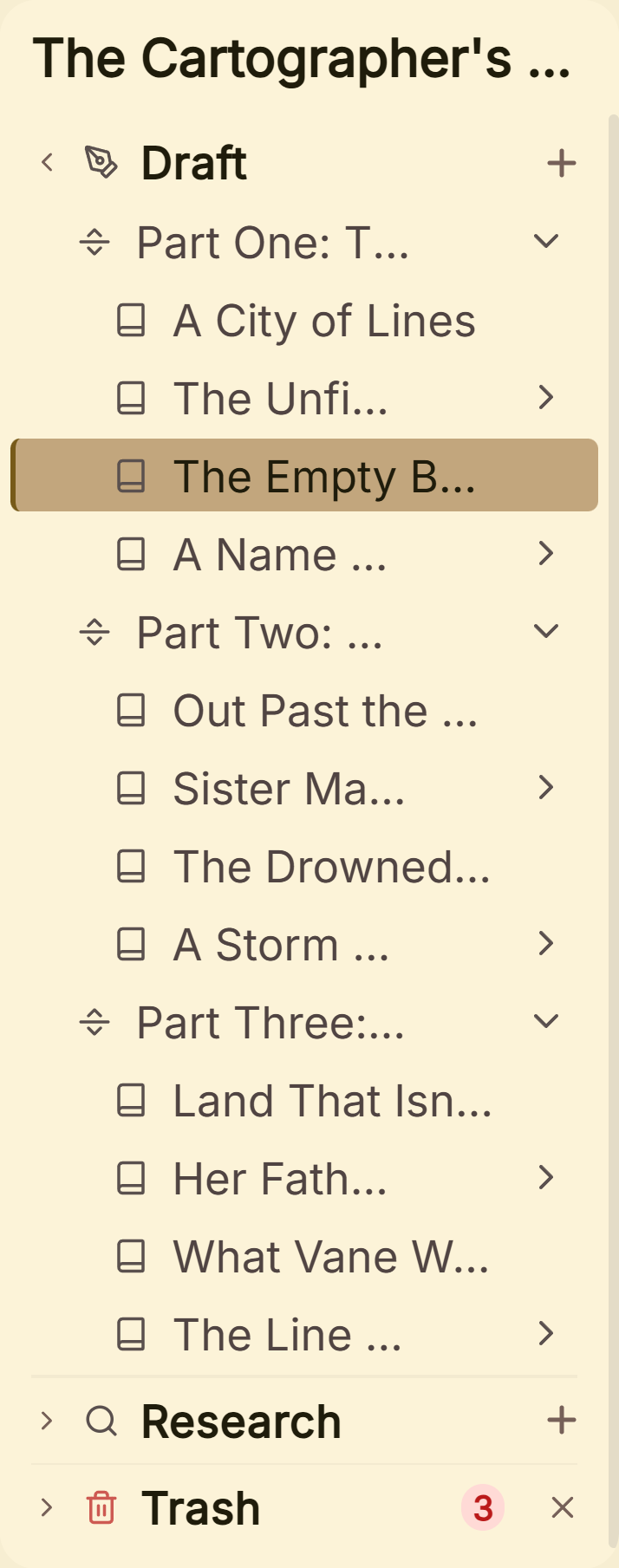 Draft tree of parts, chapters and scenes
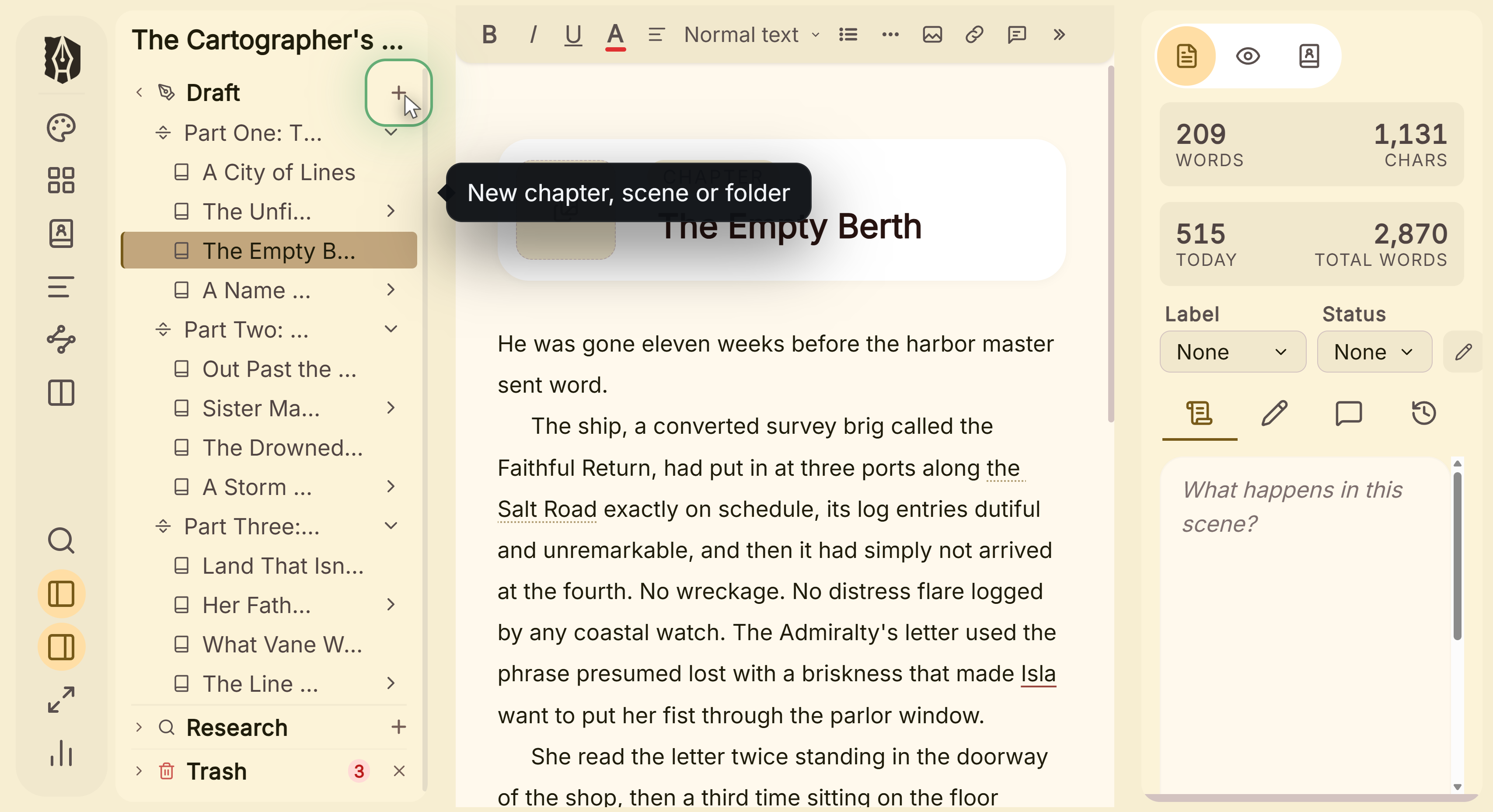 Add menu for a new chapter, scene or folder
What You Can Do
- Keep your manuscript (Draft), reference material (Research), and miscellaneous notes (Notes) in three separate areas of the same tree, instead of one flat file list.
- Add Folders, Chapters, Scenes, Notes, and Parts directly from the Binder, plus dedicated Front Matter and Back Matter special pages (title page, copyright, dedication, and similar).
- Drag and drop to reorder or move documents; multi-select several first and they all move together in one motion, not one at a time.
- Navigate the entire tree continuously with arrow keys.
- Drag anything onto Trash to remove it, and drag it back out to restore it to a specific spot, not just wherever it started.
How to Use the Binder
- Click + at the top of the Binder to add a Folder, Chapter, Scene, Note, or Part to your Draft, or to add Front/Back Matter, or to Import a file.
- Drag documents to reorder them or move them into a different folder or chapter, selecting multiple first (click while holding the multi-select modifier) to move a whole group together.
- Click your project's title at the top of the Binder to rename it directly.
- Removed documents go to Trash, where they stay recoverable until you empty it.
Draft vs. Research vs. Notes vs. Trash
- Draft: your actual manuscript. This is what gets exported (see the export-preparation workflow guide for exactly what's included).
- Research: reference material, world-building, anything that supports your manuscript without being part of it. Entirely excluded from every export.
- Notes: a separate area for your own notes, also entirely excluded from export.
- Trash: anything removed from Draft, Research, or Notes. Recoverable by dragging it back out until you empty Trash permanently.
A Couple of Things Worth Knowing
💡 Emptying Trash requires typing "DELETE" to confirm, a stricter safeguard than every other confirmation dialog in the app, since this one specifically can't be undone.
💡 The document you have open is marked by a colored left border, not just a background tint. This is deliberate: tint alone wasn't reliably visible across all of Deckle's themes, so the border is the primary signal.
💡 Multi-selecting and dragging moves the whole selection together, visibly, in one motion, not one document crawling into place after another.
FAQ
What's the difference between Research and Notes?
Both are separate top-level areas in the Binder, and both are entirely excluded from every export. How you divide material between them is up to you.
Does anything in Research or Notes ever get exported?
No. Only Draft is exported. Research and Notes are excluded regardless of what's inside them.
Can I recover something after deleting it?
Yes, as long as Trash hasn't been emptied. Drag the item back out of Trash to restore it to a specific location.