

Deleting a chapter in Deckle is a two-step process by design: it goes to Trash first, reversibly, and only actually disappears when you take a second, deliberately harder action to confirm you mean it.
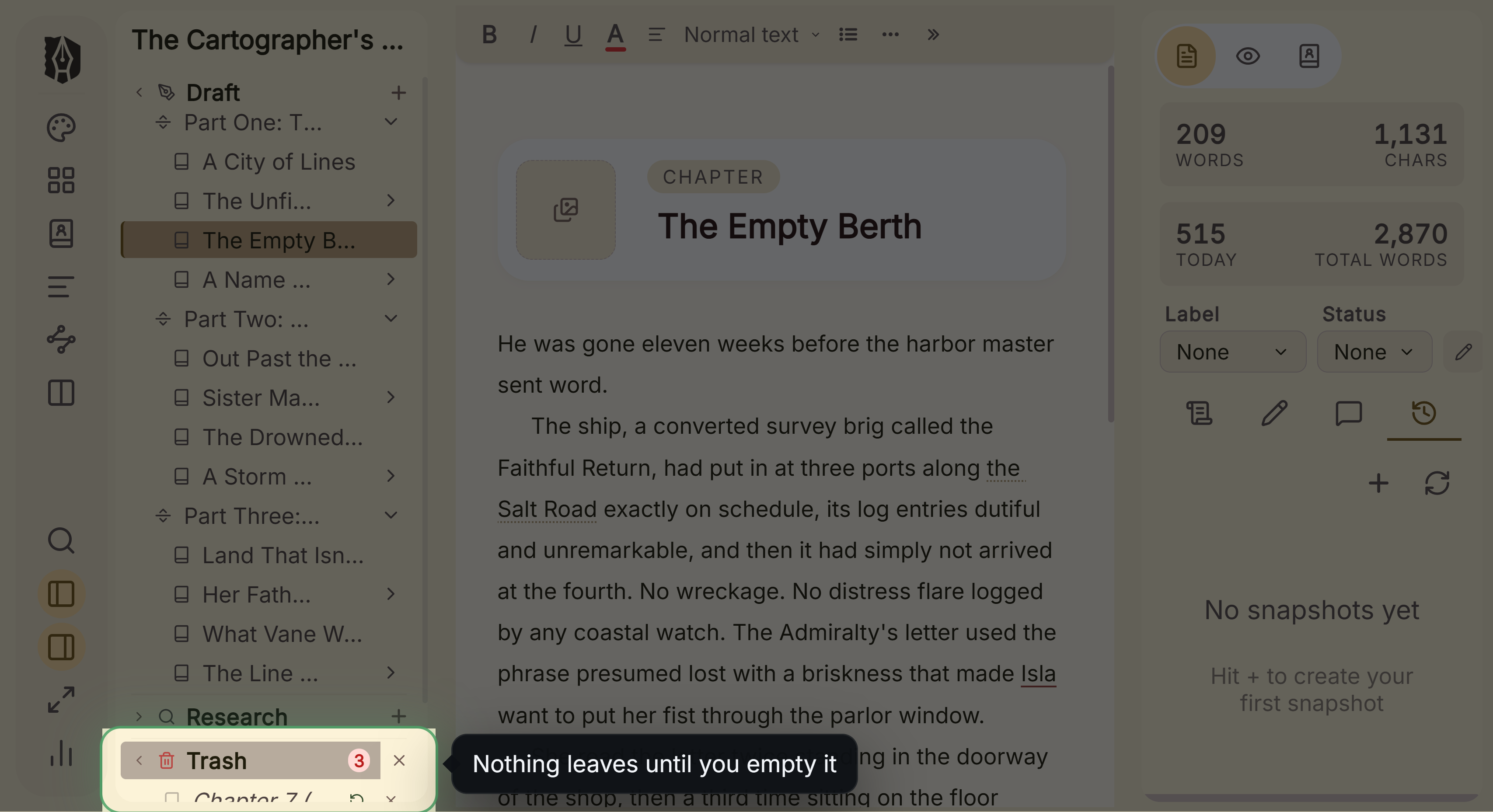 Trash folder holding deleted chapters
What You Can Do
- Move any chapter, scene, or folder to Trash with no confirmation step, since it's fully reversible.
- Restore a trashed item back to its exact original location with one click, or drag it out to a different spot instead.
- Permanently delete a single item, or empty the whole Trash at once, each requiring its own explicit confirmation.
- Trust that trashed content never counts toward your writing stats, never shows up in search, and never ends up in an exported manuscript.
How to Delete and Restore Documents
- Right-click a chapter, scene, or folder in the Binder and choose Move to Trash. There's no confirmation prompt: it's reversible, so none is needed.
- Open the Trash section at the bottom of the Binder to see everything you've deleted.
- Restore an item with its Restore button to send it back to exactly where it came from, or drag it out of Trash onto a different spot in the Binder to restore it somewhere else instead.
- Delete a single item permanently with its delete button: this asks you to confirm, since it can't be undone.
- Empty the whole Trash with the Empty Trash button, which requires typing "DELETE" to confirm, a deliberately stronger barrier than deleting one item, since it's a bulk, irreversible action. Since this can't be undone from inside Deckle, it's worth confirming your automatic backups are current before a large cleanup.
A Couple of Things Worth Knowing
💡 Deleting a folder brings its entire contents with it, structurally intact. Nothing is flattened. Restoring that folder brings every nested chapter and scene back exactly as it was, in exactly the same nested structure.
💡 Restoring cascades upward if needed, the same way "Put Back" works on macOS or a Recycle Bin restore works on Windows: if the item's original location is itself still in Trash, restoring brings back however much of the trashed structure it takes to land somewhere reachable again.
💡 You can't open or read a document while it's sitting in Trash. If you need to check its content before deciding whether to restore or delete it, restore it first.
💡 A permanently deleted document's own images aren't automatically cleaned up from disk. Everything else tied to it (document snapshots, comments, custom Outliner field values, and any linked Timeline event) is removed along with it, but embedded or title images are left in place.
💡 Trash is invisible to everything else. It's excluded from your word-count stats, from Search results, and from anything you export, the same way Deckle's Research and Notes areas are.
FAQ
Does deleting a chapter ask me to confirm first?
No. Moving something to Trash is reversible, so there's no confirmation step. Permanently deleting it, or emptying the whole Trash, does require confirming.
If I restore a chapter, does it go back to exactly where it was?
Yes, by default. Restore returns it to its original parent folder and position. You can also drag it out of Trash to a different spot if you'd rather put it somewhere else.
Can I read a document while it's in Trash to decide if I still need it?
Not directly. Restore it first, check it, and move it back to Trash again if you decide you don't need it after all.
Is emptying Trash covered by Deckle's automatic backups?
Not specifically. There's no backup triggered by deleting or emptying Trash. It relies on whatever your most recent automatic or manual backup already captured, so a very recent chapter you trash and then permanently delete might not be in any existing backup yet.