

Losing a project to a corrupted file or a bad edit is the kind of thing that only has to happen once. Deckle backs up your entire project automatically, without needing you to remember to do it.
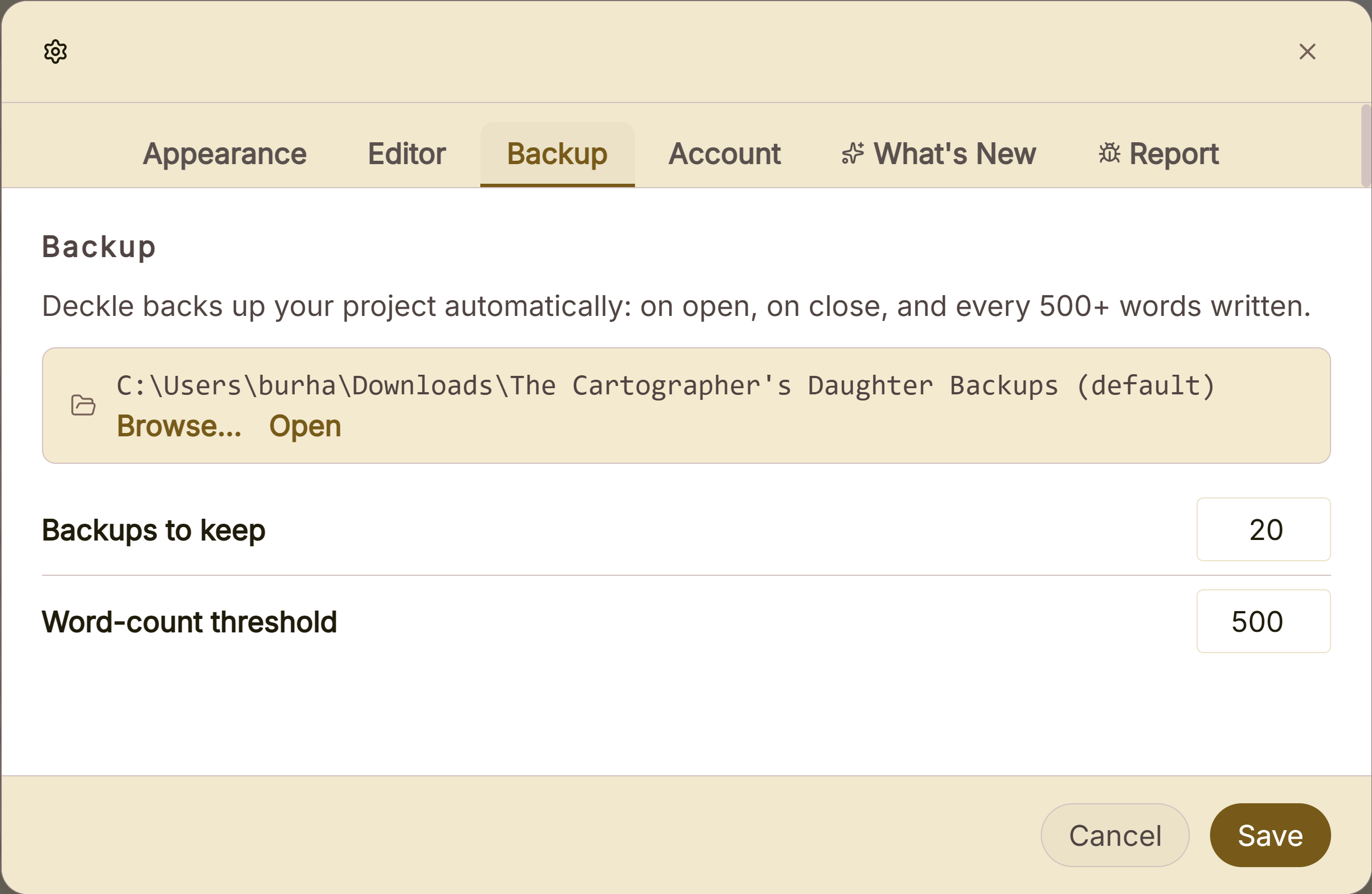 Backup settings for frequency and copies kept
What You Can Do
- Get an automatic backup of your whole project on open, on close, and after every few hundred words written.
- Trigger one manually at any time with "Back Up Now."
- Choose where backups are stored, and how many are kept before older ones are cleared out.
- Adjust the word-count threshold that triggers an automatic backup.
How Automatic Backups Work
Deckle backs up your project automatically: on open, on close, and every 500+ words written by default. Each backup is a single dated .zip file containing your entire project (its database and everything in its Images and research folders), saved into a dedicated backup folder for that project.
The word-count trigger counts total words written since your last backup, not your current word count, so deleting text back down doesn't undo progress toward the next automatic backup.
Setting Backup Location and Retention
- Open Settings → Backup.
- Click Browse… to choose a custom backup folder, or leave it unset to use the default: a "Project Name Backups" folder inside your Downloads folder (falling back to Desktop, then Documents, if Downloads isn't available).
- Set Backups to keep (3–100, default 20). Once you exceed this, Deckle deletes the oldest backup for that project to make room for the newest.
- Set the Word-count threshold (100–5,000 words, default 500) that triggers an automatic backup while you write.
- Click Open next to the backup folder path any time to reveal it in your file manager.
Backing Up On Demand
Use File → Back Up Now to trigger a backup immediately, outside the automatic schedule, useful right before a large structural edit or an import you're not fully sure about. It runs the same process as an automatic backup and counts toward the same retention limit.
A Couple of Things Worth Knowing
💡 Each project gets its own backup folder and its own retention count. A second project's backups never crowd out or get confused with a first project's. Rotation only ever considers files matching that exact project's name.
💡 Restoring from a backup is manual, not a built-in "Restore" button. Open the backup folder, extract the dated .zip you want with your OS's normal tools, then use File → Open on the .deckle file inside. See the restore workflow for the full steps.
💡 Backups are whole-project snapshots, not a way to recover a single document's earlier draft. If you want to step back to an earlier version of one chapter without touching the rest of your project, that's what Document Snapshots are for instead.
💡 Backups are also the safety net working behind the scenes. If Deckle's own automatic crash recovery ever can't repair a corrupted project any other way, it falls back to pulling content from your newest backup, which is one more reason not to turn them off.
FAQ
Where does Deckle store my backups by default?
In a "Project Name Backups" folder inside your Downloads folder, falling back to Desktop or Documents if Downloads isn't available on your system.
How do I restore a project from a backup?
There's no in-app restore button. Open the backup folder, extract the dated .zip you want using your operating system, then open the .deckle file inside it from Deckle's File → Open.
Does typing and then deleting a lot of text trigger an unnecessary backup?
No. The word-count trigger only counts total words written since your last backup, so deletions don't count toward it.
Can I back up manually instead of waiting for an automatic trigger?
Yes. File → Back Up Now runs a backup immediately, using the same process and retention limit as the automatic ones.