

Before rewriting a chapter, save exactly what it looked like first: a snapshot is a one-click, named copy of a single document you can come back to and restore later, without affecting anything else in your project.
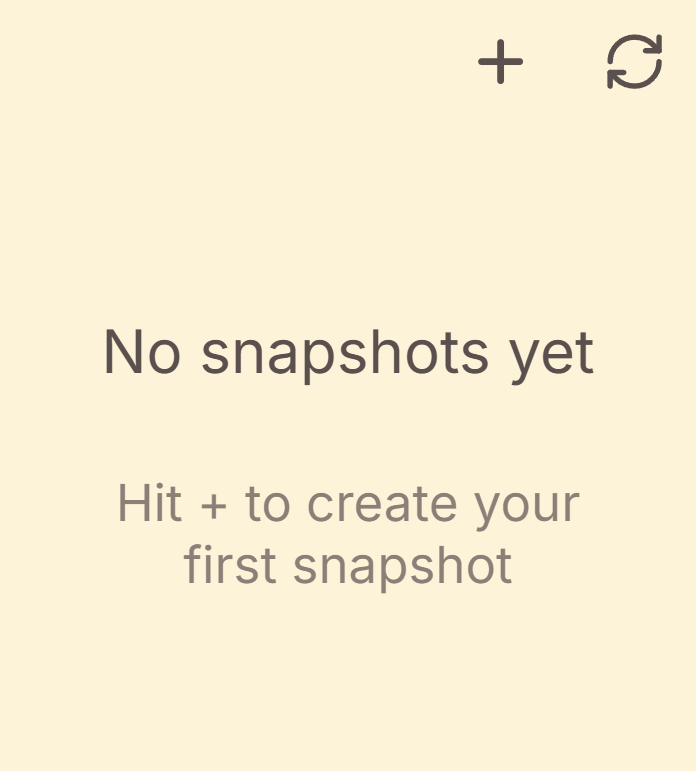 Dated snapshots of one chapter
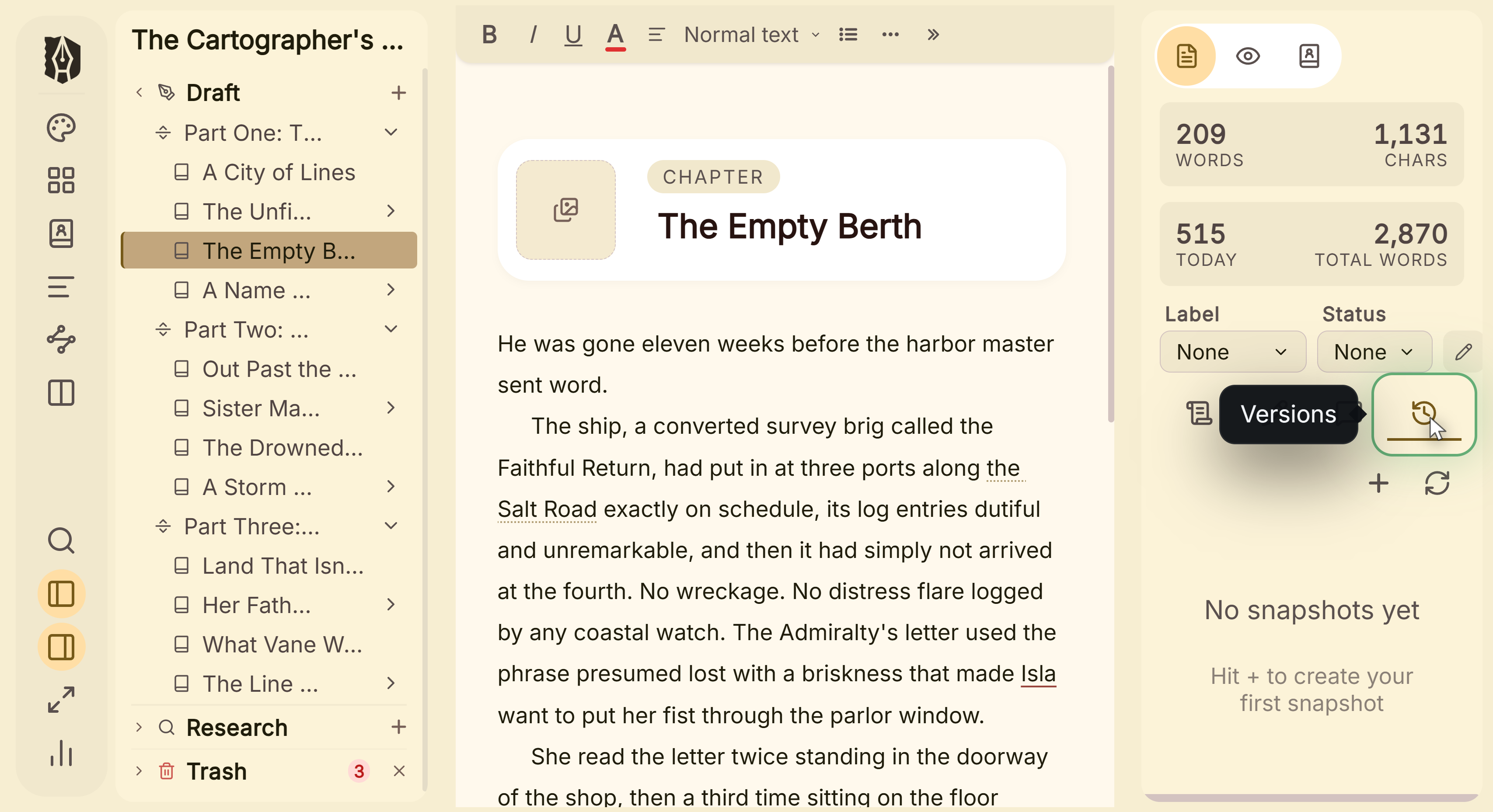 Versions tab in the inspector
What You Can Do
- Save a named snapshot of the document you're currently in, capturing its full content at that moment.
- Keep as many snapshots per document as you want, each with its own name and timestamp.
- Rename or delete a snapshot at any time.
- Restore a document to a snapshot, with a safety confirmation before it happens.
How to Use Snapshots
- Open the document you want to snapshot, then open the Inspector panel and switch to the Versions tab.
- Click + to create a new snapshot, and give it a name (or leave it blank: it'll be labeled "Manual Snapshot").
- Keep writing normally: creating a snapshot doesn't lock or change the document, it just saves a copy of its current state.
- To go back, find the snapshot you want in the list and click Restore. A confirmation appears before anything changes.
- Rename or delete any snapshot from the same list using its pencil or trash icon.
A Couple of Things Worth Knowing
💡 Snapshots are entirely manual: there's no automatic or scheduled snapshotting. If you want a version saved before a big revision, you need to create it yourself, right before you start.
💡 Restoring is undoable immediately afterward. The confirmation dialog explicitly notes that Ctrl+Z (or Cmd+Z) reverses a restore right after it happens, the same as any other edit, so restoring isn't an irreversible action if you change your mind right away.
💡 A snapshot is scoped to one document, not your whole project. For a whole-project safety net, that's what Automatic Backups are for. The two features solve different problems and work independently of each other.
FAQ
Are snapshots created automatically, or do I have to make them myself?
Manually only: click the "+" button in the Inspector's Versions tab whenever you want to save the current state of a document.
Can I undo a restore if I pick the wrong snapshot?
Yes, immediately afterward: Ctrl+Z (Cmd+Z on Mac) reverses a restore the same way it reverses any other edit, right after it happens.
Does creating a snapshot affect the rest of my project?
No. A snapshot only ever captures and restores the single document it was created from.
What's the difference between a snapshot and an automatic backup?
A snapshot is a manual, named save point for one document, restorable from inside that document's Inspector panel. An automatic backup is a full copy of your entire project, taken automatically on open/close/word-count milestones, and restored by extracting a zip file outside the app.