

Reference material, a PDF of a style guide, a screenshot of a map, a web page you don't want to lose, needs a home that isn't your manuscript. Research is a dedicated area in the Binder for exactly that: it organizes and displays alongside your chapters, but never appears in an export and never counts toward your word count.
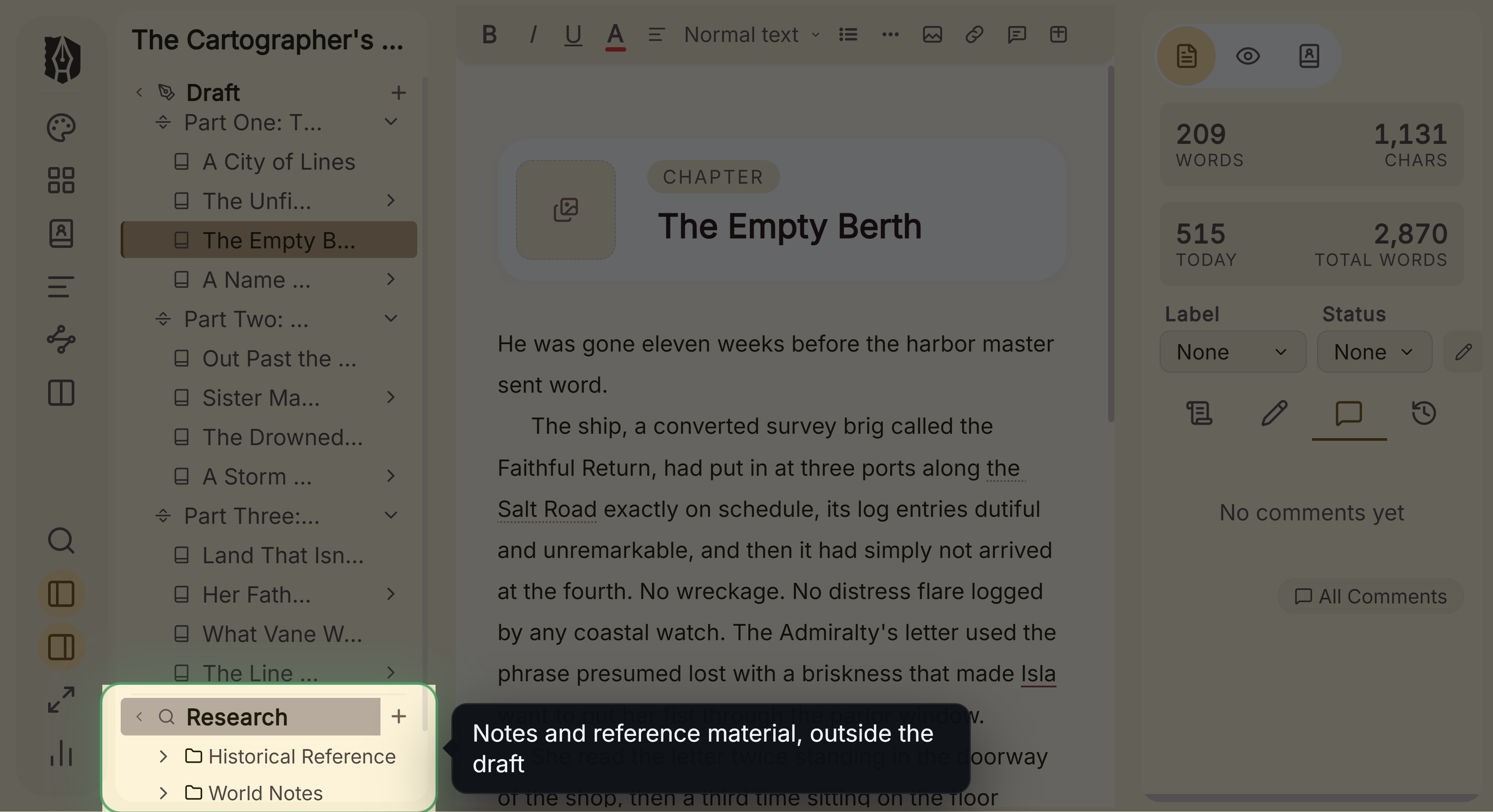 Research folder in the binder
What You Can Do
- Import images, PDFs, Word documents, and plain text/Markdown files as reference material.
- Save a web page as an offline snapshot, and refresh it from the source later.
- Organize research into folders, drag it around, and move items between Research and your manuscript.
- Write ordinary notes, chapters, or scenes inside Research itself, not just import outside files.
How to Add Research
- Open the Research section of the Binder.
- Use its add menu to Import File (choose an image, PDF, DOCX, or text/Markdown file from your computer) or Add Web Page (paste a URL to save an offline snapshot of it).
- Organize with folders and drag-and-drop, the same way you'd organize chapters in Draft.
- Drag an item onto Trash to remove it. Like everywhere else in Deckle, this is recoverable, not permanent.
Viewing Research Items
- Images and PDFs display inline, with a few preset height options for images.
- Web page snapshots display inline too. Click the refresh icon on a saved page to re-fetch it from its original URL and update your copy.
- Text and Markdown files open as read-only plain text.
- Word documents and any file type Deckle can't preview show an Open in System App button instead, launching it in your default application for that file type.
A Couple of Things Worth Knowing
💡 A web page snapshot saves the page's raw content, not a full visual copy. External images, fonts, and styling from the original page aren't mirrored. It's meant to preserve the text and structure of a page for reference, not to look pixel-identical to the live site. Once saved, it's viewable completely offline; you only need a connection again if you use the refresh button.
💡 Imported files aren't searchable by their content. Deckle's Search panel covers Research, but only text you've actually typed into a note, chapter, or scene created inside Research, not the contents of an imported PDF, image, or Word document. If you need to find something inside an imported file, you'll need to open it directly.
💡 Research never touches your exported manuscript or your word-count stats. It's excluded from compile entirely, the same way Trash is, and time spent writing inside Research doesn't count toward your daily goal or streak.
💡 You can tag a Codex character or location onto a note you write inside Research, the same way you would in your manuscript, but this only works for text you write directly in Research, not for an imported file.
FAQ
Will my imported PDFs and images end up in my exported book?
No. Research is completely excluded from compile and export, along with Notes and Trash.
Can I search inside a PDF or Word document I've imported into Research?
No. Search can only find text you've typed directly into a note, chapter, or scene inside Research. Imported file content isn't indexed.
Does saving a web page require an internet connection every time I view it?
No. Only at the moment you capture it (and again if you explicitly use the refresh/reload button). Once saved, it's stored locally and viewable offline.
What happens if I try to view a file type Deckle doesn't support inline, like a Word document?
You'll get an "Open in System App" button instead of an inline preview, which launches it in whatever application your computer normally uses for that file type.