

Leave a note on a specific line, or on a document as a whole. Both use the same tool, and both stay in sync no matter how many views of that document you have open at once. See getting feedback from beta readers and editors for a full review workflow.
 Comment list beside the passages they mark
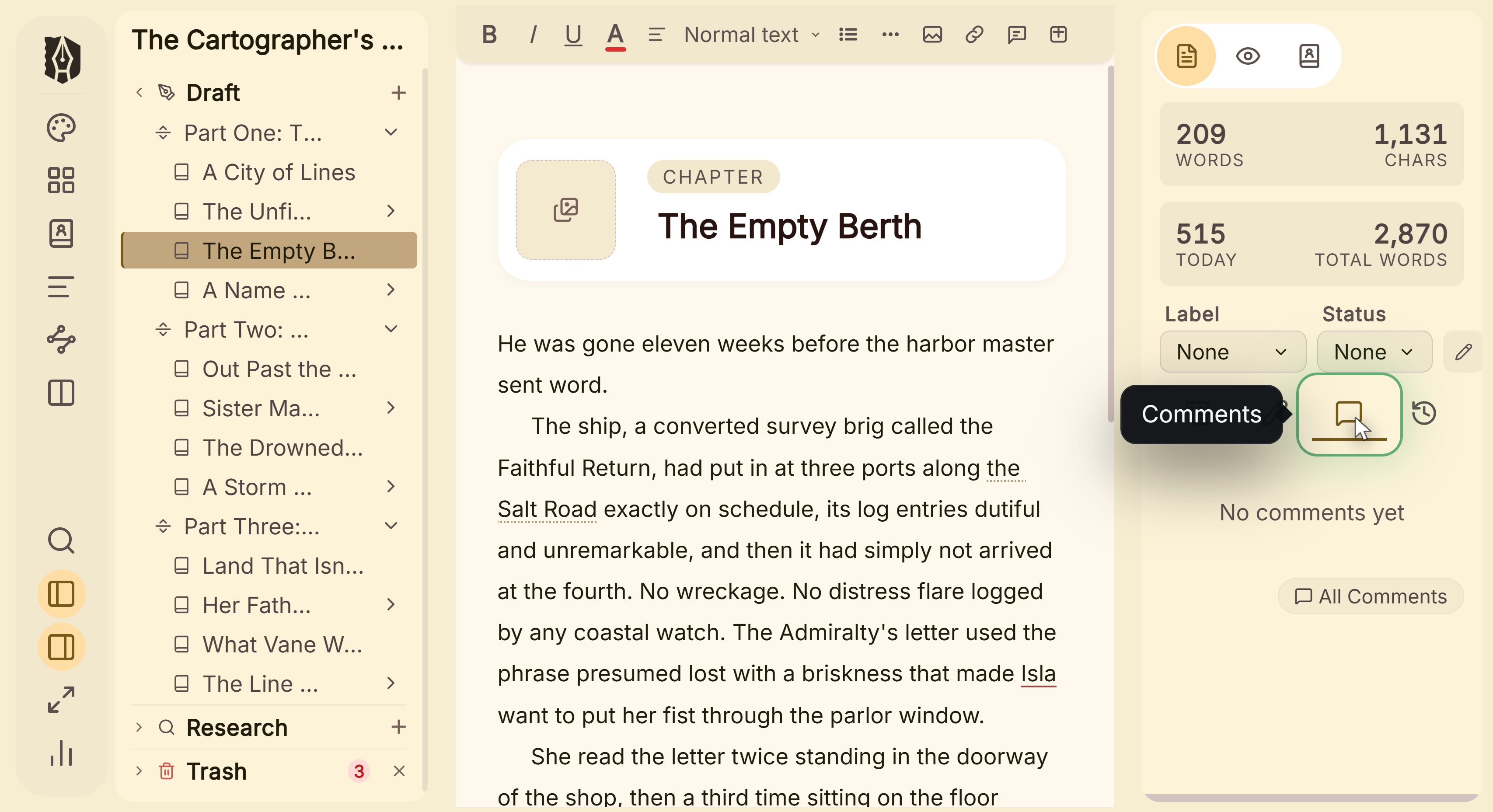 Comments tab in the inspector
What You Can Do
- Add an inline comment anchored to selected text, or a document-level note when nothing's selected: the same button does both, based on what you've selected.
- Resolve or delete a comment from the Inspector, with the change reflected instantly in every open view of that document, including a popout window.
- Work with comments the same way in the main editor, a popped-out window, and Scrivenings.
- Click a comment to jump straight to where it's anchored in the text.
- Review every comment across your whole project in one searchable list, not just the document you currently have open.
How to Add a Comment
- Select the text you want to comment on, or place your cursor with nothing selected for a document-level note.
- Click the comment button in the toolbar, or press Ctrl+Shift+C (Cmd+Shift+C on Mac).
- Type your comment and submit.
- Review, resolve, or delete comments from the Inspector's Comments tab.
Inline Comments vs. Document Notes
- Inline comments are anchored to a specific span of text. Select something first, then comment, and it stays attached to that exact text.
- Document notes ("global" comments) aren't anchored to any particular text. Leave the selection empty when you open the comment tool, and it's filed against the document as a whole instead.
Both show up in the Inspector's Comments tab, grouped separately, so it's clear at a glance which is which.
Reviewing Every Comment at Once
The Inspector's Comments tab only shows the document you currently have open. To see everything across your whole project, click "View all comments across the project" at the bottom of that tab. This opens a dedicated, full-screen list of every comment in your manuscript, grouped by document, with a search box to filter by content or document name. Resolved comments are shown dimmed rather than hidden, so you can still see what's already been handled. Click any comment (or a document's group header) to jump straight into the editor at that spot.
A Couple of Things Worth Knowing
💡 Resolving or deleting a comment updates every open view of that document immediately, including a popped-out window showing the same document, not just the one you're actively looking at.
💡 The same toolbar button and shortcut work in all three editing surfaces: the main editor, a popout, and Scrivenings, with the exact same inline-vs-document-note behavior in each.
FAQ
How do I add a comment to a whole document instead of a specific line?
Make sure nothing is selected when you open the comment tool (toolbar button or Ctrl+Shift+C). It becomes a document-level note instead of an inline one anchored to text.
If I resolve a comment while the document is open in a popout window too, does it update there as well?
Yes, immediately. Resolving or deleting a comment anywhere updates every currently open view of that document.
Do comments work the same way in Scrivenings as in the main editor?
Yes. The same comment tool, shortcut, and inline-vs-document-note behavior work identically across the main editor, a popout, and Scrivenings.
Can I see every comment in my project without opening each document one at a time?
Yes. Click "View all comments across the project" in the Inspector's Comments tab to open a searchable, project-wide list grouped by document.