

To move a book from Scrivener to Atticus, compile the project to a Word (.docx) file and upload that file to Atticus. Atticus reads nothing else from Scrivener: its help centre says "you'll first need to export the .docx from Scrivener." In Scrivener, choose File > Compile, set Compile for to Microsoft Word (.docx), set the separator between scenes to Custom with ***, and compile. In Atticus, click Upload, choose the file and click Go Get Em Atticus!

Atticus finds chapters from the Word file's formatting. A chapter starts at a Heading 1 title or 20pt-plus text, a page break, or "three consecutive empty lines." Most import problems come from a mismatch between those rules and the way Scrivener compiled the file.
What do you need to move Scrivener to Atticus?
- Scrivener 3, on macOS or Windows. Both can compile to .docx.
- Atticus. It costs $147 one-time, as of October 2026, with a 30-day money-back guarantee. It runs on Windows, Mac, Linux, Chromebook and in a browser.
- An internet connection for the upload. Atticus's help centre says "you will need an internet connection to upload an existing document and export your book." Writing in Atticus works offline. Importing and exporting do not.
- A finished draft, ideally. Atticus treats every uploaded .docx "as a new book", so a second upload does not update the first one (see below).
How do I export Scrivener to Atticus?
Atticus publishes its own recommended Compile settings for Scrivener. These are those steps, with the Scrivener setting names from Literature & Latte's Scrivener 3 manual for Windows.
- In Scrivener, choose File > Compile… (Ctrl+Shift+E on Windows).
- Set the Compile for menu at the top to Microsoft Word (.docx).
- Pick a Format in the left column. The format only needs to produce clean chapter titles and the right separators, because Atticus replaces the fonts and layout.
- Open the format's Separators pane and set the separator between scene documents to Custom, then type
***(three asterisks, no spaces). - Make chapter titles Heading 1, or at least 20pt. Atticus's Scrivener article says to "Format Chapter Titles as 20pt in the Legacy Version or Chapter Headings in Version 3."
- Delete any header and footer text in the format's Page Settings pane. Atticus asks for this, and it sets its own running heads.
- In the Contents tab, select only the main text of the book. Atticus says "for best results, make sure to select only the main contents of your story."
- Click Compile and save the .docx.
A yellow warning above the layout previews means none of your project's Section Types are mapped to a layout. The manual says "it is perfectly fine to compile in that state", but the format's chapter headings will not be used. Click Assign Section Layouts… and give your chapter folders or documents a layout that prints the title.
Atticus recommends opening the .docx once before uploading. Its import guide suggests turning on Word's Navigation Pane (View > Navigation Pane, or Ctrl+F, per Microsoft's help): every chapter title that shows there is a Heading 1, and Atticus will split the book at it.
How do I upload the Word file to Atticus?
- Log into Atticus and go to the Home screen.
- Click Upload to open the Upload window.
- Choose the .docx, or drag it into the window.
- Enter the Title and Author. The Project Name is optional and groups books in a series.
- Click Go Get Em Atticus!
The whole file lands in Atticus's Body section. Atticus builds the Title Page, Copyright page and table of contents itself.
Why are my chapters wrong after importing into Atticus?
Atticus documents four triggers for a new chapter: a Heading 1 title, text of 20pt or larger, a page break, and three empty lines in a row. A chapter problem is almost always one of those triggers firing where it shouldn't, or missing where it should.
The whole book came in as one chapter. The chapter titles are not Heading 1 or 20pt, and no page breaks separate the chapters. Atticus's fix is to add a page break between chapters and set each title to Heading 1. In Scrivener, the cleanest place to do both is the compile format: set chapter-level documents to use a Page break separator, and give their title a 20pt size or the Heading 1 style in Section Layouts. To divide a long chapter inside Atticus instead, put the cursor where the new chapter starts and click Split Chapter.
A chapter split into several chapters. A page break or three blank lines inside a chapter starts a new one. Scrivener's Page break separator between scene documents does exactly this. To strip stray page breaks in Word, Atticus gives this method: press Ctrl+H, type ^m in Find what, leave Replace with empty, and click Replace All.
Chapter subtitles are missing. Atticus says "subtitles do not automatically import into Atticus at the moment." Add them by hand in Atticus, then tick Subtitle in your theme's Chapter Heading settings so they print.
How do I keep scene breaks from Scrivener in Atticus?
Atticus converts one marker into a scene break: "three asterisks in a row with no other formatting or styling applied." Every other scene-break style from Scrivener needs fixing.
- Empty-line separators disappear. Scrivener's stock formats treat empty lines as scene breaks, and the Empty line separator inserts "two paragraph breaks." Atticus "removes blank spaces when it imports", so those breaks vanish and the scenes run together. Switch the separator to Custom
***before compiling. - Hash marks stay as hash marks. The Manuscript (Courier) and Manuscript (Times) formats print scene separators "as hash marks." Atticus does not convert
#. Change the separator in the format, or run Find and Replace in Word. - Centred asterisks may not convert. This is the one conflict between the two vendors' instructions. Scrivener's manual says a Custom separator is placed "on its own line, using the paragraph attributes of the line preceding it with centre-alignment added." Atticus's import guide says "be sure to keep them left aligned. Centering them will not import your scene breaks correctly." If the
***lines arrive as text instead of breaks, left-align them in Word before uploading, or delete them and click the asterisk icon in Atticus's toolbar at each break.
Once the breaks are in, Atticus styles all of them at once. Choose Scene Break with Image in the theme's Scene Break settings for an ornamental break. Atticus also splits each chapter into scenes in its left panel at every break, and you can drag scenes to reorder them.
Why didn't my footnotes, images or links import?
Endnotes. Atticus says "endnotes don't translate over right now upon import, but footnotes will be automatically detected and uploaded." Scrivener can turn footnotes into endnotes during compile, with the Export inspector/inline footnotes as endnotes checkboxes in the General Options tab. Leave both unticked for Atticus. You choose footnotes or endnotes later in Atticus's theme Notes Settings. Atticus adds a limit of its own: it "may not be the best fit if you rely on extensive notes, notes that contain multiple paragraphs, or notes exceeding 1000 characters." Footnotes appear only in print in Atticus; the ebook uses end-of-chapter or end-of-book notes.
Images. Large images "could cause a timeout process during the upload", and image settings made in Word mostly don't carry over. Atticus recommends importing the manuscript without images and inserting them in Atticus afterwards. If captions appear that you never wrote, Word's automatic alt text was read as a caption. Turn it off in Word under File > Options > Accessibility.
Links. Atticus recommends adding hyperlinks after the upload, because links from other programs "can cause them to not format correctly." Remove them from the .docx if the import fails.
Comments and annotations. Atticus's import guide does not mention Word comments. To keep editorial notes out of the book, tick Remove comments and Remove annotations in Scrivener's General Options tab before compiling.
How do I handle front matter from Scrivener in Atticus?
Leave most of it out. Atticus says "if you have a Table of Contents, Title Page or Copyright Page, delete these from your manuscript as Atticus automatically builds these for you." Untick Include in Compile for those documents in Scrivener, or leave them out of the Contents selection.
A dedication, introduction or other front matter page can stay in the file. After the import, drag it above the body in Atticus's left panel and the chapters renumber. Atticus also offers Preset Layouts for front and back matter pages, under the three dots next to Add Chapter.
What goes wrong when importing Scrivener into Atticus?
- Uploading a .doc, .rtf or .odt. Atticus imports .docx, and as of October 2026 its help says it "can sometimes import ePub files" too; Pages and Google Docs go in by saving as .docx first. Its troubleshooting note says "the x at the end is very important."
- Leaving Scrivener's Empty line separator in place. Atticus strips blank lines, so the scene breaks disappear.
- Centring the asterisks. Atticus wants
***left-aligned with no other formatting. - Compiling footnotes as endnotes. Atticus imports Word footnotes only.
- Uploading with images in a large file. The upload can time out. Add images in Atticus instead.
- Re-uploading the whole book after edits. Atticus says an uploaded .docx "is treated as a new book" and recommends making changes in Atticus. For a few revised chapters, use Import Chapters from the three-dot menu next to Add Chapter. Atticus notes this "is not meant to import changes to the entire manuscript."
- Reading the word count as a loss. Atticus counts hyphenated words and contractions its own way, and its help says counts can vary between programs "by as much as 10%."
- Missing hyphens. Atticus can strip hyphens it mistakes for hidden formatting. Its help suggests retyping them, or turning off hyphenation in Formatting.
Can you skip the Word file between Scrivener and Atticus?
Deckle is our app, so weigh this section accordingly.
The Scrivener to Atticus route means a compiled Word file in the middle, and Atticus's import rules decide what survives. Deckle reads a Scrivener project directly, with no .docx step and no internet connection.
In Scrivener, choose File > Back Up > Back Up To… and tick the option to save it as a ZIP file (the Scrivener manual calls it "Backup as ZIP file"). Then import that .zip in Deckle. Draft, Research and Notes come across as separate documents rather than one compiled file, with their synopses, labels, statuses, images, inline annotations and comments. Deckle needs the zip: it cannot open a raw .scriv folder. The step-by-step is in moving from Scrivener to Deckle.
Formatting happens in the same project. Styles has 26 built-in presets. Scene breaks can be whitespace, asterisks, an asterism, a fleuron, em dashes or a custom glyph or image, and special pages cover the Title Page, Copyright, Dedication, Table of Contents and more. Compile exports EPUB (Generic, Kindle, Apple Books and Kobo targets), print PDF and DOCX, on Windows, macOS and Linux.
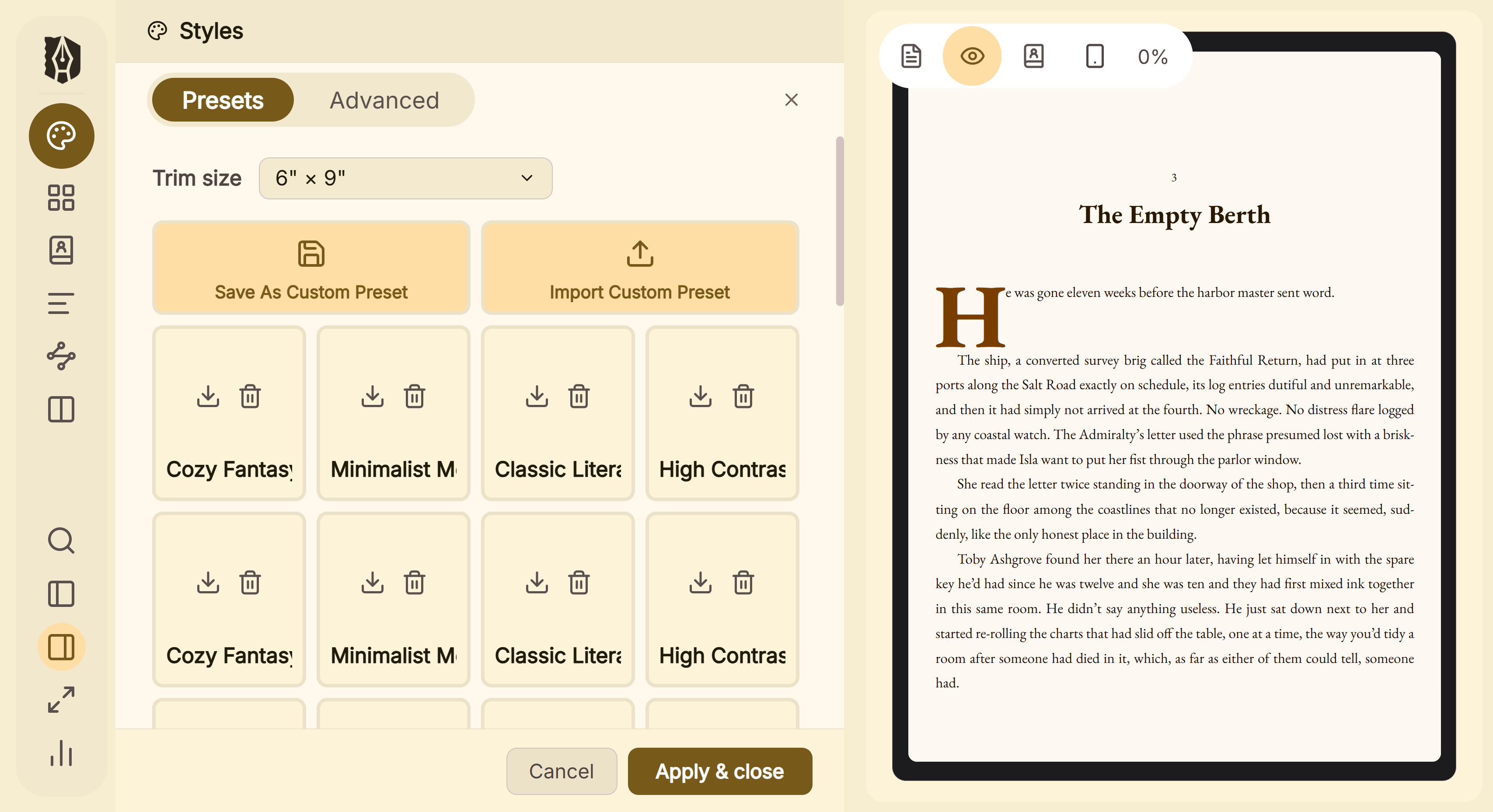 A preset sets the whole book's look, with the result in the preview beside it
What you would give up. Atticus runs on a Chromebook and in a browser, and it has collaboration for authors, editors and readers. Deckle is a desktop app with no browser version and no collaboration. Deckle has 8 fixed trim sizes and no custom size, and its Kindle target writes an EPUB for KDP to convert rather than a KPF file. Scrivener's compile settings do not carry into Deckle, so you set the book's look once in Styles. If you want to format on a Chromebook or share a draft with an editor inside the app, Atticus suits that better.
Deckle is a one-time purchase. To try it, click Take Deckle for a Spin on the screen Deckle opens to: no card, no account and no time limit. It opens a sample novel with every screen open to explore, and you can restyle it and export real EPUB, PDF and DOCX files. New writing is capped at about 500 words, and new documents and imports are blocked, so the Scrivener import itself needs the full app. For the two-app route through Vellum instead, see exporting Scrivener to Vellum. For what Atticus costs, see the Atticus price page.
FAQ
Can Atticus import a Scrivener project directly?
No. Atticus imports .docx files. You compile a Word file in Scrivener and upload that.
What compile settings should I use for Atticus?
Compile for Microsoft Word (.docx), set the scene separator to Custom with ***, make chapter titles Heading 1 or 20pt, delete header and footer text, and compile only the main text.
Why did all my scene breaks disappear in Atticus?
Scrivener's Empty line separator inserts blank lines, and Atticus removes blank lines on import. Use *** instead, left-aligned.
Why did Atticus put my whole book in one chapter?
The chapter titles were not Heading 1 or 20pt and there were no page breaks between chapters. Fix the titles in the compile format, or in Word, and upload again.
Do footnotes from Scrivener import into Atticus?
Footnotes do. Endnotes don't, so leave Scrivener's "export footnotes as endnotes" options unticked and choose endnotes inside Atticus.
Can I update my Atticus book after editing in Scrivener?
Not by re-uploading the whole file, which makes a new book. Atticus recommends editing in Atticus, or importing a few revised chapters with Import Chapters.
Do I need the internet to import into Atticus?
Yes. Atticus says uploading a document and exporting a book need an internet connection.
Sources
All retrieved 2026-10-20.
- Can I import from Scrivener?, Atticus Help Center (recommended Compile settings, Custom
***, 20pt titles, header and footer, upload steps) - How to Prepare Your Word Document for Upload, Atticus Help Center (Heading 1 and page breaks, front matter, left-aligned asterisks, footnotes and endnotes, images, links, troubleshooting)
- Importing Existing Work, Atticus (chapter detection by H1, 20pt text, page breaks or three empty lines; Upload window steps)
- How do I import scene breaks with my .docx file?, Why do the blank lines between paragraphs disappear? and How do I add an ornamental scene break?, Atticus Help Center
- How do I import endnotes? and Does Atticus support footnotes or endnotes?, Atticus Help Center
- Can I import images from my docx? and Why were captions added to my images during import?, Atticus Help Center
- Can I automatically import chapter subtitles?, How can I remove page breaks before importing? and How do I split a chapter?, Atticus Help Center
- How do I add my changed chapters into my existing book? and Do I need to be connected to the internet to upload a document?, Atticus Help Center
- Why is my word count different after import? and Why do my hyphens disappear on import?, Atticus Help Center
- Can I import an ePub? (28 October 2025) and Can I import Pages or docx? (20 August 2026), Atticus Help Center, retrieved 2026-10-21 (EPUB "sometimes"; Pages and Google Docs saved as .docx)
- Atticus, Atticus (price, platforms, collaboration)
- Use the Navigation pane in Word, Microsoft Support (View > Navigation Pane or Ctrl+F; headings need heading styles)
- Scrivener 3 User Manual for Windows, Literature & Latte, revision 3.1.6.0-02 (5.2.2 Manually Backing Up; 23.3.3 Assigning Section Layouts; 23.4.3 General Options: Remove comments, Remove annotations, export footnotes as endnotes; 24.3.1 Separator Types: Empty line and Custom with centre alignment; table 23.1 file types; D.2.3 and D.2.4 hash-mark separators)
Scrivener is a trademark of Literature & Latte. Atticus is a trademark of its owner. Deckle is not affiliated with or endorsed by any product named here.