

Atticus works offline for writing, but its own pages disagree about the rest. As of October 2026, the Atticus homepage says you can format "with or without an internet connection". Its help articles, as recently as 5 June 2026, say "You do need to be online to import and export files". Atticus is a progressive web app (PWA), installed through Chrome.

Every Atticus fact on this page comes from atticus.io, read on 20 October 2026. Where a help article shows a "last updated" date, it is given.
Is Atticus online only?
No. Atticus is not online only. You can write in it with no connection, and it syncs your work when you reconnect. It is also not a fully offline desktop program. Atticus is a web app that you can install, so some jobs still go through its servers. Vellum, the Mac formatter it is most often weighed against, is a desktop app that needs no connection, as Atticus vs Vellum sets out.
What Atticus says about working offline
Atticus's pages make five statements, and the homepage is the odd one out.
| Atticus page | What it says | Date shown |
|---|---|---|
| Homepage | "Works online and offline". "Format your book on any desktop device, with or without an internet connection." | None shown (read 20 October 2026) |
| How to Access Atticus | "you can write while offline and it will sync to the server once you are back online". "You do need to be online to import and export files". | Last updated 14 February 2024 |
| How to Install on Your PC, Mac, iOS, Chromebook or Android | "The only things you can't do while offline are:" "Import a document", "Export a document", "Change between books". | Last updated 26 May 2023 |
| Do I need to be connected to the internet to upload a document or export my book? | "you will need an internet connection to upload an existing document and export your book" | 28 October 2025 |
| Can I download Atticus on my iPad? | "You do need to be online to import and export files" | 5 June 2026 |
The help articles agree with each other. Writing works offline. Importing, exporting and switching books need a connection. The homepage claim is broader, but it carries no date, and Atticus's newest help articles (October 2025 and June 2026) repeat the older rule. As of October 2026, plan on being online to import and export, EPUB included.
The updates log shows why exports touch a connection at all. On 13 September 2022 it reads "New Lambda serverless press for exports/imports", which describes a server-side process, and on 2 November 2023 Atticus "Moved ePub export process to the browser." The 2025 and 2026 help articles still say export needs a connection.
How Atticus installs: a progressive web app through Chrome
Atticus is not downloaded from an installer. Its support FAQ says "Because Atticus is a progressive web app, the install process is a bit different than other programs." Mozilla's developer documentation defines a progressive web app as "an app that's built using web platform technologies, but that provides a user experience like that of a platform-specific app." In practice the browser installs the site so it opens in its own window, like a program.
How you install it depends on the device, per Atticus's install article (the full walkthrough, per device, is in Atticus download):
- Windows and Mac. Open Atticus in Chrome and click the install icon at the right of the address bar. On a Mac you can then drag Atticus into Applications. The access article says "You'll need to use Chrome in order to do this."
- Chromebook. The same Chrome install icon.
- iPhone and iPad. Use Safari: "Tap the 'Share' button, scroll down and tap 'Add to Home Screen.'"
- Android. Chrome offers "Add Atticus to Home Screen", or you choose it from the browser menu.
Atticus warns against one browser: "we strongly recommend avoiding Edge browser, which is known to have multiple issues that can affect how Atticus operates".
Google's own Chrome help explains why "installed" does not mean "fully offline": "Although web apps work offline, some may not work completely without an internet connection." That matches what Atticus's help pages describe.
How to use Atticus offline
The access article sets out the steps:
- Install Atticus as a PWA, as above.
- Open your book while you are still online. Atticus says to "have the program open in your browser before you lose your internet connection".
- On a phone or tablet, go fully offline. On mobile, "you will have to disconnect from the internet completely".
- Write. Your changes are kept and wait for a connection.
- Back up before you finish. Atticus says "we strongly recommend you hit the Backup Content (save) button in the top right".
- Reconnect to sync. "When you go back online, it will sync up to the online server again."
Plan around the limits. Import the manuscript before you lose the connection, and stay in one book. The install article says you can't change between books offline.
Using Atticus on more than one device
Atticus keeps your books in its cloud. It is designed for any device "but ideally only one device at one time." To switch, Atticus recommends you "log out of one device, which will force sync everything to the cloud", then log in on the other.
Atticus saves to the cloud automatically. Its support page calls the Save button "more of an account backup", which "can be used to restore the entire account if anything unusual or accidental happens to your content." The homepage lists "Cloud Storage and Backups" as a feature.
How to test Atticus offline before you rely on it
Atticus has no free trial. It has a 30-day money-back guarantee, so the test has to happen inside those 30 days. Price and refund terms are on Atticus book formatting price.
- Install Atticus in Chrome and import a real chapter while online.
- Turn off Wi-Fi and write for a session.
- Try an EPUB export and a PDF export with no connection, and note which one fails.
- Try opening a different book.
- Reconnect and check the session's writing synced.
- Log out, log in on a second device, and check the book matches.
If every step works, the homepage claim holds for your setup. If export fails offline, the help pages are the accurate ones.
Common mistakes with Atticus offline
- Going offline with Atticus closed. Open the book first, while online.
- Installing through Edge. Atticus advises against it. Use Chrome on a computer, or Safari on iOS.
- Planning an offline export. Atticus's help pages say export needs a connection.
- Writing on two devices between syncs. Atticus is built for one device at a time.
- Skipping the backup button. Atticus recommends pressing it before you end a session.
How Deckle handles offline work
Deckle is our app, so weigh this section accordingly.
Deckle is a native desktop app for Windows, macOS and Linux, installed from a normal installer. It needs a connection to activate the licence. After that, it works offline: the licence check runs on your computer, and the online recheck at startup lets you in when there is no connection. Import, writing and EPUB, PDF and DOCX export all run on your computer. Deckle goes online only for licence activation and checks, update checks, and fetching a web page into Research when you ask it to.
Each project is a folder on your own disk, holding one .deckle database for all the writing, notes and settings, plus research/ and .deckle-assets/ folders. Backups are zip files on the same computer, made when you close a project and every 500 words written, with 20 kept by default.
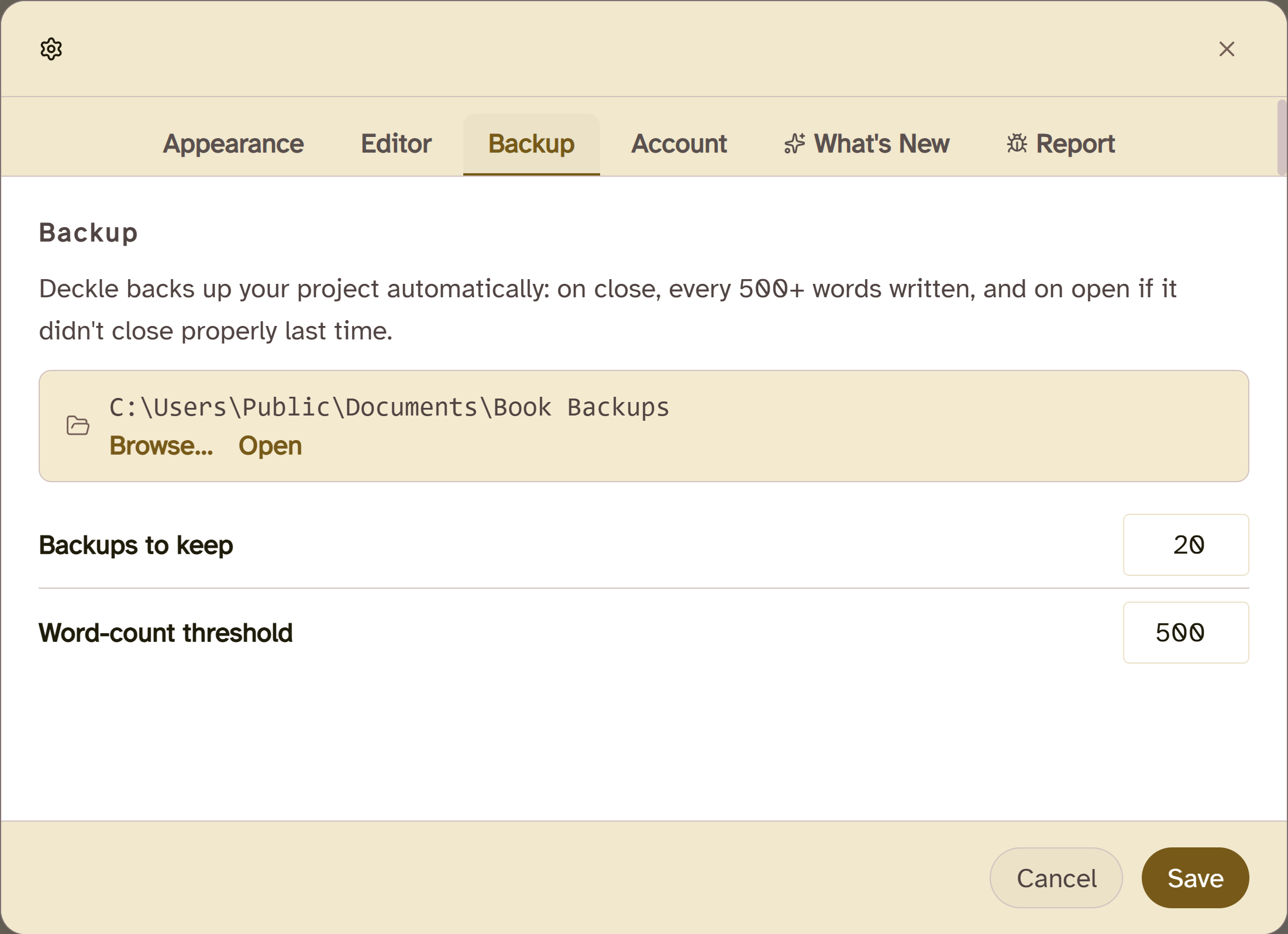 Deckle's backup settings
Where Deckle is behind Atticus:
- No browser, Chromebook, phone or tablet version. Atticus runs anywhere Chrome or Safari does.
- No cloud storage or built-in sync. Atticus keeps your books in its cloud. A Deckle project stays where you put it, and moving it between computers is up to you.
- No collaboration. Atticus added collaboration in December 2024.
Deckle is a one-time purchase. To try it, click Take Deckle for a Spin on the screen Deckle opens to. There is no card, no account and no time limit. It opens a sample novel with every screen open to explore, and you can restyle it and export real EPUB, PDF and DOCX files. New writing is capped at about 500 words, and new documents and imports are blocked. The head-to-head is at Deckle vs Atticus.
FAQ
Can you use Atticus offline?
Yes, for writing. Atticus's help pages say importing, exporting and switching between books need a connection.
Is Atticus online only?
No. Atticus is a progressive web app that keeps working without a connection once it is open, and syncs when you reconnect.
Can Atticus export without internet?
Atticus's help articles, most recently on 5 June 2026, say "You do need to be online to import and export files". The undated homepage says you can format "with or without an internet connection". Test it during the 30-day refund window.
Is Atticus a desktop app?
Not a native one. Atticus is a progressive web app that you install from Chrome on Windows, Mac or Chromebook, and it then opens in its own window.
Does Atticus work in Microsoft Edge?
Atticus "strongly recommend[s] avoiding Edge browser". Use Chrome on a computer.
Where does Atticus store my books?
In Atticus's cloud. It saves automatically, and the Save button makes a backup of the whole account.
Can I use Atticus on two devices?
Yes, but Atticus advises one device at a time. Log out of the first device to force a sync, then log in on the second.
Sources
All retrieved 20 October 2026.
- Atticus: "Works online and offline", "with or without an internet connection", progressive web app, cloud storage and backups
- How to Access Atticus, Atticus (last updated 14 February 2024): Chrome install, Edge warning, offline writing, online import and export, one device at a time, backup button
- How to Install on Your PC, Mac, iOS, Chromebook or Android, Atticus (last updated 26 May 2023): install steps per device, what can't be done offline
- Atticus help, Do I need to be connected to the internet to upload a document or export my book? (28 October 2025) and Can I download Atticus on my iPad? (5 June 2026), retrieved 21 October 2026: import and export need a connection
- Atticus Support: progressive web app install, automatic cloud save, Save button as account backup
- Atticus Updates: EPUB export moved to the browser (2 November 2023), serverless exports and imports (13 September 2022)
- Use web apps, Google Chrome Help: what an installed web app is, and its offline limits
- Progressive web apps, MDN Web Docs (Mozilla): what a progressive web app is
- Atticus checkout, ThriveCart: 30-day money-back guarantee
Atticus and every other product name here belong to their owners. Chrome is a trademark of Google, and Edge of Microsoft. Deckle is not affiliated with or endorsed by any product named here.