

One search panel covers your whole project at once: every chapter and scene's body text, synopsis, and notes, so renaming something doesn't mean opening each document one at a time. See finding and replacing text across your manuscript for a full renaming workflow.
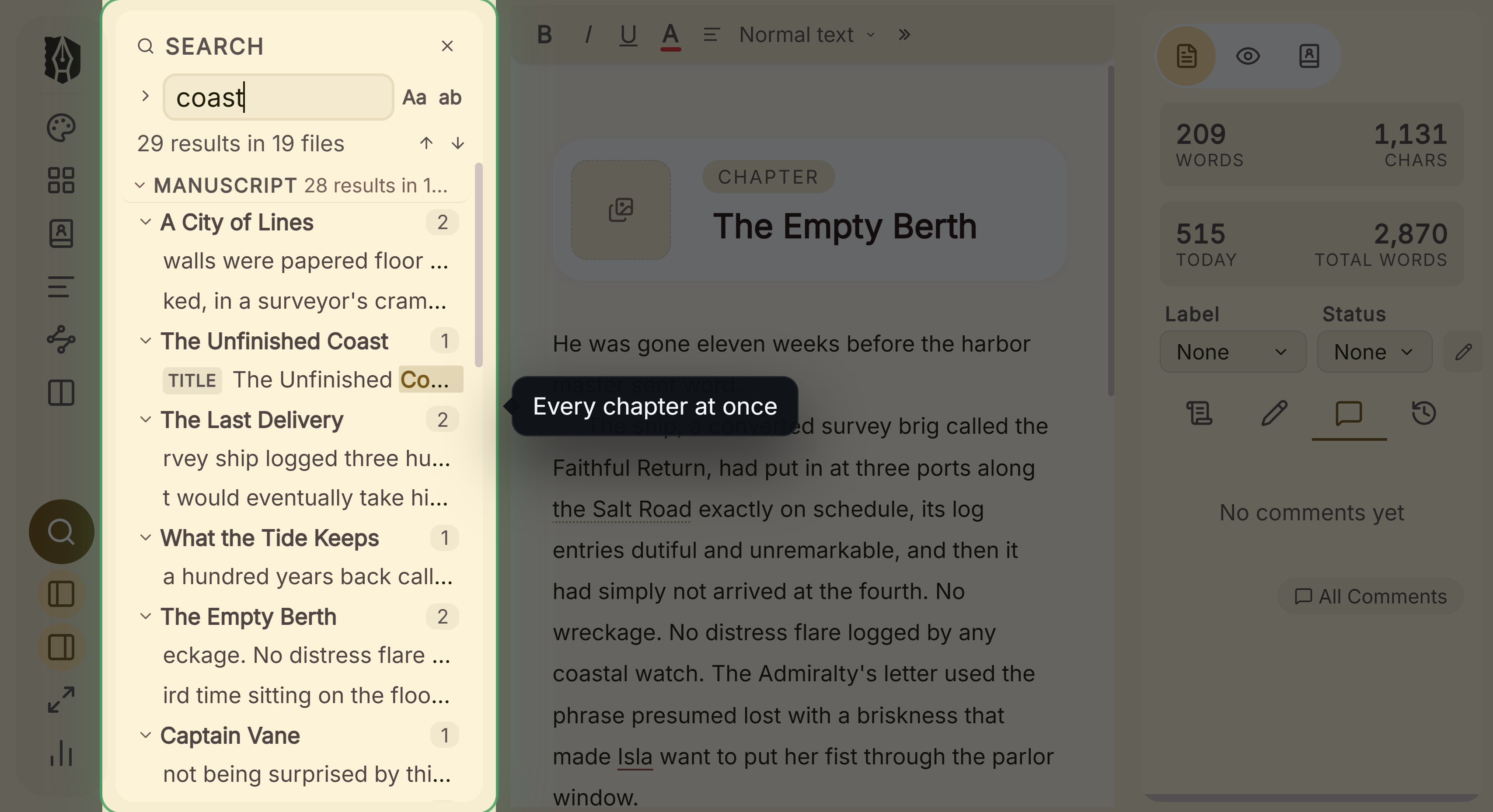 Project wide search with results
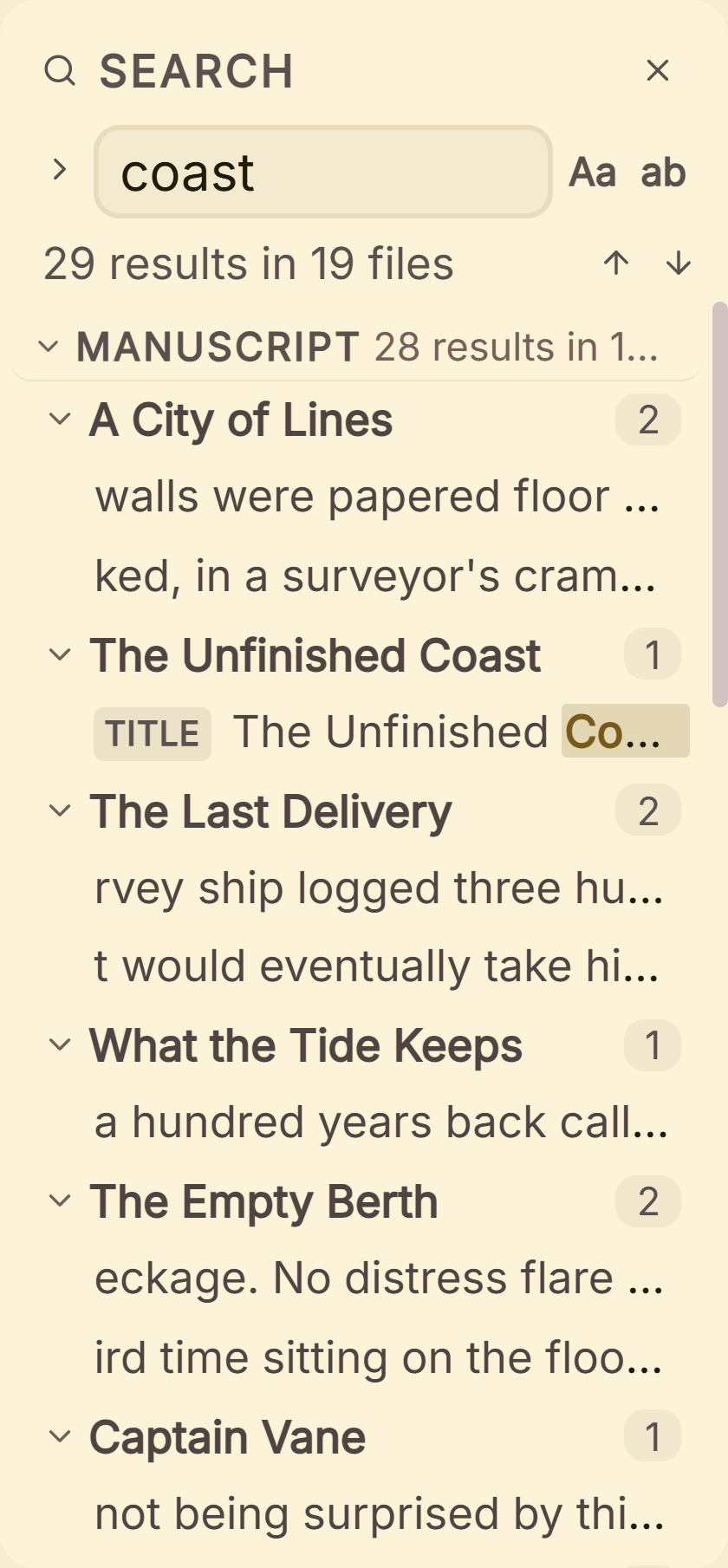 Search results list close up
What You Can Do
- Search across your entire project in one pass, not just the document you have open.
- Match case-sensitively or require whole-word matches.
- Replace a single occurrence, replace everything in one document, or replace everything project-wide.
- Jump between matches with on-screen buttons or keyboard shortcuts.
- See results grouped by document, so you know exactly where each match lives before touching anything.
How to Search
- Click the search icon in the left icon rail, or press Ctrl+F (Windows/Linux) / Cmd+F (macOS).
- Type your search term. Results appear grouped by document as you type.
- Toggle Aa (match case) or ab (whole word) if your term needs more precise matching.
- Click a result to jump straight to it. Body-text matches are highlighted right in the editor; synopsis and notes matches open the matching tab in the Inspector panel.
Replacing Text
- Replace one: click the "1" button to replace only the currently active match, then automatically move to the next.
- Replace in this document: each result group has its own replace-all button, scoped to just that one document.
- Replace everywhere: the "All" button replaces every match across your entire project in one action.
A Couple of Things Worth Knowing
💡 This searches document text, synopses, and notes, not document titles, and not Codex entries. If you're renaming a character, search handles every mention inside your chapters and scenes, but you'll still need to update their Codex entry and any document titled after them separately.
💡 Search terms are always literal text, never a pattern. There's no regex mode; special characters in your search term are treated as plain text to match, not as pattern syntax.
💡 Synopsis and notes matches don't highlight in place yet. Clicking one switches the Inspector to the right tab so you can see the field, but doesn't scroll to or underline the exact match the way a body-text match does.
💡 On macOS, there's no keyboard shortcut for Replace specifically. Cmd+H is reserved by the operating system for "Hide App." Open Search with Cmd+F, then click the small arrow to reveal the Replace row.
FAQ
Does Deckle's search look inside every chapter and scene, or just the one I'm editing?
Every document in your project at once. You don't need to open each one individually.
Can I use regex or wildcards in a search?
No. Search terms are always matched as literal text.
Will search find a character's name in my Codex, not just my manuscript?
No. Codex entries aren't included in search results, only document body text, synopses, and notes.
Is there a keyboard shortcut for Replace on Mac?
Not directly. Cmd+H is taken by macOS itself. Open Search with Cmd+F and use the chevron to expand the Replace row.