

Bring your entire Scrivener project into Deckle in one step: Draft, Research, and Notes, with formatting, embedded images, labels, statuses, and comments intact, not a plain-text dump that throws all of that away. See moving from Scrivener to Deckle for the full switch-over walkthrough.
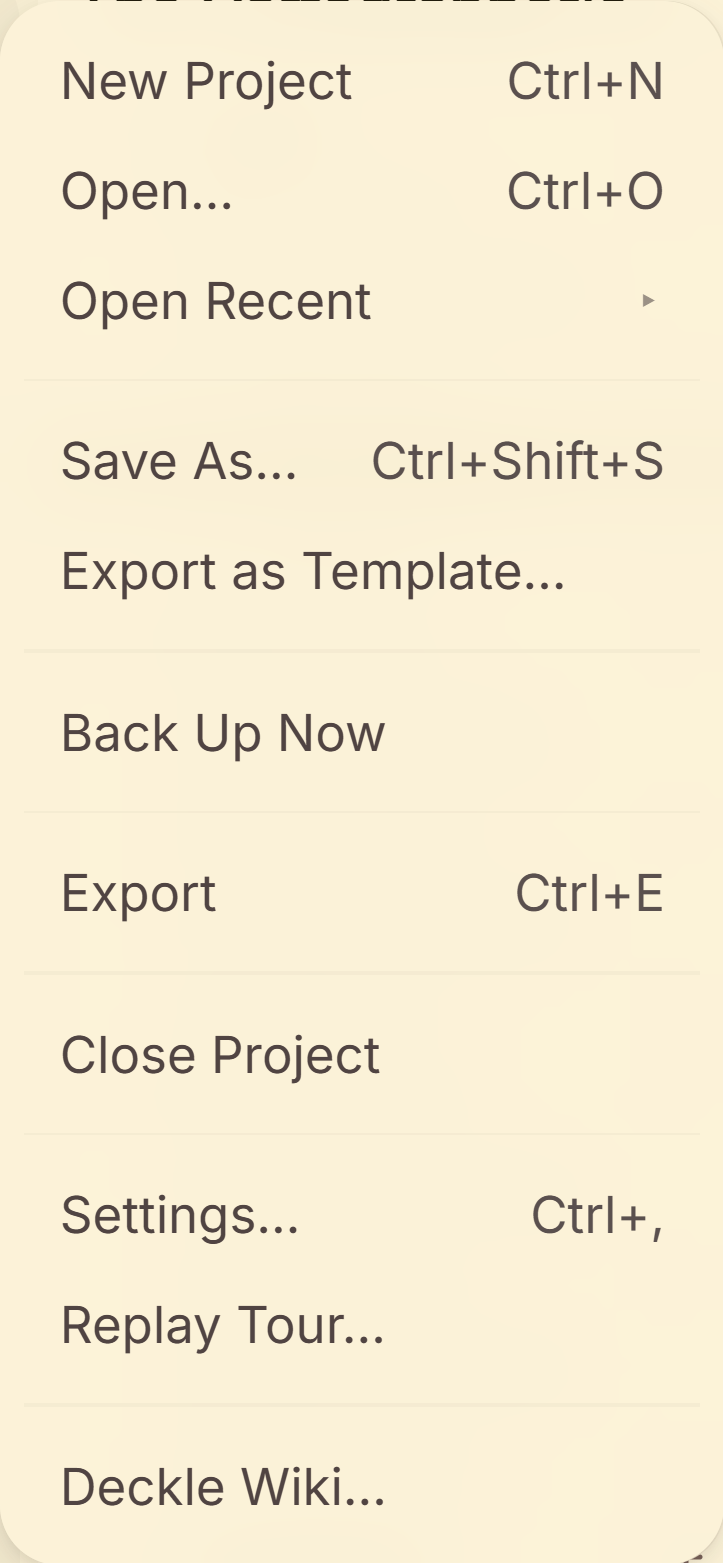 File menu showing the import options
What You Can Do
- Import a full Scrivener 3 project as a single ZIP backup.
- Keep your Draft structure (chapters, scenes, folders), Research, and Notes all separated exactly as they were in Scrivener, not merged together.
- Keep formatting, embedded images, per-document synopses, and inline comments/annotations intact, rather than flattened to plain text.
- Keep your Scrivener Labels and Statuses, matched to existing Deckle ones by name, or created fresh if they don't already exist.
How to Import a Scrivener Project
- In Scrivener: File → Back Up → Back Up To…, and check "Compress backup as ZIP file." This step is identical on Windows and Mac.
- In Deckle: open the Binder, click + → Import…, choose Scrivener (.zip), and select the ZIP file you just created.
- Deckle creates a timestamped "Imported [date]" folder in your Draft and another in your Research, and imports everything into them. Your project structure lands inside, not scattered loose into your existing binder.
What Actually Gets Imported
- Chapter/scene structure is detected automatically. A Scrivener binder item containing other Text items becomes a chapter (a container); a leaf Text item with no Text children becomes a scene.
- Front and back matter are recognized, not just imported as plain chapters. A binder item titled "Title Page," "Copyright," "Dedication," and similar (Scrivener's own Front Matter template names) map to Deckle's matching special page types, and any of Scrivener's own un-compiled placeholder tokens (like
<$Title>or<$FullName>, which Scrivener only fills in during its own compile step) are stripped automatically, instead of importing as literal leftover text. - Trash is never imported. Anything in your Scrivener project's Trash stays behind.
- Research and Notes both land in Deckle's Research area, alongside anything else outside your Draft/Manuscript folder.
A Couple of Things Worth Knowing
💡 A raw .scriv project folder can't be imported directly. Deckle needs the ZIP backup specifically. If you try to import the wrong file type, it tells you exactly how to create one (the same File → Back Up → Back Up To… steps above).
💡 Images get real format conversion, not just a raw copy. Scrivener's Mac/Nisus Writer heritage can embed image formats like TIFF and BMP that most tools and browsers can't render directly. Deckle decodes and converts these to real PNG files during import instead of passing along a file that would silently fail to display later.
💡 An incompletely-synced project gives a clear error, not a silent empty import. If your .scriv project syncs via iCloud, Dropbox, or similar (common on iPad) and wasn't fully downloaded before you backed it up, Deckle tells you so directly rather than importing two empty folders with no explanation.
FAQ
Can I import a Scrivener project directly, without zipping it first?
No. Deckle needs a ZIP backup, not the raw .scriv package. Scrivener's own File → Back Up → Back Up To… (with "Compress backup as ZIP file" checked) creates exactly the file Deckle needs, on both Windows and Mac.
Does Scrivener import bring over my Research and Notes, or just the manuscript?
All three: Draft, Research, and Notes come across, each landing in the matching area of your new Deckle project.
What happens to my Scrivener Trash?
It's skipped entirely and never imported.
Will my Scrivener Labels and Statuses carry over?
Yes, they're matched to your existing Deckle labels/statuses by name, or created fresh if they don't already exist.