

Turn your finished manuscript into a ready-to-publish EPUB, the standard e-book file format accepted by Amazon KDP, Apple Books, Kobo, and virtually every other e-reader and store. Deckle exports directly from your project, with the file tuned for whichever platform you're actually publishing to.
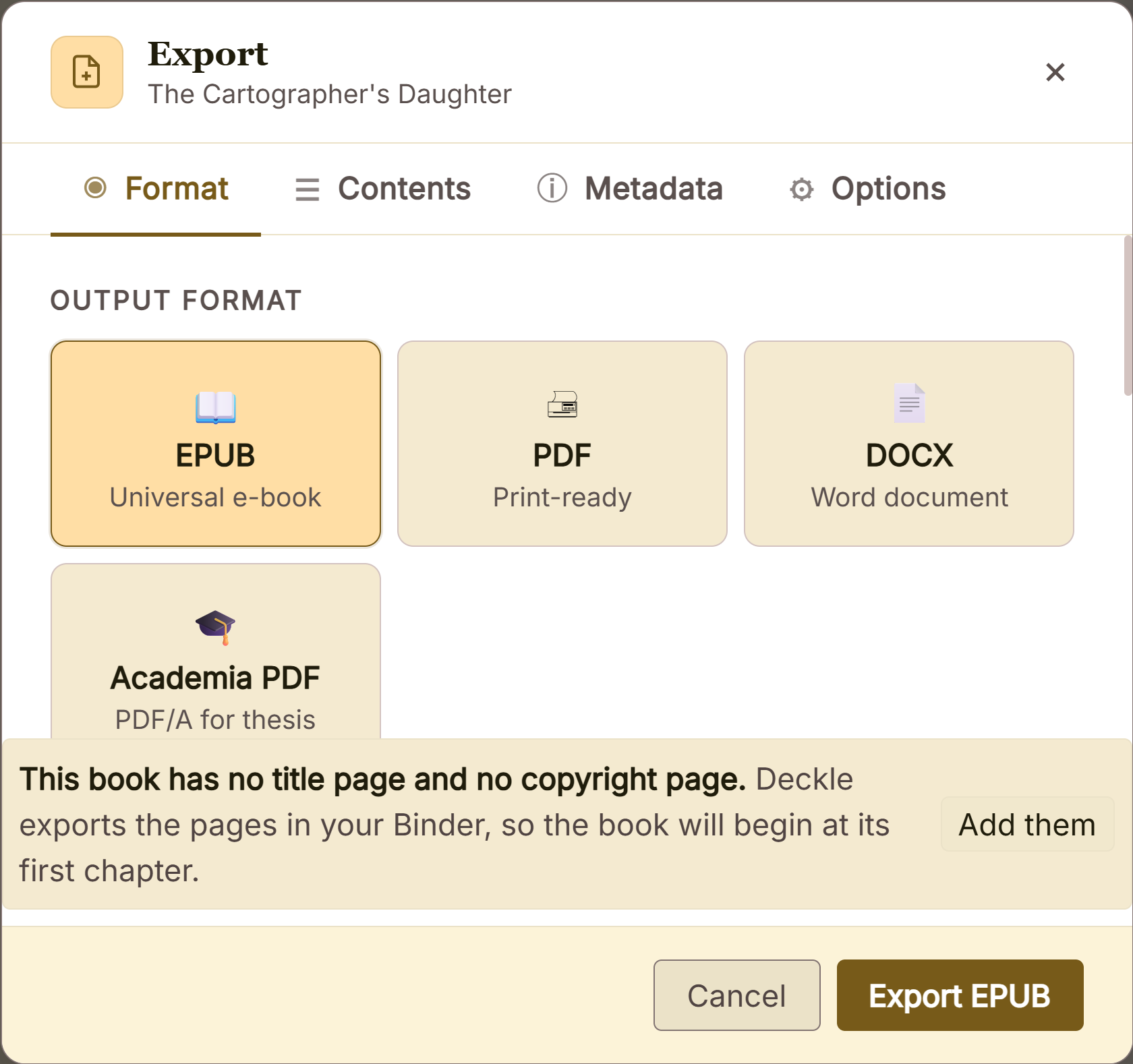 Export panel ready to build a book
 Format tabs for EPUB, PDF and Word
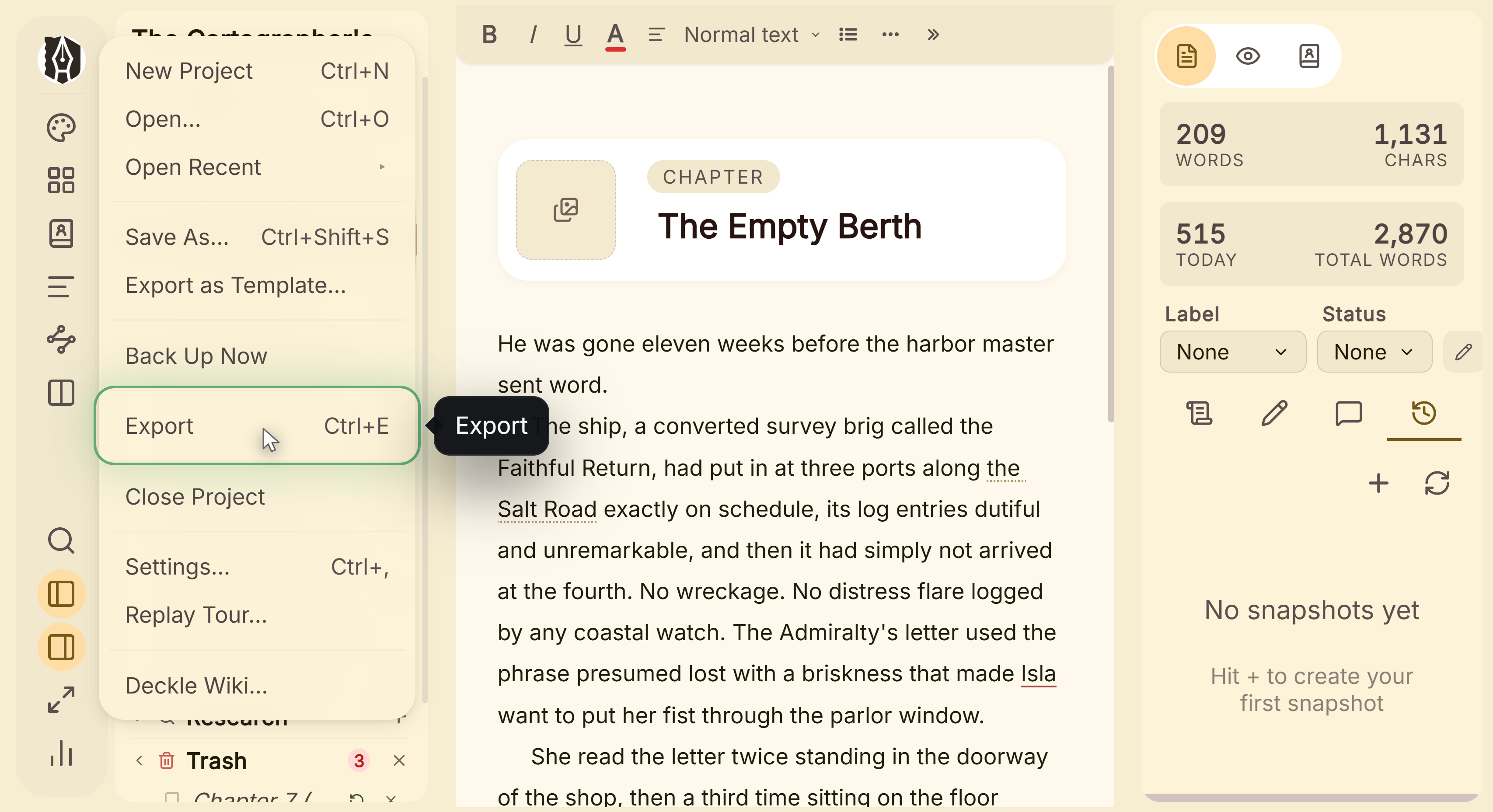 File menu open on Export
What You Can Do
- Export your whole manuscript as a single
.epubfile, straight from your project, no extra software required. - Choose the exact platform you're publishing to (Generic, Kindle, Apple Books, or Kobo), and Deckle adjusts image sizing and rendering details to match that platform's e-reader engine.
- Get an automatically generated table of contents built from your chapter titles.
- Catch broken or missing images before export, instead of finding out after you've already uploaded a bad file.
How to Export an EPUB from Deckle
- Open Compile from your project.
- On the Format tab, select EPUB.
- Under Platform Target, pick Generic EPUB, Kindle (KPF), Apple Books, or Kobo.
- Optionally, switch to the Options tab to turn the Table of Contents on or off.
- Click Export EPUB, choose where to save the file, and Deckle compiles it.
Choosing an EPUB Target: Generic vs. Kindle vs. Apple Books vs. Kobo
All four options produce the same .epub file type; the target only changes how Deckle renders and optimizes it internally.
- Generic EPUB: the safe default when you don't know your destination platform yet, or want one file that works broadly. Uses standard image sizing with no platform-specific rendering tweaks.
- Kindle (KPF): for Amazon devices and KDP. Deckle caps image dimensions to Kindle's display limits and injects soft-hyphen line-breaking hints into the text so long words wrap more cleanly on Kindle's renderer. See Amazon KDP EPUB Requirements for KDP's own formatting specs beyond what Deckle handles automatically.
- Apple Books: for iBooks and iOS. Allows the largest image dimensions of the four targets, applies Apple Books-specific CSS adjustments, and writes Apple's own
com.apple.ibooks.display-options.xmlfile into the EPUB package. - Kobo: for Rakuten Kobo devices. Applies CSS overrides that compensate for known quirks in Kobo's reading engine (it can otherwise override body margin, padding, and font size), and correctly tags the cover image the way Kobo's store expects.
A Couple of Things Worth Knowing
💡 The exported file is always .epub, no matter which target you pick. "Kindle (KPF)" describes what the file is tuned for, not a different file type: you'll still get a standard .epub you can upload wherever that platform accepts one.
💡 Deckle checks for problems before it lets you export. If an image references an external URL that was never saved locally, is missing from disk, or a document is nested somewhere it can't be exported from, Deckle flags it before compiling instead of producing a broken file.
💡 Table of Contents applies no matter which target you choose. It's set once on the Options tab and carries over regardless of platform.
FAQ
Does choosing the Kindle target actually produce a .kpf file?
No. Deckle always exports a standard .epub file. The Kindle target optimizes that EPUB for Kindle's renderer (image sizing, hyphenation); it doesn't change the file extension or produce Amazon's separate KPF format.
What's actually different between the four EPUB targets?
Image size limits and some rendering/CSS details tuned for that platform's e-reader engine. The manuscript content itself is identical across all four; only how it's optimized and displayed changes.
Will my table of contents be generated automatically?
Yes, if the "Include Table of Contents" option is turned on (Compile → Options tab). It's built automatically from your chapter titles.